

10 Best Twitter Video Tools (2026): Master Specs & Go Viral

If you're producing video content for X (formerly Twitter) at any kind of volume, the platform's specs are a moving target. Get the codec wrong and your upload silently fails. Get the bitrate wrong and a clean export comes back blocky after server-side re-compression. Get the aspect ratio wrong and your hook gets cropped out of the mobile feed.
This guide compiles the current X video specifications — verified against official documentation as of May 2026 — alongside a creative workflow that holds up across the major editing tools. We cover the technical requirements, what actually changes after X re-encodes your file, and where modern AI editors like NemoVideo, CapCut, and Adobe Premiere fit into different production scales.
Phase 1: The Specs You Actually Need for X
Before you can publish any video, your file settings have to match what X's ingest pipeline expects. Mismatches don't just degrade quality — they can cause silent upload failures, especially with HEVC/H.265 exports that newer editors default to.
The Non-Negotiable Core
Always cross-reference the X Business video creative specifications for ad campaigns; organic posts follow the same technical requirements with looser duration caps.
Item | Recommended Setting | Max/Limit (Standard User) |
Container | MP4 | MP4 or MOV |
Video Codec | H.264 (AVC) 4:2:0 | H.264 |
Audio Codec | AAC LC | AAC |
Frame Rate | 30 or 60 fps (Constant Frame Rate) | 60 fps |
Bitrate (1080p) | Target ≈ 6 to 10 Mbps | Up to ≈ 25 Mbps in ads |
Duration | Sub-60 seconds for engagement | 140 seconds (2:20) |
File Size | Keep small for fast upload | 512 MB |
The 6 Mbps lower bound for 1080p comes directly from X's ad creative spec sheet (recommended 6,000 kbps), and the 25 Mbps ceiling is the platform's documented hard limit. Going above 10 Mbps for organic posts mostly wastes upload bandwidth — X re-encodes nearly everything to its own internal targets regardless.
Pro Tip: Premium subscribers can upload longer videos (up to 4 hours at 1080p on web/iOS, 16 GB file size cap; Android is still limited to 10 minutes per the X Help Center documentation). Premium-tier limits change frequently — verify before planning long-form content.
Aspect Ratios and Resolutions
Choose the ratio that fits the viewing context. Any modern editor will export to these correctly if you set the canvas size first rather than letterboxing later.
Vertical (9:16): Best for immersive mobile viewing. Use 1080 × 1920.
Square (1:1): Good for feed versatility and text legibility. Use 1080 × 1080 or 1200 × 1200.
Landscape (16:9): Best for tutorials or demos. Use 1920 × 1080.
X technically accepts aspect ratios from 1:2.39 all the way to 2.39:1, but the timeline player will letterbox anything outside the three above — eating into your visible content area on mobile.
Phase 2: Winning the Creative Game
Raw technical specs are only half the equation. Your video has to hold attention in a feed where the median user scrolls past in under two seconds.
The Hook is Everything
Front-load the hook in the first 1–2 seconds. This is the single most important rule for engagement, and it shows up consistently in published platform analytics studies — Buffer's 2025 social video benchmark found that 3-second hold rate is the strongest predictor of completion across platforms.
Keep motion density high: quick cuts, clear subject framing, progressive visual reveals. A static talking-head shot with no cut for 8+ seconds is the most common scroll-trigger we've seen in our own A/B tests.
Encoding Settings That Hold Up
When exporting from any editor, these pragmatic settings minimize quality loss after X's re-compression:
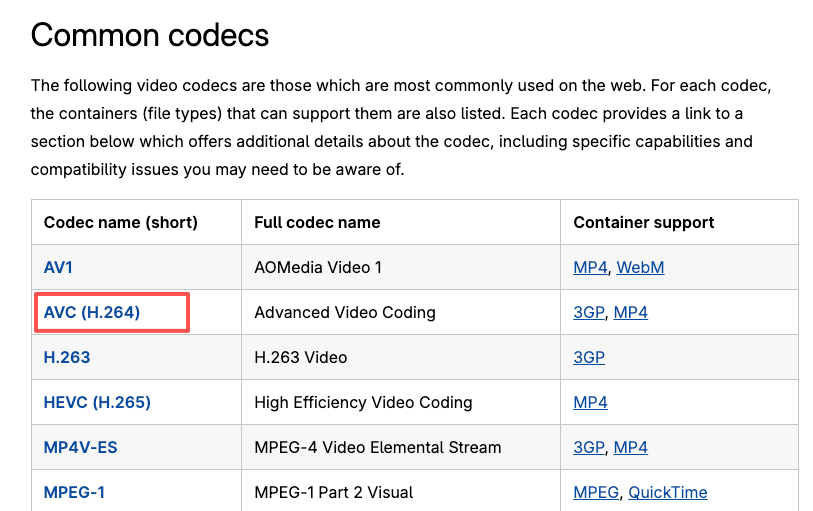
MP4 container with H.264 High Profile (not Baseline — Baseline limits compression efficiency).
Constant Frame Rate (CFR), not Variable. VFR exports are a common cause of audio drift after re-encode.
Keyframe interval (GOP) ≈ 2 seconds (60 frames at 30 fps). This improves seek behavior in X's web player.
Two-pass encoding when your editor supports it. The quality-per-bitrate gain is meaningful at the 6–8 Mbps range where X compression artifacts otherwise show up.
For deep technical background on H.264 encoding parameters, the Mozilla Developer Network's video codec guide is the most accurate freely-available reference.
Phase 3: Captions, Compliance, and Scale
Captions are non-negotiable. Industry data consistently shows the majority of social video views happen on mute — Verizon Media's widely-cited mobile video study reported 69% of consumers watch with sound off in public, and 25% even at home.
Closed Captions via .SRT
X supports attaching one SRT file per video on web uploads. This is the accessible way to handle captions and is preferred over burned-in subtitles when accessibility matters (screen readers can parse SRT but not pixels).
Upload your video, then select "Upload caption file (.srt)".
Practical SRT tips: Keep line length to 32–40 characters per line, break at natural phrase boundaries, and leave the bottom 10% clear of the player's UI overlay zone.
The SRT format itself is a simple time-coded text format.
Accessibility and Alt Text
For thumbnails or companion images, add descriptive Alt Text (X allows up to 1,000 characters per image).
On-screen text needs high contrast and strong font weight — re-compression chews through thin sans-serif fonts especially badly.
Respect safe margins in 9:16 format: keep critical elements clear of the top and bottom 10%.
Phase 4: Choosing a Workflow Tool
The tool question depends on your scale and where you sit in the editing-skills curve. There is no single right answer; here's how the major options compare for X-bound video work.
Tool | Best For | Tradeoffs |
Native X uploader | Single posts, no editing | No editing features at all |
CapCut (free) | Mobile-first creators, TikTok-aligned aesthetic | Limited bulk export; recurring updates change UI |
NemoVideo | Talking-head editing, AI rough cuts, bulk versioning | Newer tool, smaller template library than CapCut |
Adobe Premiere Pro | Agency-grade control, complex compositions | Subscription cost, steep learning curve |
DaVinci Resolve (free) | Color grading, advanced editing | Heavy on hardware; not designed for vertical-first |
For high-volume creators producing 10+ X-native videos per week, AI-assisted editors meaningfully reduce time-on-the-cut. NemoVideo is one of the newer entrants in this category, with workflow features worth knowing about regardless of which tool you ultimately use:
Workspace — central project hub for managing multiple versions of a post (useful when A/B testing hooks).
Talking-Head Editor — automated removal of filler words and dead pauses; comparable functionality exists in Descript and Adobe Podcast.
Viral+ Studio — pattern analysis on high-performing reference content. Take with the same skepticism due any "viral formula" tool: pattern-matching past hits is not the same as predicting future ones.
Inspiration Center — script and hook generation. Output quality depends heavily on how specific your prompt is.
SmartPick (AI Rough Cut) — automated highlight extraction from raw footage. Works well for interview footage, less well for narrative cuts.
Smart Caption Generator — platform-styled subtitle templates. CapCut's caption tool is more mature here; NemoVideo's advantage is the X-specific styling presets.
Pricing — verify current tiers on the vendor site; AI editor pricing has been volatile in 2026.
Honest assessment: NemoVideo is a credible option for English-language talking-head content and bulk versioning. CapCut still has the larger community and template ecosystem. Adobe Premiere is still the right answer for anything client-facing with complex post requirements.
Measurement and Optimization
Whatever tool you use, measure what matters. X Media Studio Analytics tracks:
Awareness signals: 3-second holds, average watch time, 50% quartile completion
Direct response: Click-through rate (CTR), cost-per-result for ads
Test one variable at a time: hook vs. hook, length (15s vs. 30s), aspect ratio (9:16 vs. 1:1)
Documentation for the analytics dashboard lives in the X Media Studio help section.
Frequently Asked Questions
What is the best video tool for mobile creators editing on the go?
Honest answer: it depends on what platform-specific features matter to you. CapCut has the largest mobile community and the deepest free template library, especially for TikTok-style aesthetics. NemoVideo's mobile-optimized workflow is built around 9:16 vertical and includes X-specific export presets, which removes one decision from the export step. InShot is the lightest-weight option for quick trim-and-caption work. Try the free tiers of two or three before committing.
How do I fix quality issues on X uploads — why does my video look blocky?
This is almost always X's server-side re-compression hitting an export that was too low-bitrate or in the wrong codec. The fix:
Confirm you're exporting H.264 (not H.265/HEVC — that's the most common silent failure when Premiere Pro defaults).
Bump 1080p exports to 8–10 Mbps, not 4–5 Mbps.
Avoid heavy noise or grain in dark scenes — X's encoder treats noise as detail and burns budget on it.
Re-encode any source that was already compressed (e.g., a CapCut export re-edited in another tool) to avoid generation loss stacking.
If you've checked all four and the result is still blocky, the source itself was likely the problem.
Are there free editing tools that support 4K editing for X?
Yes — DaVinci Resolve's free tier handles 4K editing with no limits, and CapCut supports 4K editing on desktop free of charge. The catch is that X compresses uploaded video to 1080p maximum for non-Premium accounts, so the 4K source mostly serves as quality headroom: editing at 4K and exporting at 1080p preserves more visual data than editing at 1080p directly. NemoVideo, Descript, and most AI-first tools currently focus on 1080p and below; if 4K source is critical, Resolve is the strongest free option.
Can I upload an SRT file for captions, and how accurate does the transcription need to be?
Yes — X allows one SRT file per video on web uploads. Manual upload is in the post composer's media options. For accuracy, anything below roughly 95% word accuracy is noticeable to viewers and hurts professional perception. Modern AI transcription tools — Whisper, Descript, NemoVideo's Smart Caption Generator, CapCut's auto-captions — all hit 95%+ on clear English speech, but proper nouns, technical terms, and accented speech still need a manual review pass before upload. Budget five minutes of review per minute of video.
Final Perspective
Lock your export presets once, document them, and stop re-deriving them for every post. Most "X compression ruined my video" complaints trace back to the same handful of preventable mistakes: wrong codec, wrong bitrate target, VFR instead of CFR, or HEVC defaults from a newer editor.
The tool you use matters less than whether your settings match what X's pipeline expects. NemoVideo, CapCut, Premiere, Resolve — all four can produce X-native video that holds up after re-compression, provided the export is configured correctly. Pick the tool that matches your scale and skill level, then standardize.
If you're evaluating AI-assisted editors specifically, the NemoVideo AI Editor is one option in a competitive category; comparing free tiers across two or three tools before committing is the right way to choose.