

Best AI Video Generators for Reels (2026)
Hi, Dora here. I bought three AI video tools last month. Two of them are sitting in my bookmarks, untouched. One of them is open right now.
That's the whole story, really — but since you're here trying to figure out which Reels generator won't waste your time or your credits, let me walk you through what I actually found after running the same brief through four different tools, back to back, with a timer.
This piece isn't a generic "AI video tools" roundup. It's specifically about Reels — vertical format, 9:16 output, caption placement, audio sync, and what happens after the AI spits something out. Because the post-generation workflow is where most of these tools fall apart, and nobody talks about that part.
What to Look for in an AI Reels Generator
Before we get to the tools, let's get specific about what Reels actually need. "Supports vertical video" is not the same as "built for Reels."
Vertical output (9:16 native)
The Instagram Reels spec is 9:16 at 1080×1920 pixels for full-screen viewing. That part everyone knows. What's less obvious: some tools generate in 16:9 and then crop, which is a very different thing. You lose resolution. Faces get cut. Text that looked centered suddenly isn't.
You need a tool that generates native 9:16 video, not one that crops after export—because the quality difference is obvious on modern screens. When you’re publishing 5–8 videos a day, manual reframing just doesn’t scale.
Also keep this in mind: when a Reel shows in the main feed, Instagram crops it to a centered 4:5 window. So your key visuals and text must stay in the middle. Any tool that doesn’t account for this in export settings will slow you down.
Length, quality, and speed
Reels now support up to 3 minutes, but in practice, hooks need to land in the first 2–3 seconds or viewers scroll. The tools I actually trust generate shorter outputs by default — 30 to 60 seconds — and let you push longer if needed, not the other way around.
Quality-wise: upload at the highest resolution the tool allows. Instagram compresses on upload, so starting at 1080×1920 is the baseline — anything lower and you're giving the algorithm's compression engine even less to work with. According to Buffer's Instagram size guide, 1080×1920 at 9:16 is the standard that keeps Reels clean across all placements.
Speed matters at volume. A tool that takes 8 minutes to generate a 30-second clip is not a production tool. It's a demo. I tracked generation time across tools — that number is in the comparison table below.
Post-generation editing support
Here's the part that costs you an hour without warning: the tool generates something, it's 80% good, and then you can't fix the 20% without rebuilding the whole thing.
The best Reels generators let you edit after generation — swap music, adjust caption timing, re-position text, trim the hook. That's not a premium feature. That's the minimum requirement for a production workflow. If a tool treats its first output as a finished product, skip it.
Best AI Video Generators for Reels in 2026
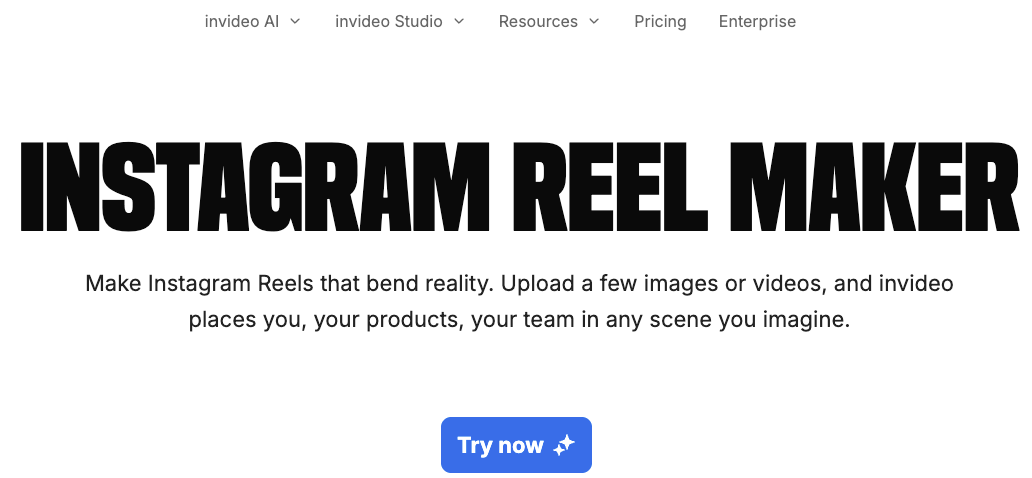
InVideo AI — Best for Text-to-Reels Volume
InVideo has been around long enough that I trust it not to break mid-project. The Reels workflow is genuinely solid — you describe your content, choose length, and it builds a draft with stock footage, music, and captions. The InVideo Reels maker now supports 200+ image, video, and audio models and can generate up to 30 minutes of video from a single prompt. That's overkill for most Reels, but it tells you the generation ceiling isn't your constraint.
The natural language editing function works well for broad strokes. It's less precise for granular cuts. But if your content is largely text-driven — scripts, listicles, how-tos — InVideo produces cleaner output than most tools I've tested.
Strengths: Template variety, strong stock footage library, solid caption system, product integration AI that places items into scenes without staging Limits: Hook writing is generic. I consistently rewrote the first 3 seconds manually Best for: Marketers building education or information-style Reels from scripts
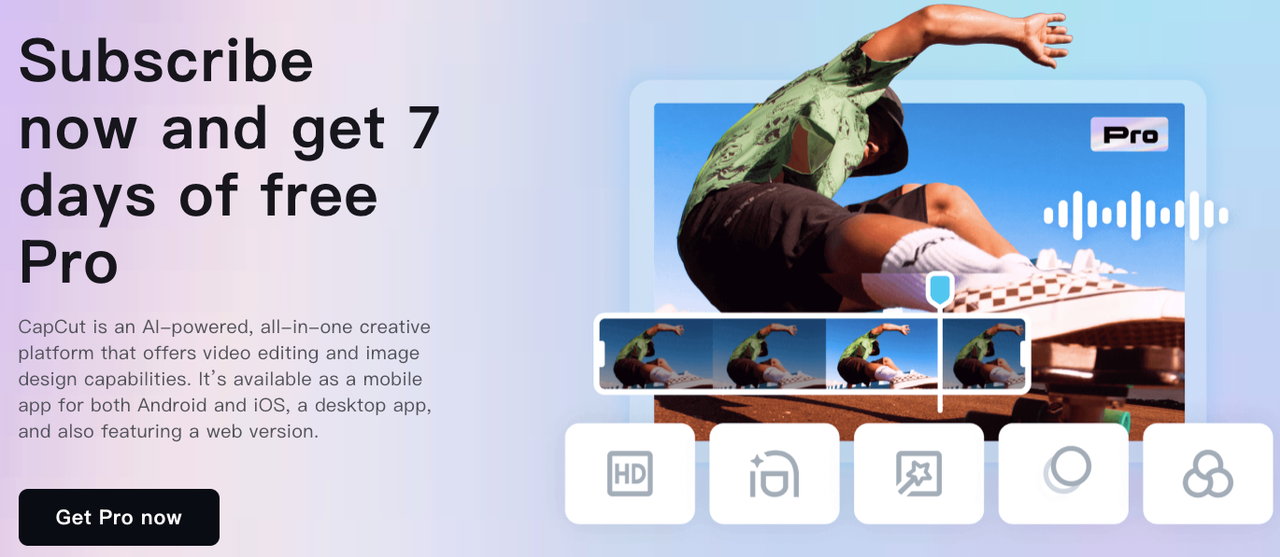
CapCut — Best Free Option for TikTok-Adjacent Creators
CapCut is the tool I keep coming back to when I need something fast and free. The AI features are lighter — it automates templates more than decisions — but for creators whose Reels strategy is closely tied to TikTok trends, the native feel of CapCut output just fits the platform.
One caveat: I've noticed the AI editing suggestions are improving but still surface-level. It'll suggest transitions. It won't suggest a structural rewrite. If you're already comfortable with the format and just need production speed, CapCut earns its place. If you need the AI to do heavier lifting on the first draft, it won't get you there.
Strengths: Free tier is genuinely useful, fast, excellent trending effects library, conversational AI guides you through the process Limits: AI is assistant-level, not agent-level. Less useful for long-form repurposing Best for: Creators who already know what they want and need fast production, not creative scaffolding
OpusClip — Best for Repurposing Long-Form into Reels
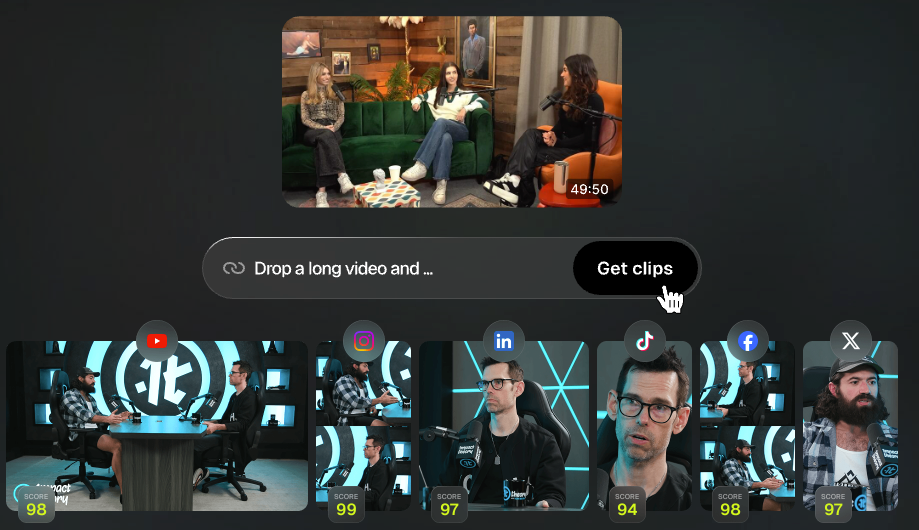
Different use case than the others, but worth including. OpusClip organizes clips based on a virality score and lets you schedule them directly to Instagram, TikTok, YouTube Shorts, Facebook, LinkedIn, and X — all from inside the platform. According to Zapier's February 2026 AI video tool roundup, OpusClip's subject tracking and prompt-based video editing make it one of the stronger options for repurposing existing long-form content into short-form clips.
It doesn't generate from scratch. If you need original Reels built from a prompt or script, look elsewhere. But for repurposing — turning a 40-minute session into 6 short clips — OpusClip" is hard to beat.
Strengths: Virality scoring, auto-clip detection, multi-platform scheduling, B-roll generation Limits: Input-dependent. Requires existing long-form content to clip from Best for: Podcasters, educators, and coaches recycling existing footage into short-form
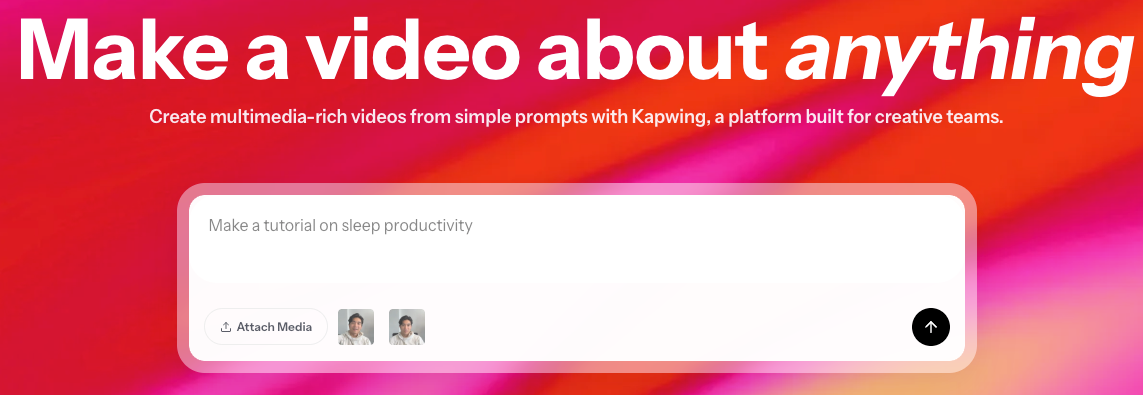
Kapwing — Best for Team Collaboration
Kapwing sits at a different point on the spectrum: less generative, more editorial. You feed it existing footage, and its AI tools handle transcription, trimming, caption generation, and format conversion. The Kapwing Reels editor lets you edit by transcript — delete a line of text, and the corresponding footage disappears. For teams working on talking-head content where the edit lives in the words rather than the cuts, that's a genuinely different way to work.
The shared workspace with real-time comments is the actual differentiator for brand teams. Most AI Reels tools are solo-workflow tools. Kapwing is built for handoffs.
Strengths: Transcript-based editing, auto-captions, brand templates, real-time team collaboration Limits: Less generative than InVideo or CapCut — needs existing footage as input Best for: Brand teams and small agencies handling client revision cycles
Comparison Table
Tool | Native 9:16 | Post-gen editing | Free tier | Best input type | Generation speed |
InVideo AI | ✅ Yes | ✅ Natural language | ✅ Limited | Text prompts, scripts | ~4–7 min |
CapCut | ✅ Yes | ⚠️ Template-level | ✅ Generous | Scripts, templates | ~1–3 min |
OpusClip | ✅ Yes | ⚠️ Clip-level | ✅ Limited | Long-form video | ~2–5 min |
Kapwing | ✅ Yes | ✅ Transcript-based | ✅ With watermark | Existing footage | N/A (editorial) |
Speed figures are based on my testing across 15+ runs per tool over two weeks. Your mileage will vary based on clip complexity and server load.
Post-Generation Workflow for Reels
Getting the first draft out is step one. This is where most guides stop. Here's what you actually need to do after.
Adding captions and hooks
Captions aren’t optional—most people watch Reels on mute, so no captions = lost viewers before the hook hits.
AI can generate captions, but what matters is control:
Font size: 48–64px (1080×1920)
Add stroke/shadow for contrast
Save as a preset to avoid redoing it every time
The first 2–3 seconds (hook) still need manual work. AI gets the content right, but not always the feel. Rule: if the first frame doesn’t spark curiosity or value, rewrite it—there’s no second chance.
Safe areas and text placement
Keep your main text between roughly 15% from the top and 25% from the bottom of the frame. The right-side buttons, bottom caption area, and top username bar all eat into the usable space. Everything below that bottom 25% risks overlap with Instagram's native UI — the audio tag, the caption, the like/save/share cluster.
I can't tell you how many times I've seen a well-designed Reel get its CTA buried under the audio attribution. Test every output inside Instagram before scheduling. Don't trust the preview in the tool.
Music and audio sync
If you're using the tool's built-in music library, check licensing before you publish. Some AI tools source from royalty-free libraries that are still flagged by Instagram's rights detection system — a problem you won't know about until the clip is live and muted.
InVideo and Kapwing both pull from licensed commercial libraries. For CapCut, be careful with trending audio — some tracks are only licensed for use within the CapCut platform, which can cause issues when you export and upload via a third-party scheduler. Always verify the license tier against your intended use case before exporting.
Decision Guide: Which Tool Fits Your Workflow
Solo creators
If you're running your own account, doing 3–8 Reels a week, and you need the AI to do real lifting on the first draft — InVideo is the call. If your content is more template-driven and you're already comfortable with the format, CapCut's free tier is hard to argue with.
The honest difference: InVideo does more creative work for you. CapCut does more production work for you. Know which bottleneck is actually slowing you down.
Brand teams
You need consistency across outputs — same font, same caption style, same pacing. Kapwing handles this better than any other tool on this list, specifically because its shared workspace and brand template system were built for teams. InVideo has brand kit features too, but Kapwing is where collaborative revision cycles actually work.
The question for brand teams: does this tool let multiple people work in the same project without stepping on each other? Kapwing answers that directly. The others mostly don't.
E-commerce sellers
Volume and speed are your main constraints. You need to turn product descriptions, catalog shots, or URLs into Reels without rebuilding the process every time. InVideo's product integration AI — which places products into scenes without staging — is the most useful feature for this use case. CapCut handles fast turnarounds well once you have a format dialed in.
OpusClip is worth adding to the stack if you're doing live selling or product demonstrations — the long-form-to-Reel repurposing gets you mileage from content you've already produced.
FAQ
Q: Can you extend a video without losing quality? With loop and slow-motion methods — yes, usually. With AI scene generation — not be reliable. The generative methods introduce quality variance that depends heavily on source footage, platform output resolution limits, and how forgiving your use case is.
Q: What's the best free tool to extend video length? For most use cases: DaVinci Resolve for the slow-motion/retime approach (no output limits, no watermark), CapCut web for the loop method (fast, easy, watermark on free tier). Runway if you specifically need to generate new footage and can afford the credit burn.
Q: Can AI add new scenes to an existing video? Yes, tools like Runway and Pika do this. The quality threshold for "usable" is lower than most people expect before they try it. For non-face, non-speech footage in a visually simple context, it works well enough for short-duration additions (1–3 seconds). For anything more complex, budget time for multiple attempts and significant rejection.
Which Tool to Actually Try First
My honest shorthand: if you're producing from scripts or text prompts and need first drafts fast, start with InVideo. If you need free and fast and already know your format, CapCut. If you're repurposing existing long content, OpusClip. If you're running a team with revision cycles, Kapwing.
The right tool is the one you'll actually use under a deadline. Test it in a real brief — not the sample footage from the product demo. That's the only test that matters.
Previous Posts: