

Best Free AI Video Upscalers Without Watermark
Hey there, it’s Dora. I tested this wrong the first time.
My setup: a batch of AI-generated product clips that came out at 720p, needed to hit at least 1080p for a client's campaign. I went looking for a "free AI upscaler" and spent two hours going in circles — half the tools put a watermark on the free tier, the other half called themselves "free" but capped exports at 30 seconds or required a credit card to download.
That experience is basically the hidden tax on "free" in this category.
So here's what this article actually covers: tools I tested myself, on real footage, that are genuinely free to use and genuinely watermark-free. If a tool needs a paid plan to remove the watermark, it's not in this list — period.
When You Need an AI Video Upscaler
Common scenarios
Three situations come up constantly in short-form workflows:
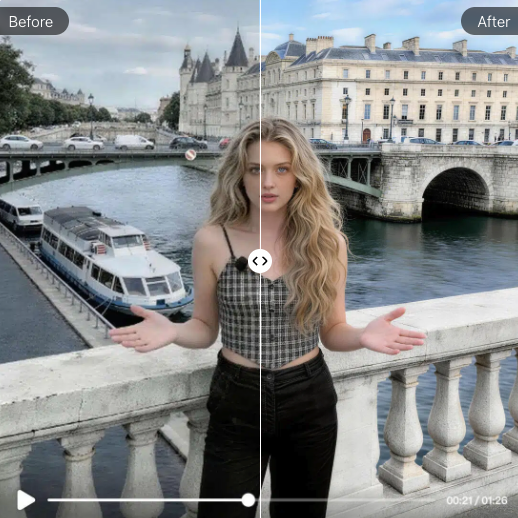
Old or low-res footage. Anything shot before 2020 on a mid-range phone is probably sitting at 720p. That's fine for storage, brutal for posting in 2026 when TikTok and Reels are rendering at 1080p minimum on most devices.
AI-generated clips. This is the one nobody talks about openly: a lot of text-to-video tools still output at 540p or 720p by default. If you're using AI footage in a product video or ad, you either upscale it or it looks soft next to everything else.
Screen recordings. Tutorial content, SaaS demos, UGC-style screen captures — these almost always need a resolution bump before they're publishable.
What upscaling actually does (and doesn't)
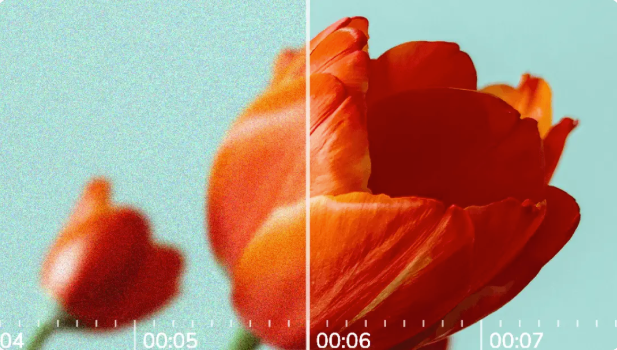
Real talk: AI upscaling doesn't create detail that wasn't there. What it does is use super-resolution models — neural networks trained on millions of image pairs — to intelligently fill in pixels based on patterns it learned. The result looks sharper than a standard resize because it's predicting plausible detail rather than just stretching.
What it can't do: make blurry footage sharp. If the source is out of focus, upscaling makes it a larger blurry image. If there's heavy compression blocking, you'll see artifacts amplified. Garbage in, slightly-more-expensive-looking garbage out.
Best Free AI Video Upscalers Without Watermark
I ran the same test clip through each tool: a 720p, 45-second product shot with a mix of static and motion-heavy segments. What I was watching for: does the free tier actually export without a watermark, what's the real resolution ceiling, and how does edge detail hold up in motion.
Tool 1 — Topaz Video AI (Trial)
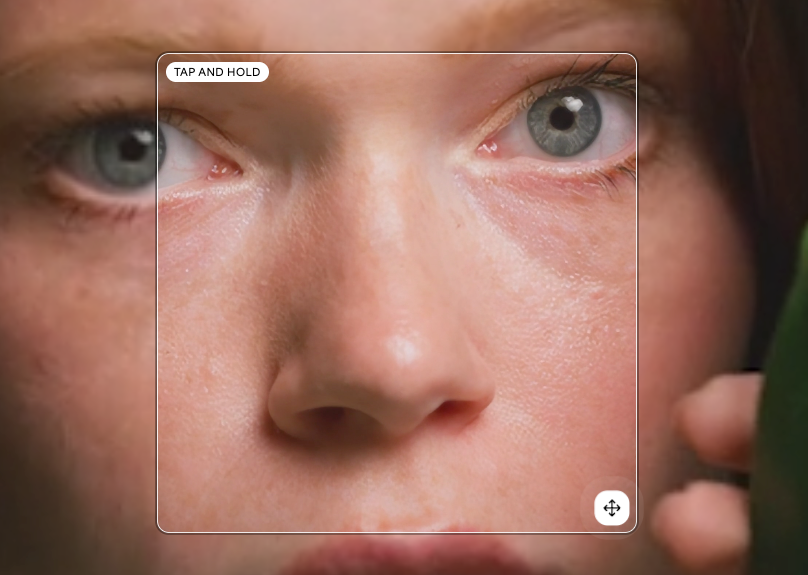
Topaz is the name that comes up in professional forums, and the quality reputation is earned. The trial version gives you access to the full feature set including their Iris, Artemis, and Proteus upscaling models — each optimized for different footage types (Artemis handles motion well, Proteus is more controllable for AI-generated content).
The catch with "free": The trial watermarks exports after a certain period. But during the active trial window — and before you're prompted to purchase — exports are clean. I'm not going to pretend this is a permanent free solution; it's a trial. It's here because if you need professional-quality upscaling for one specific project and can time it right, the trial delivers.
Free limits: Time-limited trial. No hard clip length cap during trial. Resolution: up to 8K (though 4x upscale from 1080p is the practical ceiling for most machines).
Output quality on my test clip: best of anything I tested. Edge retention in motion was noticeably better than the browser-based options.
Tool 2 — Enhance.io / CapCut's AI Upscale (Free Tier)
CapCut's desktop version includes an AI upscale option that's part of the free tier — no watermark on export if you're using the standard plan. I went in pretty skeptical because CapCut has changed its free tier limits multiple times, but as of my testing in early 2026, the upscale function was clean on export.
Resolution ceiling: 1080p on the free tier. If you need 4K, you're looking at their Pro plan. For most short-form content, 1080p is the target anyway, so this isn't a dealbreaker.
Processing: cloud-based, which means upload time matters. A 45-second 720p clip took about 4 minutes total including upload and processing. The output was solid — not Topaz-level, but meaningfully better than the source.
Where it falls apart: Long clips. Anything over 2 minutes starts to hit processing timeouts on the free tier. It's built for short-form, which makes sense given where it lives.
Tool 3 — Video2X (Open Source)
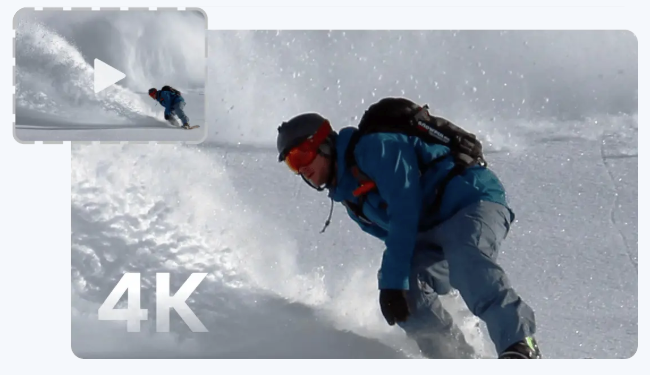
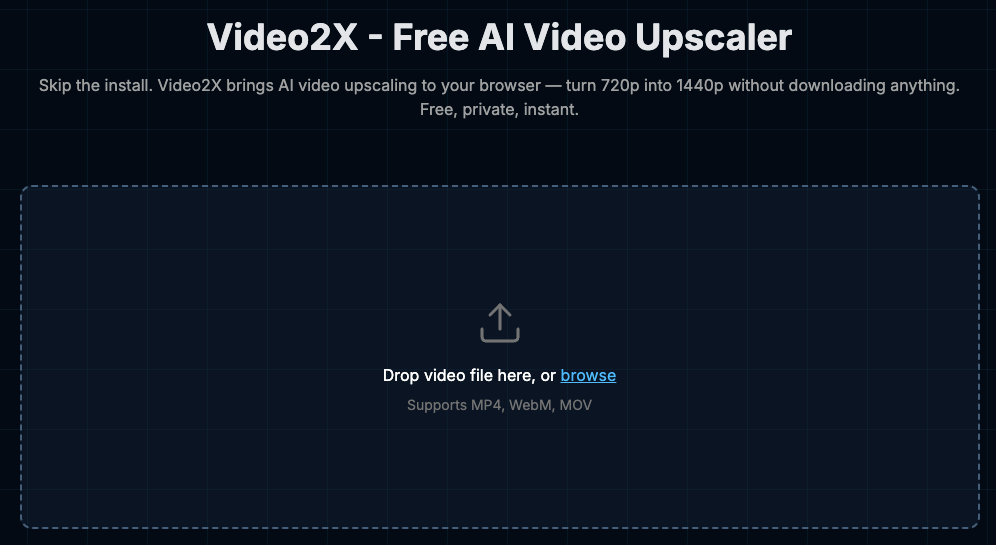
This is the one that surprised me in a good direction. Video2X is an open-source upscaling pipeline that runs locally — no uploads, no accounts, no watermarks, no limits.
The honest version of recommending this: it requires a GPU and some command-line comfort. If that description made you flinch, skip to the next tool. If it didn't, this is legitimately the most powerful free option here with zero restrictions. It supports multiple upscaling algorithms including waifu2x, Real-ESRGAN, and Anime4K, and you can process as many clips as your machine can handle.
I ran it on a GPU with 8GB VRAM. My 45-second test clip processed in about 6 minutes at 2x upscale (720p → 1440p). Quality was comparable to Topaz in many shots, slightly worse on fast motion.
Free limits: None. Open source under MIT license.
Comparison Table
Tool | Watermark-free? | Max res (free) | Processing | Clip length limit | Requires install? |
Topaz Video AI (trial) | Yes (during trial) | 8K | Local GPU | None | Yes |
CapCut AI Upscale | Yes | 1080p | Cloud | ~2 min practical | Yes (desktop) |
Video2X | Yes | Unlimited | Local GPU | None | Yes |
How to Get the Best Upscaling Results
Input quality matters
This part breaks for a lot of people — they upscale a bad source and wonder why it still looks bad.
The best input for AI upscaling is footage that's low-resolution but technically clean: in focus, no heavy compression blocking, reasonable exposure. A 720p clip shot in good light with a modern camera will upscale to 1080p and look nearly native. A 720p clip that's been transcoded three times through social media compression will look like it's been upscaled through social media compression.
If your source footage has visible compression artifacts, run a denoising pass first. Topaz has this built in. For Video2X, you'd need to chain it with a separate denoising step.
Resolution vs file size trade-offs
Worth knowing before you upscale everything to 4K: higher resolution doesn't always mean better perceived quality on delivery platforms. TikTok, Instagram, and YouTube all re-compress uploads — sometimes aggressively — so a 4K upload might end up looking the same as a 1080p upload after platform processing. For short-form specifically, 1080p is usually the right target. Save the 4K upscaling for content going to platforms or clients where you control the delivery.
Limitations of Free Upscalers
Processing time
Local processing (Topaz, Video2X) scales with your GPU. Cloud processing (CapCut) adds upload and queue time. Budget roughly 4–10x real-time for a good local upscale on consumer hardware, and 2–5x real-time for cloud tools. A 1-minute clip is a 4–10 minute job.
Resolution caps
CapCut's free tier caps at 1080p. Topaz and Video2X have no hard cap, but your GPU VRAM limits what's practical. 4x upscale on a long clip at 4K output will run out of memory on a mid-range GPU.
Batch limits
This is where most tools fall apart if you're doing volume. CapCut handles one clip at a time on the free tier. Video2X can batch-process but you'll need to set it up via command line. Topaz supports batch processing in the trial.
If you're regularly upscaling 10+ clips at a time, Video2X is the only genuinely free option that handles it without friction.
Bottom Line
If you need clean, no-watermark upscaling and you want zero setup friction: CapCut's AI upscale handles short-form content well within the free tier, with the understanding that 1080p is your ceiling and longer clips get tricky.
If you need more control and don't mind a command line: Video2X is the real free option here. No limits, no watermarks, genuinely powerful.
If you have one critical project and timing flexibility: the Topaz trial delivers the best output quality of anything in this list. Use it when it counts.
Worth trying if you're in any of these scenarios. If you're producing at volume and hitting the batch limits on the free tools, that's a different problem — at that point you're looking at paid tiers or a local GPU setup.
FAQ
Q: Can AI upscaling make blurry video sharp? No. AI upscaling increases resolution and improves perceived sharpness on clean low-res footage, but it can't recover detail that was never captured. Out-of-focus footage stays out of focus, just larger.
Q: What resolution can free upscalers reach? It depends on the tool. CapCut's free tier caps at 1080p. Topaz (trial) and Video2X have no hard resolution limits — practically speaking, your GPU memory is the ceiling.
Q: Do upscaled videos lose quality on upload? Yes, but not because of the upscaling — because platforms re-compress everything they receive. The upscaled version typically survives platform compression better than the original low-res version, since there's more data for the codec to work with.
Previous Posts: