

How to Use Gemini 3.1 Flash TTS for Video Voiceover
I went in pretty skeptical. Another TTS model, another "finally human-sounding AI voice" launch — we've heard this a few times now. But the audio tags caught my attention. Not because Google said they were expressive. Because they looked like something I could actually put inside a script and control, mid-sentence, without running the clip through a second tool.
So I spent about a week running the same three voiceover scripts through it — a product demo, a talking-head intro, a 30-second ad read — and comparing it against what I normally use. This is what I figured out about actually using it for video, not what the sales page says.
What You'll Need Before Starting
Google AI Studio access vs API access
For 90% of short-form creators, Google AI Studio is the right door. Free, no code, you paste a script, pick a voice, hit generate, download the file. That's it.
The Gemini API exists if you're batching — say, generating voiceovers for 40 product videos in one script. But if you're making one video at a time, the Studio interface is faster than setting up auth keys. API pricing runs per character of input text, which matters at scale but is basically irrelevant for one-off voiceovers.
Your script and target language
Two things to prep before you touch the tool:
A clean script — the actual words you want spoken, no stage directions mixed into the lines (we'll add those as tags in a second)
A language choice — the model covers more than 70 languages, but the audio tags themselves are English-only. You can combine English tags with non-English script, which is useful but worth knowing upfront.
One thing the docs don't emphasize: the input context window is 16K tokens for TTS. Roughly 12,000 words of script in a single generation. More than enough for short-form. If you're doing an audiobook chapter, you batch.
Step 1 — Write a Script With Audio Tags
How audio tags change your output (quick demo)
Plain version:
"I tested this tool for a week. The results surprised me."
Tagged version:
"[thoughtful] I tested this tool for a week. [short pause] [with slight surprise] The results surprised me."
I ran both through the same voice, same settings. The plain one reads it fine — neutral, clean, flat. The tagged one actually pauses after "week," and the second sentence has a small lift in it, like someone slightly reconsidering something they said. That's the difference.
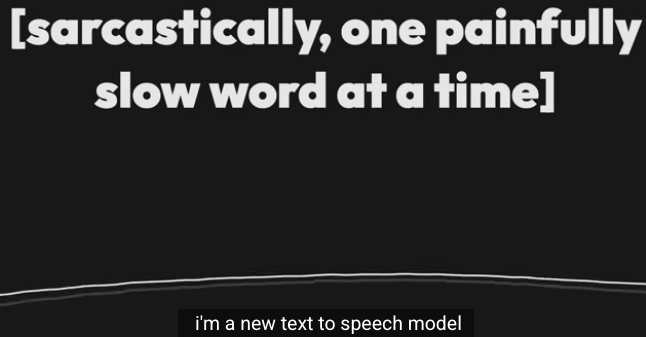
Tags are bracketed modifiers placed directly in your text. The model reads them as performance instructions, not as words to speak. Google's expressive speech model ships with over 200 of them.
Common tags creators actually use
After a week of testing, these are the ones I kept reaching for:
[pause] or [short pause] — controls rhythm. The single most useful tag.
[whispers] — for hook lines, reveals, anything intimate
[enthusiasm] / [excitedly] — openers on ads and hype videos
[thoughtful] — for reflection moments, reviews, "here's what I learned"
[laughs] / [sighs] — non-verbal texture. Use sparingly.
[neutral] — resets after an emotion tag so the line after it doesn't carry over
The rest of the 200-tag library exists, and you can get creative with things like [urgent] or [cautious]. But honestly, 80% of the voiceover work I did came from those six above.
When to stick with plain text instead
Tags are a trap if you overuse them. I made this mistake on day two — tagged every other sentence and the result sounded like a radio drama. Too much acting.
Skip the tags when:
The line is already neutral exposition — product features, steps, instructions
You're doing a long read (30+ seconds) where consistent tone matters more than variation
The scene prompt already sets the mood
Google's own guidance is that punctuation creates natural pauses, so commas and periods already handle a lot of rhythm work. Tags are for the specific moments — a laugh, a whisper, a beat of surprise. Not for the whole script.
Step 2 — Generate Voiceover in Google AI Studio
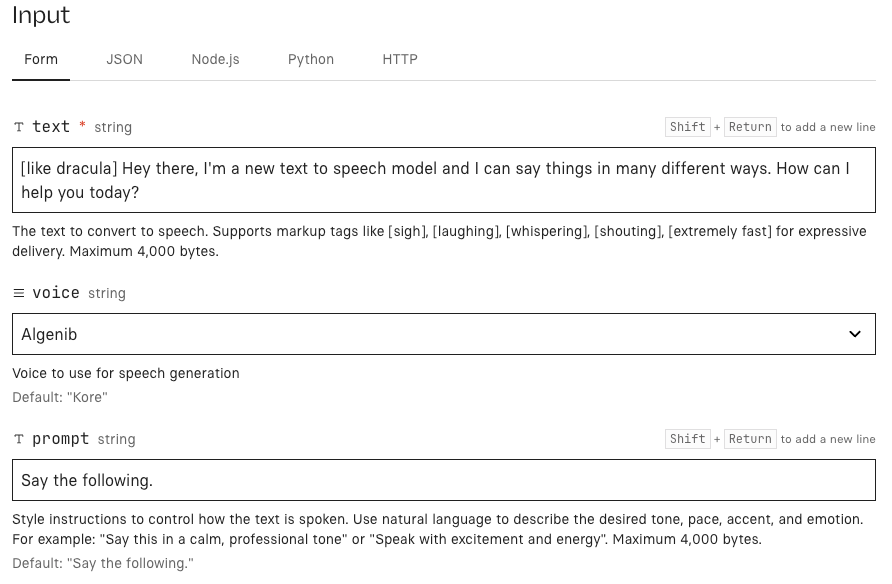
Choosing between voices
30 prebuilt voices, each with a distinct character. You can't upload a voice clone here — this is a standard library. Some stood out:
Kore — warm, clear, mid-range. My default for talking-head.
Charon — deeper, authoritative. Good for product demos, bad for hype ads.
Puck — lighter, more playful. Worked well for TikTok-native hooks.
Aoede — HD voice, higher clarity. I used this when the audio would be the main thing (no music bed).
Preview 4-5 on a one-line test before committing. Voices respond differently to the same tag — Charon's [enthusiasm] is not Puck's [enthusiasm].
Preview, regenerate, and export MP3 or WAV
Flow inside AI Studio:
Paste your tagged script
Pick voice and language
Generate — usually takes a few seconds for short clips
Preview in-browser
If something sounds off, regenerate before touching the script. Sometimes it's the model, not the writing.
Export — MP3 for web, WAV for editing
I regenerated about one in three takes on the first pass. By the end of the week, more like one in eight. You get faster at writing prompts the model understands.
Step 3 — Set Up Multi-Speaker Dialogue (Optional)
When multi-speaker matters for your content
Skip this section if you're doing solo narration.
It matters if you're making:
Podcast-style clips from a script
Two-character ad dialogues ("friend A recommending to friend B")
Interview-format skits
Educational back-and-forth
Format rules that reduce failed generations
The format per the Gemini API speech generation docs is strict:
Joe: Honestly, I'm just blown away by this new model.
Jane: Right?! This is a total game changer.
Speaker name, colon, line. Each speaker gets assigned a voice in the config. Two rules from my testing:
Keep speaker names consistent across the whole script. "Joe" and "joe" will confuse the model.
Don't mix tagged lines and untagged lines randomly. Either tag most of them or none of them. Mixed feels uneven in output.
The current limit is two speakers per generation. If you need three, you generate passes and stitches.
Step 4 — Import Audio into Your Video Workflow
Syncing voiceover to your cuts
Download the file. Drop it into your editor — CapCut, DaVinci, Premiere, doesn't matter. Treat it like any other voice track.
One thing I do: I generate the voiceover first, then cut the video to match the audio. The voiceover has natural rhythm built in (from the tags and punctuation), and fighting that rhythm in the edit is wasted work. Let the VO drive the cuts. Faster every time.
Auto-generating captions from the audio
Whatever your editor's auto-caption feature is — use it. AI-generated voiceovers transcribe cleanly because there's no background noise or weird diction. Accuracy on my tests was close to 100%, which is higher than my own voice gets through the same tool.
Exporting for TikTok, Reels, and Shorts
Nothing special here. Export MP4, 9:16, make sure the audio levels are normalized (voice-over coming in hotter than your music bed is the most common rookie mistake). Platforms compress audio hard on upload, so master a few dB louder than you think you need.
Common Mistakes and How to Fix Them
Voiceover feels robotic — tag placement issues
Usually it means not enough tags, or tags only at the start. Put them where the emotion actually shifts. A line like "I tested this for a week and the results surprised me" needs the tag near "surprised," not up front.
Output is too fast or too slow
Add [short pause] or [pause] tags manually. Or adjust punctuation — Google's docs note that commas and periods create natural pauses. Sometimes just changing a comma to a period slows things down enough.
Wrong accent or language drift
Be explicit in the setup. If you need a specific regional accent, name it in the director's notes or scene prompt — the DeepMind team's guidance recommends aligning the style prompt, the text content, and the tags in the same direction. A Brixton accent needs British English script, not American idioms.
Conclusion
Take this with a grain of salt — it's one week of testing, and the model is still in preview so behavior will shift. But the short version: audio tags are the first TTS feature in a while that actually changed how I write voiceover, not just how I generate it.
The workflow that worked for me: write the script rough, read it out loud, mark the spots where I'd naturally pause or change tone, then convert those marks into tags. Generate. Listen. Regenerate the one line that's off, not the whole thing.
If you've been paying for a voice tool and the only thing it does better is voice cloning, this is worth a swap for most work. If you need cloned voices, keep what you have and use this for everything else.
One less manual step per video. Every day. That adds up.
FAQ
Q: Do I need coding skills to use audio tags? No. Tags are just bracketed text inside your script.
[whispers] You won't believe this.Q: Does the output work with any video editor? Yes. MP3/WAV are universal. One note: all audio generated by the model carries a SynthID watermark — imperceptible to listeners, doesn't affect quality, but it's there.
Q: What audio formats does Gemini 3.1 Flash TTS export? MP3 and WAV from AI Studio. Via API, you can also get OGG. The underlying model produces 24kHz PCM — fine for all short-form video use.
Previous Posts: