

How to Generate Videos Faster with Seedance 2.0
Seedance 2.0 can make a video in under a minute. But most creators still spend hours on one clip — not because the tool is slow, but because they keep re-running the same generation over and over.
The fix isn't a better prompt. It's a better process.
This guide shows you how to cut down retries, set up your inputs the right way from the start, and build a workflow that actually saves you time.
Why Most Creators Lose Time Rerunning Generations
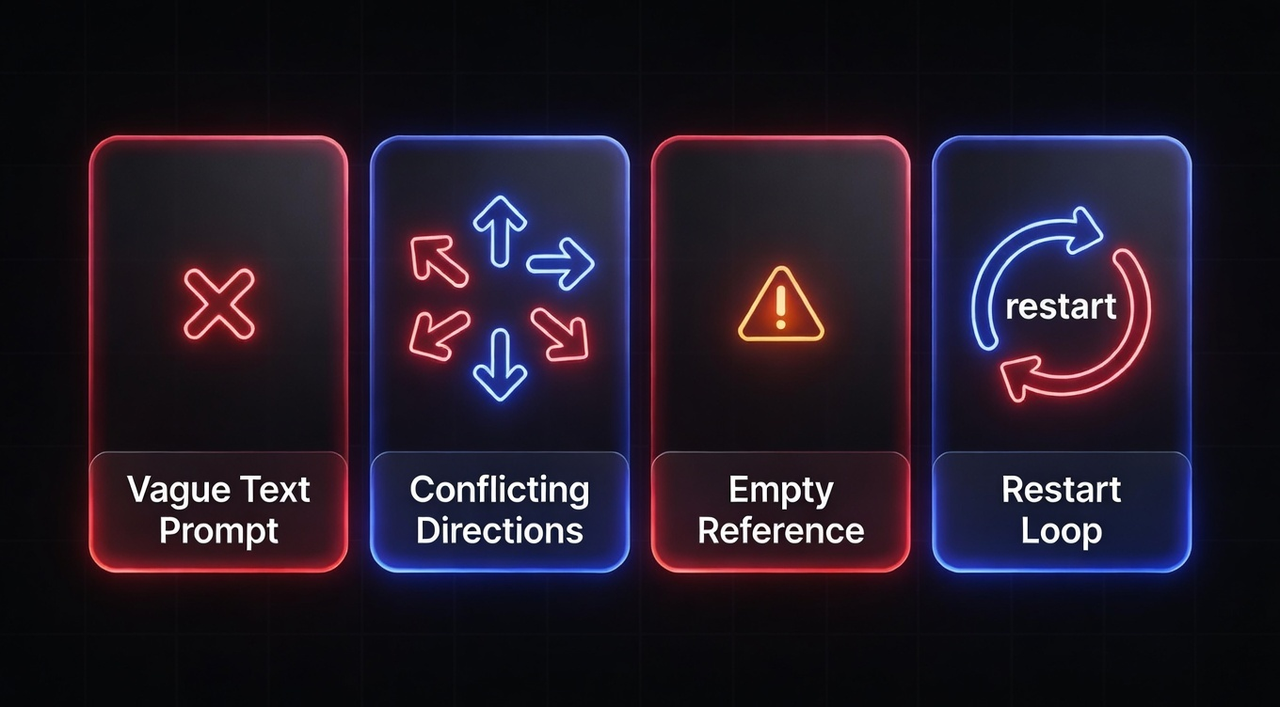
Most creators don't have a Seedance 2.0 problem. They have a setup problem. Bad results almost always come from the same four mistakes — and all four happen before you hit generate.
Fix these four, and you'll spend far less time rerunning — and far more time finishing.
Mistake 1: The prompt is too vague
Words like "cinematic" or "cool vibe" don't tell the model what you actually want. It makes its own choices — and they rarely match yours. Be specific about the subject, the camera move, and the mood. Our collection of proven prompt templates with specific examples shows exactly how structured prompts consistently outperform vague descriptions.
Mistake 2: Changing too many things at once
One bad result leads to a full rewrite. But then you don't know what fixed it. Change only one thing at a time — lighting, movement, or style — so you can tell what's actually working.
Mistake 3: Skipping reference inputs
Without a reference image or video, the model guesses. With the right references, first-try success rates jump to 70–80%. That's the fastest way to cut retries. Understanding how reference videos control motion and rhythm is essential for getting consistent first-generation results.
Managing reference files across multiple tools gets messy fast. Some creators use platforms like NemoVideo's Workspace to keep all their assets — character images, style references, brand templates — organized in one place, so the right file is always ready before they hit generate.
Mistake 4: Starting from scratch every run
If you rewrite your full prompt each time, you reset all your progress. Keep what's working, and only change what isn't.
A Speed-First Workflow That Scales Beyond One-Off Clips
Most creators treat every video as a one-time project. New prompt, new references, new settings — every single time. That's why they stay slow.
A speed-first workflow works differently. You build once, then reuse. Each video you make adds to a system that makes the next one faster.
Here's how to set it up:
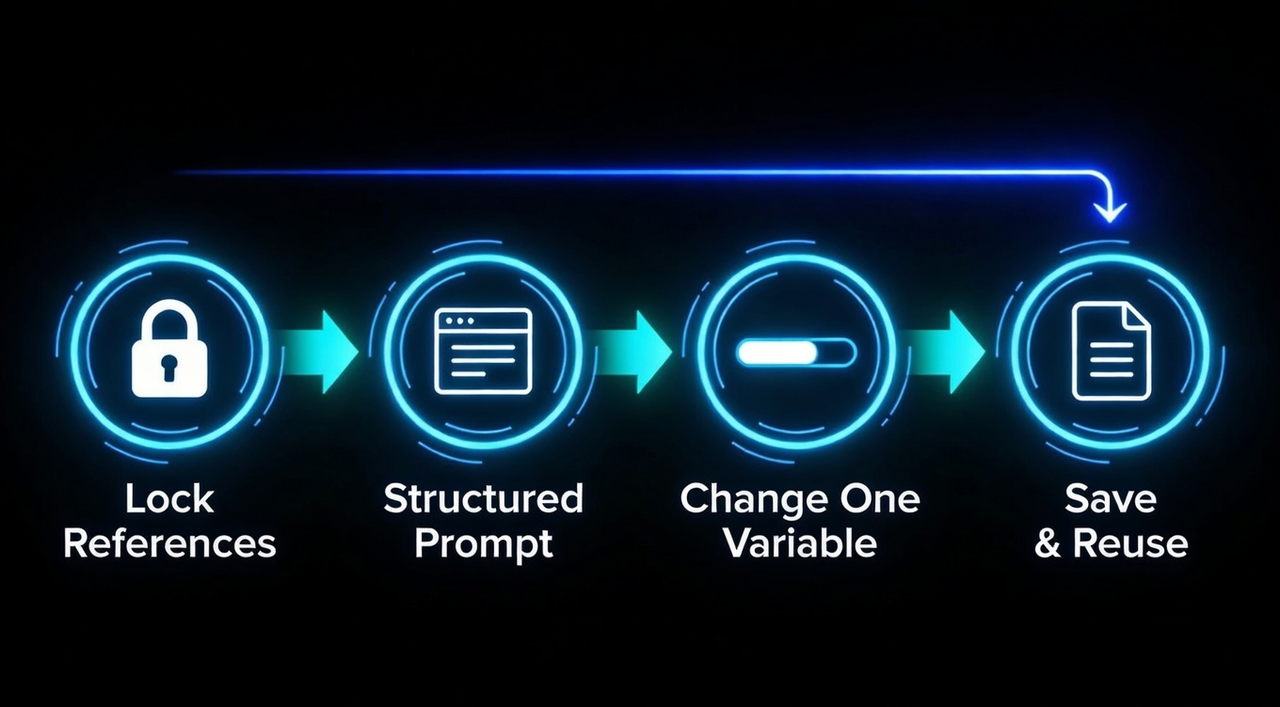
Step 1: Lock your references before you write a single word
Pick your character image, style reference, and camera move before you open the prompt box. Upload reference images, videos, and audio first — then describe what you want in plain language. When your inputs are ready, your prompt almost writes itself.
Step 2: Use a fixed prompt structure every time
The best prompts follow a simple structure: Subject + Action + Camera + Scene + Style + Constraints. Don't change this order. Keeping the structure the same means the model knows where to look for each piece of information — and your output becomes more predictable.
Step 3: Only change one thing per run
Once you have a base that works, improve it one step at a time. Change the lighting. Then the camera angle. Then the action. Keep the core elements fixed and only swap variables. Each change becomes surgical, not a full rewrite.
Step 4: Save what works
Every time you get a good result, save that prompt. Build a small library of clips, references, and prompt structures you can come back to. That's your speed multiplier. When building complete short video workflows, this library becomes your production backbone.
Reusing Prompt Blocks Instead of Rewriting Prompts
Rewriting from scratch is the single biggest time drain in any Seedance 2.0 workflow. The fix is simple: stop writing new prompts, start filling in blocks.
A prompt block is just one part of your prompt that you keep the same every time — and only change the one part that needs to be different.
Here's what a block-based prompt looks like:
SUBJECT: [who or what is in the shot]
ACTION: [what they're doing, one action only]
CAMERA: [shot size + movement — e.g., slow dolly-in, medium shot]
STYLE: [one visual reference — e.g., soft natural light, clean studio look]
CONSTRAINTS: [what to avoid — e.g., no shaky cam, no text on screen]
When prompts are written like a fill-in card instead of a free-form sentence, style drift drops and outputs stay consistent across runs.
In practice, this means:
Your CAMERA block stays the same across a whole content series
Your STYLE block stays the same across a whole brand
Only your SUBJECT and ACTION blocks change from clip to clip
A template workflow like this can cut production time nearly in half — and everything looks like it belongs to the same family. The principles that maintain character consistency across multiple shots apply equally well to maintaining visual consistency across your entire content series.
The goal isn't to write better prompts. It's to write less of your prompt every time.
NemoVideo takes this one step further. Its SmartPick feature automatically organizes your footage and reference assets, so the right files are always ready when you need them. And with multi-platform adaptation built in, one approved style block can automatically generate versions for TikTok, YouTube Shorts, and Instagram Reels — without rebuilding your prompt from scratch each time.
When Speed Starts to Hurt Quality
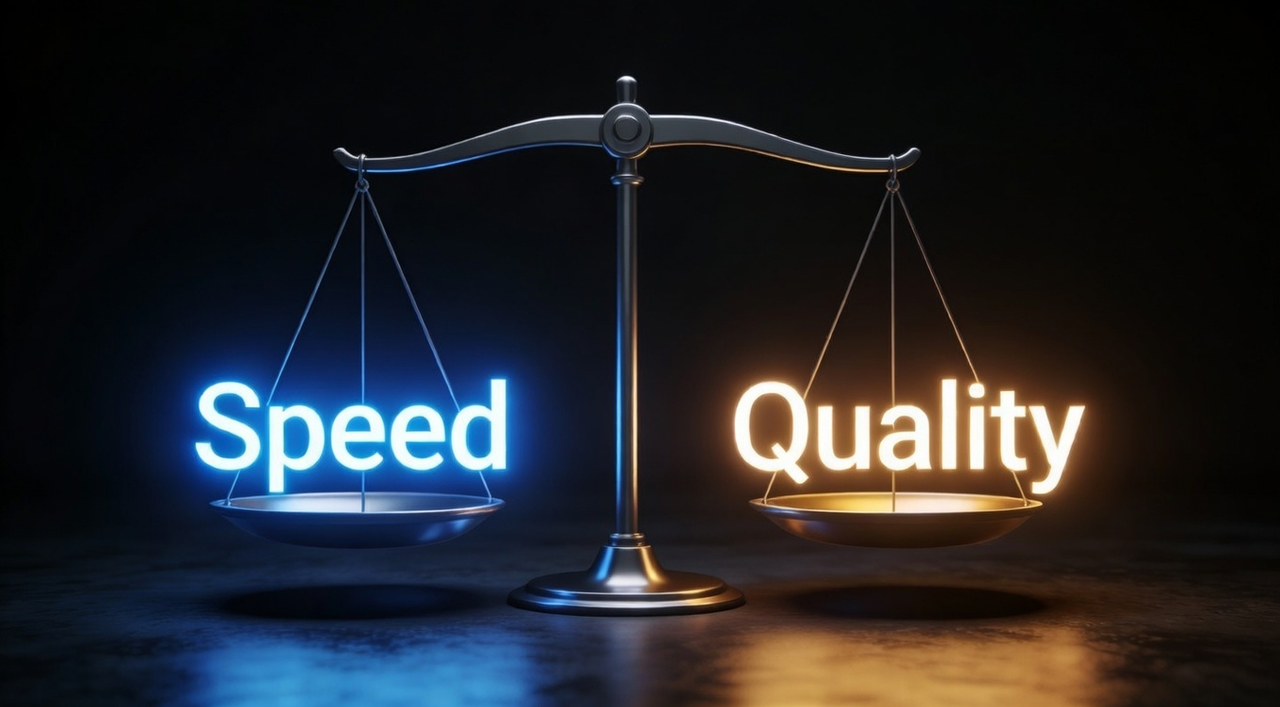
Moving fast is good. Moving too fast is where things break.
Once you have a workflow in place, it's easy to fall into a new trap: generating so quickly that you stop checking what you're putting out.
Here are four signs that speed is hurting your video quality — and a simple fix for each one.
Sign 1: You're skipping the review step
What it looks like: You generate, glance at the first two seconds, and move on
Why it matters: Even strong models can look impressive at first glance but fail on close inspection — especially for ads and product scenes
Fix: Watch every clip all the way through before you use it. 30 seconds now saves you from posting something broken
Sign 2: Your reference files are getting messy
What it looks like: Old and new reference images mixed together in one folder
Why it matters: When lighting, character details, or styles conflict between your reference files, the model blends them in ways you didn't plan for
Fix: Keep one clean folder of approved references. Delete or archive anything you're no longer using
Sign 3: Your prompt blocks have gone stale
What it looks like: You're reusing the same blocks across very different products or scenes
Why it matters: A block that worked for one video may not fit another. Over time, results start to drift without you noticing
Fix: Review your saved blocks every few sessions. Update the parts that no longer match what you're making
Sign 4: You're generating at low quality to save time
What it looks like: You run everything at a lower resolution setting to speed things up
Why it matters: If the final clip goes to a client or gets posted publicly, low quality is hard to walk back
Fix: Iterate at standard quality while testing — then do one final run at higher quality before you publish. Don't skip that last step. Our video quality optimization guide covers resolution settings and export configurations that maintain quality while still moving quickly.
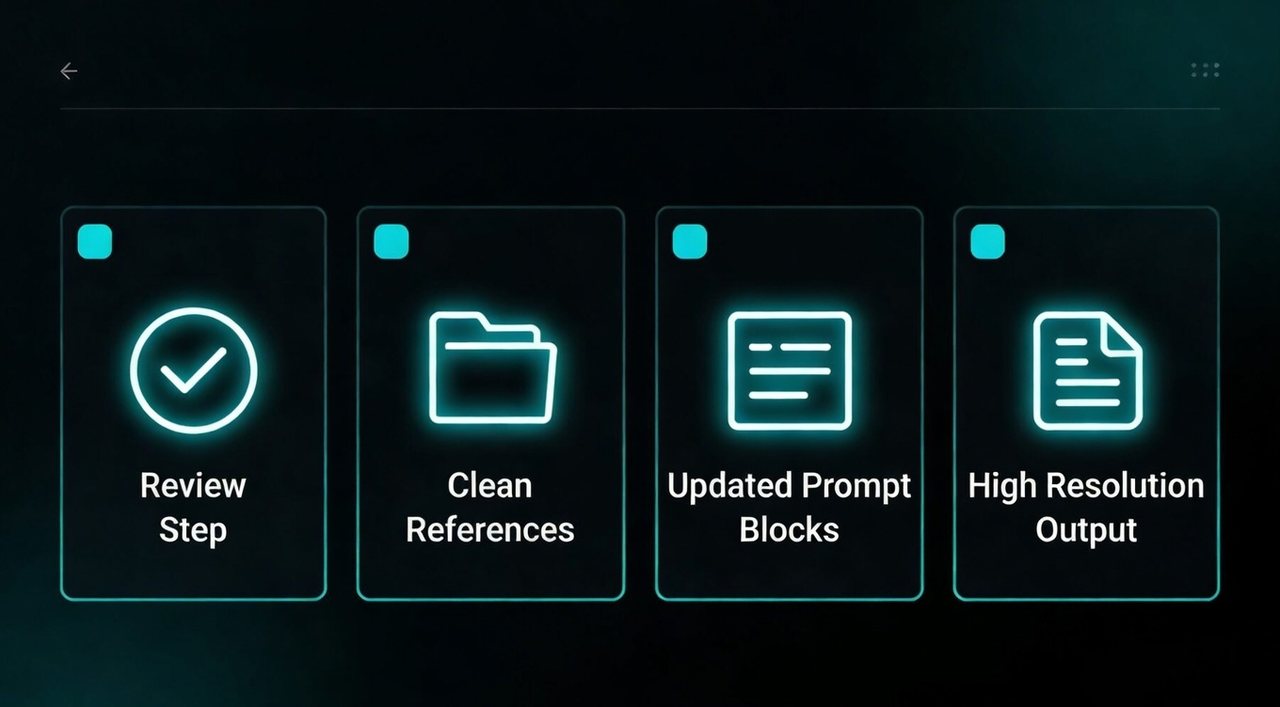
The rule to remember
Speed and quality don't have to be a trade-off — but you do need the right setup. Many creators are now using AI video platforms like NemoVideo alongside Seedance 2.0. NemoVideo has already integrated Seedance 2.0, and adds a layer on top: narrative planning, brand templates, SmartPick asset management, and multi-platform output with automated caption generation — all in one workflow.
The result? Faster generation, fewer retries, and clips that actually look consistent.
No prompt engineering. No manual assembly. No starting from scratch every time.
Accelerate Your Seedance 2.0 Workflow
Ready to move from hours per clip to minutes? Start here:
New to Seedance 2.0? Begin with our complete overview to understand what's possible
Need step-by-step setup? Follow our practical implementation guide for getting started right
Technical questions? Check the Seedance 2.0 FAQ for quick answers
Want deeper technical knowledge? Read What is Seedance 2.0 to understand how it works
Build Your Speed-First System Today
The fastest creators aren't the ones with the best prompts — they're the ones with the best systems. NemoVideo's Workspace gives you:
Organized asset management — all your reference files, prompts, and brand templates in one place
SmartPick automation — instantly identify the best clips from your raw footage
One-click platform adaptation — automatically format for TikTok, Reels, YouTube Shorts
Smart Caption generation — trending subtitle styles applied in seconds
Template reuse — save what works, reuse it across projects
Stop rerunning generations. Start building faster.
👉 Get free access to NemoVideo