

Seedance 2.0 Prompt Examples for Video Creators
Bad prompts waste generations. Good prompts make Seedance 2.0 feel like a director who already knows your vision.
This guide skips the theory and goes straight to what works: ready-to-use prompt templates for cinematic videos, ad content, and social stories — organized by goal, with notes on camera language, timing, and the most common reasons outputs miss the mark.
If you've been getting mediocre results and you're not sure why, this is where to start.
How Seedance 2.0 Interprets Prompts in Real Usage
Before you copy any template, it helps to know one thing: Seedance 2.0 doesn't read your prompt like a human would. It reads it like a camera operator taking instructions.
It's looking for four things in every prompt:
Who or what is in the shot (subject)
What's happening (action)
How the camera sees it (shot type + movement)
What it looks like (style, lighting, mood)
Miss one of these, and the model fills in the gap on its own — which is usually where things go wrong.
The Difference Between a Vague Prompt and a Working One
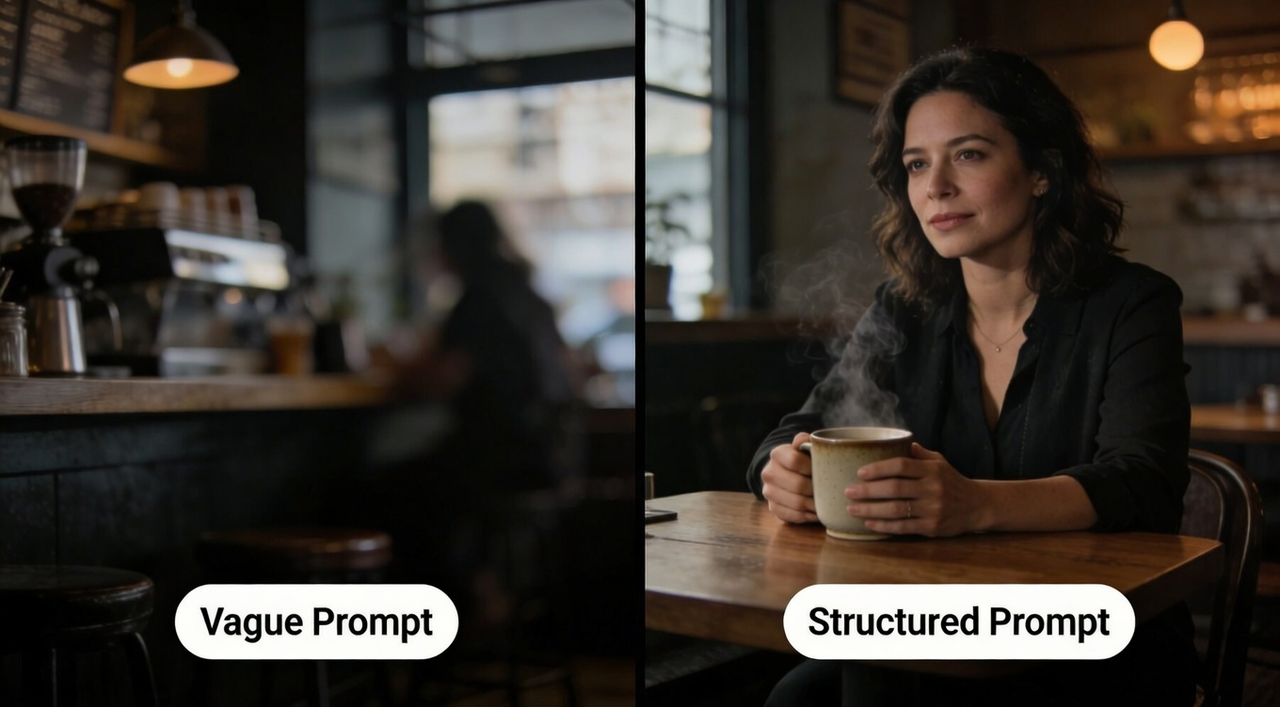
Here's what most people type:
"A coffee shop with warm vibes and cinematic lighting"
Here's what Seedance 2.0 actually needs:
"A woman in her 30s sits alone at a wooden café table, wrapping both hands around a ceramic mug. Steam rises slowly. Camera: slow dolly-in from medium shot to close-up on her hands. Warm amber lighting, shallow depth of field, cinematic color grade."
Same idea. Completely different result.
One field-tested finding: shorter, structured prompts consistently outperformed long, descriptive ones. The best-performing prompts were under 60 words — but every word had a job.
How the Model Breaks Down Your Prompt
When you hit generate, Seedance 2.0 doesn't process your prompt as one big block of text. It reads your prompt and breaks it down into a sequence of distinct camera shots — acting like a storyboard artist before generating a single frame.
That means the order of your words matters. A prompt structured like a shot list gives the model a clear sequence to follow. A prompt written like a sentence gives it room to guess.
A reliable order that works:
Subject → Action → Camera → Scene/Background → Style → Constraints
Prompt Templates by Video Goal (Ads, Stories, Visuals)
Pick your goal below. Copy the template. Fill in the brackets. Generate.
Each template follows the same structure: Subject → Action → Camera → Style → Constraints.
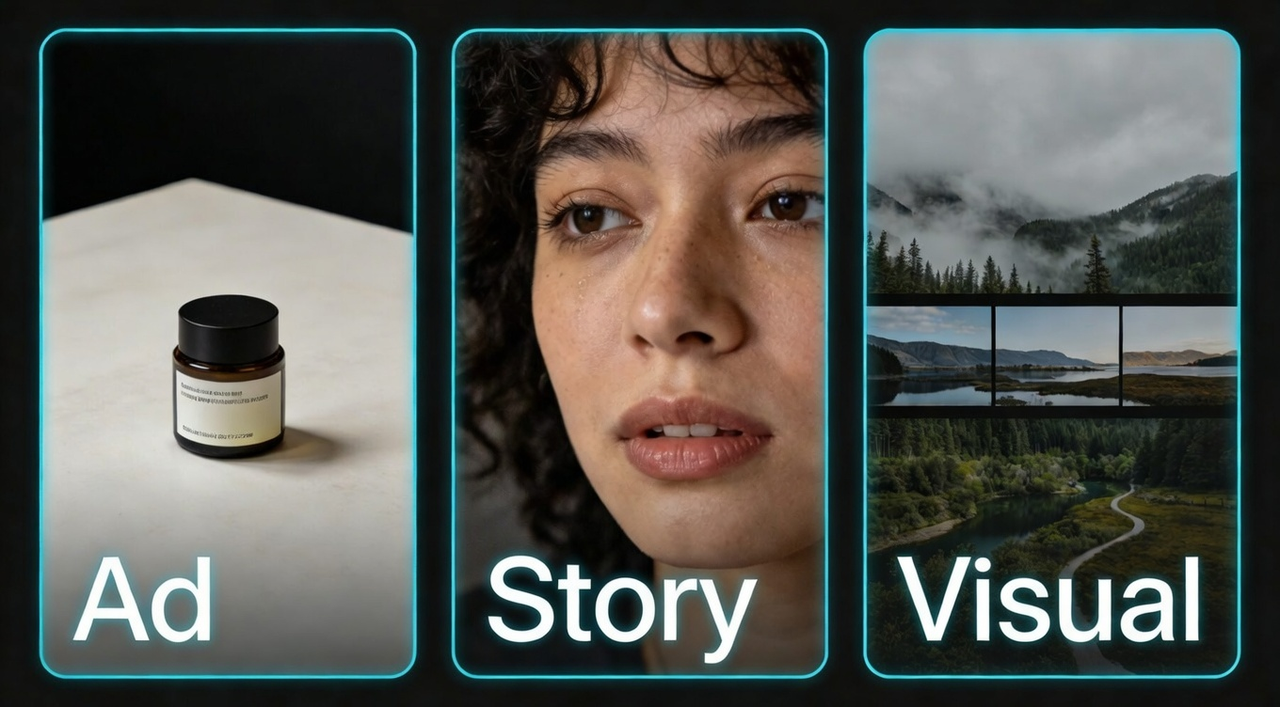
🛍️ Ad Prompts
Template 1 — Product Hero Shot (Best for: Shopify, Amazon, Instagram feed ads)
[Product] on [surface/background]. [Hand] slowly [picks it up / tilts it / opens it]. Camera: slow dolly-in from medium to close-up. [Lighting style]. Shallow depth of field. Clean commercial look. No handheld shake. No zoom. Stable frame.
Template 2 — Before/After Ad (Best for: skincare, fitness, cleaning, home products)
Shot 1: [Person or scene showing the problem]. Shot 2: [Person using the product]. Shot 3: [Clear result]. Camera: medium shot, slow push-in on each shot. Warm natural lighting. Lifestyle feel. Smooth transitions. No fast cuts.
Template 3 — UGC-Style Ad (Best for: TikTok, Reels, YouTube Shorts)
[Person, age + look] holds [product] up to camera. They speak directly to the lens, natural expression. Phone camera POV, handheld with subtle sway. Bright indoor lighting. Casual, authentic feel. No studio look. No gimbal movement.
📖 Story Prompts
Template 4 — 3-Shot Narrative (Best for: brand story, emotional hook)
Shot 1: [Opening scene — set the mood]. Wide shot, slow dolly-in. Shot 2: [Key moment]. Medium shot, steady camera. Shot 3: [Resolution or payoff]. Close-up, slow push-in. [Lighting]. [Color grade]. Smooth transitions. Consistent lighting across all shots.
Template 5 — Single Emotional Scene (Best for: brand awareness, mood-first content)
[Character] is [doing something meaningful]. The scene feels [calm / tense / joyful]. Camera: [shot type + movement]. [Time of day + lighting]. [Color grade]. No cuts. One continuous shot.
🎨 Visual / Cinematic Prompts
Template 6 — Cinematic Scene Loop (Best for: website backgrounds, brand intros)
[Location or object] in [time of day / weather]. Very slow [camera movement]. No people. [Lighting]. [Color grade]. No sudden movement. Stable and smooth.
Template 7 — Product in Environment (Best for: lifestyle visuals, editorial-style posts)
[Product] placed on [surface] in [environment]. No hands. Camera: [slow orbit / gentle push-in / locked off]. [Lighting]. [Color grade]. No text. No people. Premium, editorial look.
Once your prompts are working, the next bottleneck is usually reformatting — cropping a 16:9 output for TikTok, adding captions, adjusting the pacing for Reels. Tools like NemoVideo handle that automatically, so your best Seedance clip goes from raw output to platform-ready in a few clicks.
Camera and Timing Language That Models Respond To
Seedance 2.0 reads camera words like a camera operator reads a shot list. Use the right word — you get the right move.
Camera Moves
What you want | Word to use |
Camera moves toward subject | Dolly-in |
Camera moves back | Dolly-out |
Camera slides left or right | Tracking shot |
Camera rotates left or right | Pan left / Pan right |
Camera circles the subject | Orbit / 360 orbit |
Camera lifts upward | Crane up |
Slight natural shake | Handheld |
Smooth, no shake | Gimbal |
Camera stays fixed | Locked-off |
⚠️ One setting to check: If your prompt includes camera movement, set the parameter to "unfixed camera" in Seedance settings. Otherwise the model may ignore it.
Understanding how reference videos control motion becomes especially important here — your prompt describes the move, but a reference clip can demonstrate the exact motion path you want.
Shot Size + Speed
Write shot size first, then speed, then the move.
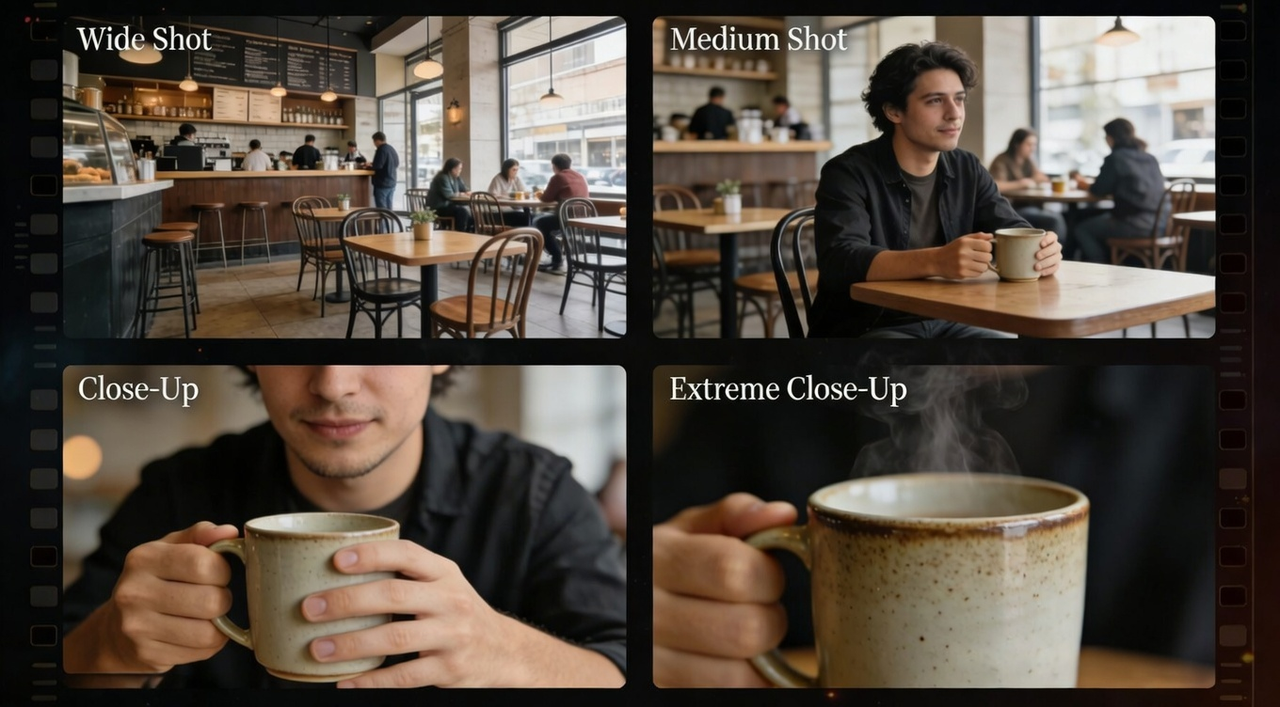
Shot sizes:
Wide shot — show the full scene or environment
Medium shot — subject from waist up
Close-up — face, hands, or product
Extreme close-up — texture, detail, small objects
Speed words: very slow / slow / gradual / smooth / quick / fast
Example: "Medium shot, slow dolly-in to close-up"
Multi-Shot Timing
Write this | What it does |
"Shot 1: ... Shot 2: ..." | Signals a scene switch |
"Then cut to..." | Hard cut |
"Transition smoothly to..." | Soft or cross-fade |
"Continuous shot, no cuts" | One unbroken take |
When working with multiple shots that need to flow together seamlessly, our guide on building multi-scene storyboards in Seedance 2.0 covers advanced sequencing techniques and transition management.
Constraint Words — Always Add at Least One
Tell the model what NOT to do. Add one or more to every prompt:
No handheld shake
No zoom
Stable frame
No face deformation
No flickering
No fast cuts
Continuous shot
Now you have the full prompt structure. The next step is putting it into a real workflow. If you're producing videos at volume — product ads, social content, brand visuals — NemoVideo connects directly to this kind of prompt-based workflow. You can drop in your Seedance output, add captions with AI-powered subtitle styling, generate platform variants, and export everything without touching a timeline editor.
Why Prompts Get Ignored and How to Adjust
Before we get into the fixes — if you'd rather spend less time debugging prompts and more time publishing, NemoVideo's Talk-to-Edit lets you describe changes in plain language instead of rewriting prompts from scratch. But if you want to master the prompting side yourself, here's exactly what to look for.
Problem 1: Your prompt is too vague
The model needs something concrete to work with. Mood words alone don't count.
Too vague | More specific |
"Cinematic lighting" | "Soft diffused light from the left, warm amber tone" |
"Smooth camera" | "Slow dolly-in from medium to close-up" |
"Aesthetic feel" | "Muted warm color grade, shallow depth of field" |
"Natural movement" | "Subject slowly lifts the cup with both hands" |
The fix: Replace every mood word with a specific description. If you can't picture it as a camera shot, rewrite it until you can.
Problem 2: You gave the camera no instructions
If you don't specify motion precisely, Seedance will invent motion — and the invented motion is sometimes a choice.
No camera line = the model decides. Sometimes it gets lucky. Most of the time, it doesn't.
The fix: Always include a camera line. Even a simple one works:
"Camera: slow dolly-in. Stable frame. No zoom."
"Locked-off shot. No camera movement."
Problem 3: You forgot to set "unfixed camera" in the settings
This one catches a lot of people. You write a camera move in the prompt — but the output has no movement at all.
The reason: the settings override the prompt. If the parameter is set to "fixed camera," the model ignores any movement you wrote.
The fix: Any time your prompt includes a camera move, switch the setting to "unfixed camera" before you generate.
Problem 4: You used two motion verbs in one line
Writing "pan and zoom at the same time" usually results in neither happening cleanly. The model doesn't know which one to prioritize.
The fix: One motion verb per shot. If you need two moves, write them in sequence:
"Start: slow dolly-in. Then: gentle pan right for the final 2 seconds."
Problem 5: Your prompt tries to do too much
A 15-second video can only show so much. If your prompt describes five different scenes, four characters, and three camera moves, the model will drop some of it.
When prompts fail, it's usually because one of those key answers is missing — or because the prompt tries to do too much at once.
The fix: One shot, one action, one camera move. If you need more, use the multi-shot format (Shot 1 / Shot 2 / Shot 3) so the model knows how to divide the content.
Problem 6: Your prompt contradicts your settings
Common mismatches that break outputs:
Writing "handheld feel" but selecting fixed camera in settings
Writing "9:16 vertical" but leaving the aspect ratio set to 16:9
Writing "slow motion" without selecting a longer duration
The fix: Before you generate, check that your prompt and your settings say the same thing. If you're creating content for vertical video platforms like TikTok and Reels, make sure both your prompt language and aspect ratio settings align.
Quick Adjustment Guide
If your output has a specific problem, here's what to change:
What went wrong | What to adjust |
Camera didn't move | Add a camera line + switch to "unfixed camera" |
Scene looks wrong | Replace vague style words with specific lighting and color terms |
Action looks stiff or robotic | Use slower, simpler verbs — one action at a time |
Output ignored part of your prompt | Your prompt is too long — split it into shots |
Lighting is off | Describe the light source, not just the mood |
Too much random movement | Add constraint words: "stable frame," "no zoom," "no handheld shake" |
For persistent technical issues that go beyond prompt adjustment, our comprehensive troubleshooting guide covers API errors, generation failures, and platform-specific problems.
How to Diagnose What Caused Consistency to Fail
Your video looked fine at first. Then the face changed. The lighting shifted. The style drifted halfway through.
This is one of the most common problems in Seedance 2.0 — and it almost always has a specific cause. You just need to know where to look.
Here's how to find it.
Step 1: Watch the video once and name the problem
Don't try to fix everything at once. First, identify exactly what broke.
What you see | What it's called |
Face or body changes across frames | Character drift |
Colors or lighting shift mid-video | Style drift |
Background warps or melts | Background instability |
Edges of objects look wobbly or soft | Shape/detail drift |
Motion looks shaky or random | Motion instability |
Pick the one that bothers you most. Fix that first.
Step 2: Match the symptom to the cause
Character drift — face, hair, or clothing changes between frames
Most likely cause: no reference image, or only one reference angle.
Fix:
Upload 2–3 reference images of the same character from different angles (front, side, three-quarter)
Add to your prompt: "Keep the same face, hair, and clothing throughout. No face changes. High consistency."
Single-photo setups often drift by the second clip. Three or more angles give the model a stable identity to follow. For a deeper dive into managing character identity across multiple generations, read our dedicated guide on maintaining character consistency in Seedance 2.0.
Style drift — colors, lighting, or mood shift mid-video
Most likely cause: your style description uses mood words, not specific visual direction.
Fix:
Replace vague words like "cinematic" or "moody" with specific ones: lighting source, color grade, white balance
Treat style like a checklist, not a feeling. Specify what you actually see, not how it feels
Add: "Consistent lighting throughout. No color shift between frames."
Background instability — the background warps, shifts, or looks like it's melting
Most likely cause: the background is too detailed or too busy, giving the model too much to track.
Fix:
Simplify the background in your prompt: "plain wall," "solid color backdrop," "simple outdoor scene"
Add: "Stable background. No background movement."
If using a reference image, make sure the background is clean — busy backgrounds invite hallucinated motion
Shape/detail drift — product edges, text, or small details look soft or warped
Most likely cause: your source image is low resolution, or the object has fine detail the model can't hold stable under motion.
Fix:
Use a higher resolution source image (1080p minimum)
Keep motion slow and simple — faster motion makes small details harder to hold
Add: "No warping. No distortion. Sharp edges throughout."
If you're consistently experiencing quality issues with edges, textures, or overall resolution, our video quality optimization guide covers resolution settings, upscaling techniques, and export configurations.
Motion instability — camera or subject movement looks shaky, random, or jittery
Most likely cause: no clear camera instruction, or two motion verbs used at once.
Fix:
Write one clear camera move with a speed word: "slow dolly-in, stable frame"
Add: "No handheld shake. No zoom. Locked horizon."
Check that your settings are on "unfixed camera" if you want movement
Step 3: Change one thing, then regenerate
Fix one issue at a time — camera, pacing, style, or drift. If you change multiple things at once, you won't know what fixed it. Keep the rest of your prompt the same, adjust one element, and run 2–3 new generations to compare.
One Last Thing
Consistency is partly a prompting problem — and partly a settings problem. Before you rewrite your whole prompt, check these three things:
Are you using the same reference image across all shots?
Is your aspect ratio and duration set correctly?
Have you added at least one consistency constraint at the end of your prompt?
Three quick checks. They solve more problems than you'd expect.
Prompting is a skill. The more you practice it, the more predictable your outputs become.
And once your prompts are consistently working, the next step is scaling — turning one good clip into ten platform-ready videos without redoing everything manually. That's what NemoVideo is built for: drop your raw clip, describe your edits in plain language, and let it handle the formatting, captions, and platform optimization.
👉 Try NemoVideo free — and put your best prompts to work.
Master Seedance 2.0 Prompting
Ready to take your prompt skills to the next level? Explore these resources:
New to Seedance 2.0? Start with our