

How to Keep Character Consistency in Seedance 2.0
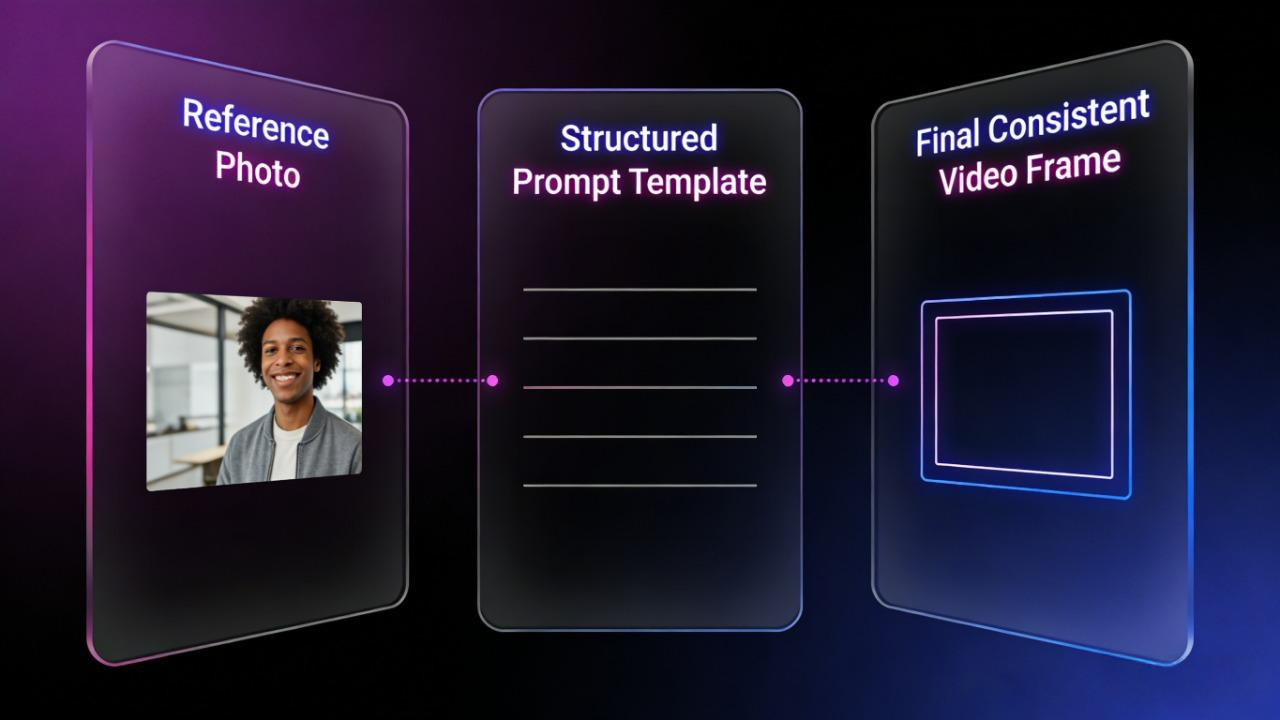
You're using Seedance 2.0 to build a multi-shot video — character looks perfect in shot one, face, outfit, lighting all locked in. Then shot two hits and suddenly the eyes are different, the jacket changed, the hairstyle shifted.
That's character drift, and it's the most common frustration creators run into across multiple generations. The good news: it's not the model failing you. Consistency just doesn't happen automatically — it has to be built into your inputs from the start.
This guide will walk you through why identity breaks down, which prompt structures and references actually lock it in, and how to diagnose what went wrong when drift still sneaks through.
Why Character Identity Breaks After a Few Generations
Here's the key thing to know: Seedance 2.0 doesn't remember your last generation. Every new shot starts completely fresh. That means if shot one looked perfect, the model has no idea — it won't automatically reproduce the same face, outfit, or hair in shot two unless you tell it to.
Most drift isn't random. It usually comes from one of these four reasons.
You're Only Using Text to Describe Your Character
Writing "a young woman with brown hair and a white jacket" feels specific — but the model reads that description differently every time you generate. Text gives the model too much room to guess. A reference photo gives it something concrete to copy.
Your Prompt Wording Changes Between Shots
If you rewrite your prompt for each new shot — even slightly — the model picks up on those changes. Different words = different output. Keep your character description identical across every generation, word for word.
You're Uploading Too Many Reference Images
More images sounds like it should help. But if you upload several photos without clearly telling the model what each one is for, it tries to mix them together — and the result is an unstable, blended look that drifts shot to shot.
You're Not Telling the Model What to Keep the Same
Simple instructions like "maintain consistent face and clothing throughout" or "no changes to hair or outfit between shots" make a real difference. Without them, the model treats your character's appearance as something it can freely change.
💡 If manually managing prompts and reference images across 10+ shots sounds like a lot — it is. That's exactly why tools like NemoVideo exist. It handles Seedance 2.0 generation and reference management inside one workflow, so you're not rebuilding your setup from scratch every shot.
Prompt Structures and Inputs That Help Maintain Identity
Getting Seedance 2.0 character consistency right comes down to two things: how you write your prompt, and what reference images you upload. Get both right, and drift drops significantly.
Build Your Prompt in This Order Every Time
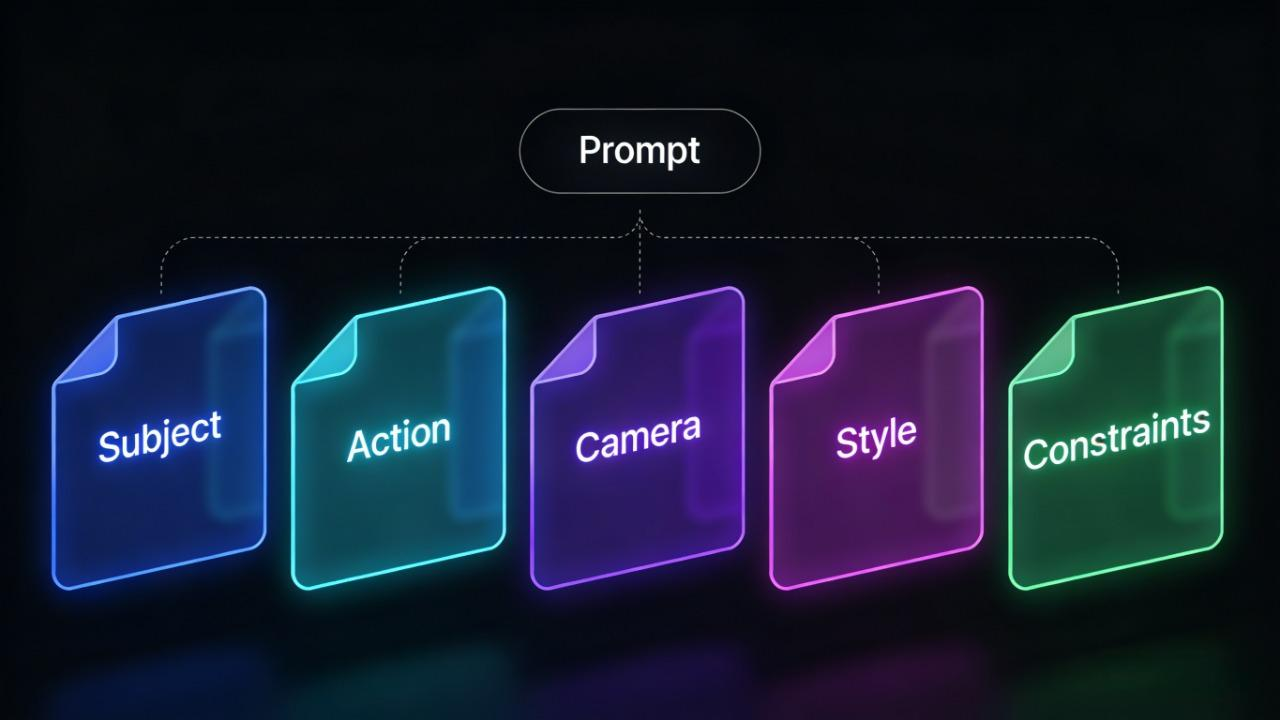
The best Seedance 2.0 prompts follow this structure: Subject + Action + Camera + Scene + Style + Constraints.
Here's what each part does:
Part | What to write | Example |
Subject | Who is in the shot | "A 28-year-old woman, long black hair, red coat" |
Action | What they're doing | "Walking slowly down a street" |
Camera | Shot size + movement | "Medium shot, slow dolly-in" |
Style | Lighting + visual tone | "Soft natural light, cinematic" |
Constraints | What must stay the same | "Maintain consistent face and clothing, no distortion" |
Two rules to follow:
Keep your prompt between 30–100 words. Too long and the model can't prioritize — it spreads attention across too many instructions and starts making its own decisions.
Use positive statements, not negatives. Seedance 2.0 doesn't respond well to negative phrasing. Don't write "no face changes." Write "maintain stable facial features throughout."
For more working examples of prompts that deliver consistent results, check out our collection of proven Seedance 2.0 prompt templates.
Copy Your Character Description Into Every Shot
Write your character description once. Then paste it word for word into every new generation — don't rewrite it, don't shorten it.
Even one small wording change tells the model something has shifted. The model pays the most attention to the first part of your prompt, so if your character isn't clearly defined right at the start, it will fill in the gaps differently each time. Same words every shot = same character every shot.
Tip: If you're managing multiple shots across a longer project, keeping track of prompts, reference images, and generations manually gets messy fast. NemoVideo's official Seedance 2.0 integration handles prompt structuring, reference management, and multi-shot consistency in one workspace, so you're not juggling files between tools.
Get free access to Nemo's workspace →
Using Identity Anchors Consistently
An identity anchor is the reference image you upload to show the model exactly what your character looks like. This is the most effective way to reduce character drift across multiple shots.
Step 1 — Upload more than one photo
One photo is not enough. Single-photo setups often drift by the second clip. Upload 2–4 images: a front-facing shot, a 3/4 angle, and a full-body view. The more visual information you give, the less the model has to guess.
Step 2 — Tag your references in the prompt
After uploading, Seedance 2.0 assigns tags like @Image1 and @Image2. Always call them out directly in your prompt:
"Use @Image1 and @Image2 for the character's facial features and clothing."
Think of your anchor images as the model's source of truth for who your character is. Use clean images: sharp focus, good lighting, plain background.
Step 3 — Add a separate outfit reference
If your character's clothing keeps drifting, don't rely on text to describe it. Upload a photo of the outfit and tag it separately. Instead of prompting "wearing a red jacket," try "@Character1 wearing the red jacket from @Image3." A visual reference removes the model's guesswork entirely.
Step 4 — Use the same anchor images across all shots
Don't swap or change your reference images between generations. Your input set should stay identical from shot one to the last shot. When planning complex multi-scene storyboard projects, this consistency becomes even more critical.
How to Diagnose What Caused Consistency to Fail
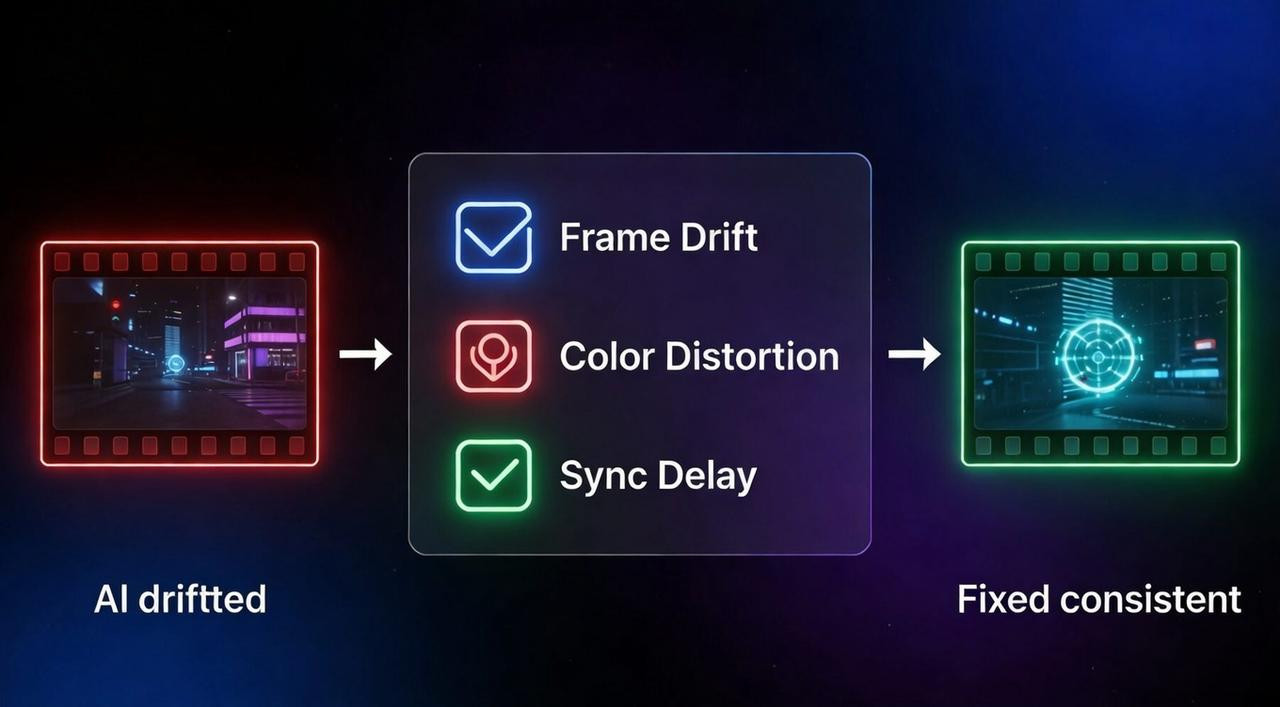
When character drift happens in Seedance 2.0, don't just re-generate and hope for better results. Look at the output carefully first — the type of drift usually tells you exactly where the problem started.
Here's a simple way to find the root cause and fix it fast.
Step 1 — Look at Where the Drift Started
Line up your shots and find the exact generation where things went wrong. Ask yourself:
Did the face change, or was it the outfit?
Did drift happen on shot 2, or much later in the sequence?
Did the character change completely, or just shift slightly?
The answer points you to a specific part of your setup.
Step 2 — Match the Symptom to the Cause
Use this table to find your fix:
What you see | Most likely cause | Quick fix |
Face looks different from shot 2 | Only one reference image uploaded | Upload 2–4 angles of your character |
Outfit keeps changing | No outfit reference image | Upload a full-body photo and tag it |
Character looks different every generation | Prompt wording keeps changing | Copy and paste the same character description every time |
Drift gets worse after shot 3 or 4 | No identity constraints in prompt | Add "maintain consistent face and clothing throughout" |
Everything looks fine alone but doesn't match | Different reference images used across shots | Use the exact same anchor images for every generation |
Face blurry or distorted | Low-quality reference photo | Use a sharp, well-lit, plain background image |
Step 3 — Change One Thing at a Time
When fixing drift, only change one variable per generation. If you fix your reference images AND rewrite your prompt at the same time, you won't know which change actually worked.
Follow this order:
Fix your reference images first — add more angles, clean up the photo quality, or remove conflicting images.
Then fix your prompt — make sure your character description is at the very start and stays identical across shots.
Then add constraint language — if drift still happens, add lines like "same face, same outfit, no changes between shots" to the end of your prompt.
One More Thing to Check
Sometimes the problem isn't your prompt or your references — it's your source image quality. A blurry, dark, or low-resolution photo gives the model very little to anchor to. Before running another generation, check that your reference images are:
Sharp and in focus
Well-lit with no harsh shadows
Shot against a plain, clean background
Close enough to clearly show the face and outfit
Better inputs almost always produce better consistency — even before you change a single word in your prompt. If you're still experiencing issues after optimizing your inputs, our comprehensive troubleshooting guide covers additional technical fixes.
Managing all of this manually across a multi-shot project takes time. NemoVideo's Seedance 2.0 integration handles the heavy lifting — reference management, prompt optimization, batch generation, and multi-platform formatting — all in one place.
No API friction, no file juggling, no re-prompting from scratch every shot.
Ready to Master Seedance 2.0?
Character consistency is just one piece of the puzzle. To unlock the complete potential of Seedance 2.0:
New to Seedance 2.0? Start with our complete overview to understand what's possible
Need step-by-step guidance? Follow our practical walkthrough from setup to export
Have questions? Check the Seedance 2.0 FAQ for quick answers
Want the full technical breakdown? Read What is Seedance 2.0 to understand the underlying technology
Start Building Consistent Multi-Shot Videos Today
👉 Try NemoVideo free and access Seedance 2.0 with built-in consistency tools, prompt templates, and reference management—all in one workspace.