

Seedance 2.0 for TikTok & Reels: How to Make Vertical Videos
You've probably generated a perfect 16:9 video, cropped it to 9:16, and watched your subject's head get cut off or your text disappear under the UI. Vertical video demands different composition logic, and Seedance 2.0's native 9:16 support gives you the control to get it right from the start.
If you're building a repeatable short-form system, this complete breakdown of the Seedance 2 short video workflow explains how vertical-first production differs from traditional horizontal editing.
This guide gives you the prompting framework, framing principles, and export checklist to create TikTok and Reels content that performs, using Seedance 2.0's director-level controls. By combining native generation with an AI Video Editing Agent, you can stop guessing and start scaling your social video strategy.
Why vertical video changes composition and prompting logic
The 9:16 frame isn't 16:9 turned sideways—it's a completely different visual language. Here's what changes when you go vertical:
The Safe Zone Reality
Your actual working canvas is much smaller than you think. Platform UI elements claim significant screen space:
TikTok: Safe zone is approximately 840 × 1280 pixels within the 1080 × 1920 canvas
Instagram Reels: Central safe area is approximately 1010 × 1280 pixels
YouTube Shorts: Top 380 pixels and bottom 380 pixels are often covered by UI elements
If you aren't designing for this from the start, you'll lose critical elements to profile icons and "Like" buttons.
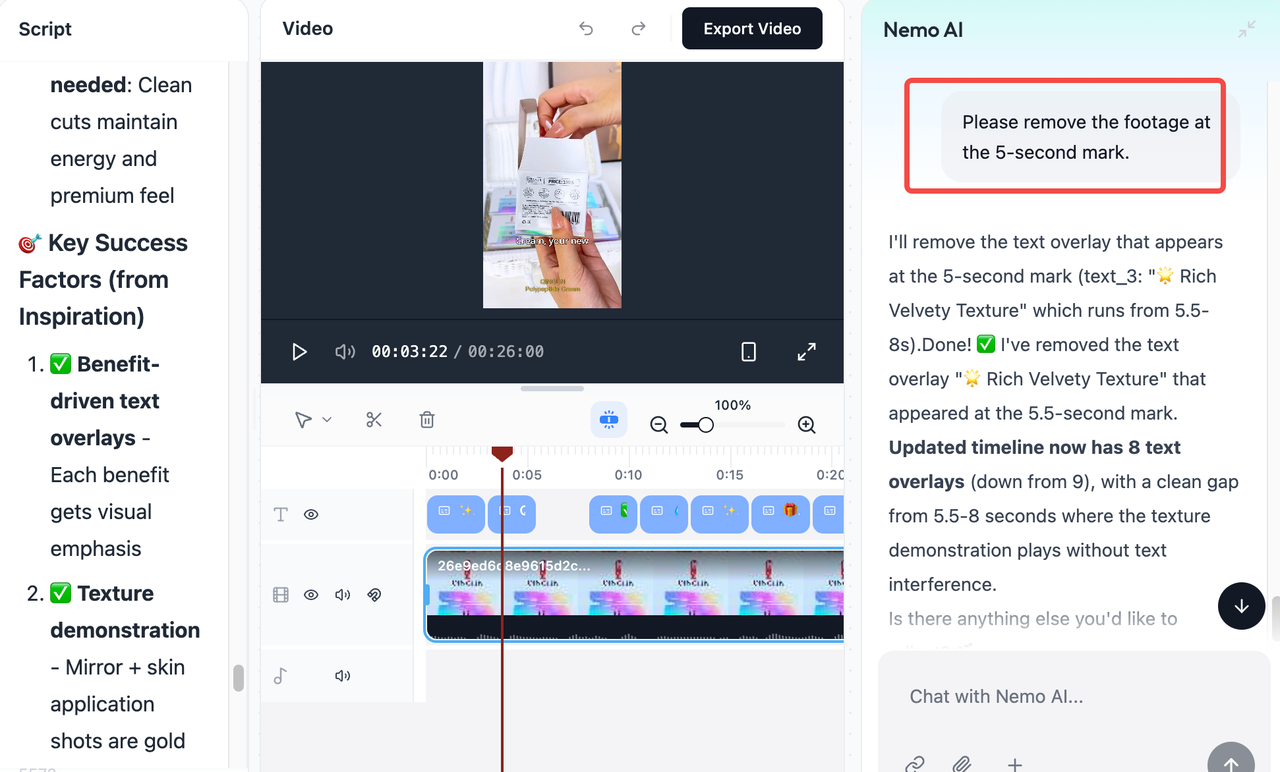
This is where I started using NemoVideo. I used to manually nudge elements around and export multiple tests to see if they'd clear the UI. Now I just tell Nemo Agent what I need: "Move the subject up 10% to clear TikTok captions" or "Reposition the logo to stay in the safe zone." It handles the timeline adjustments for me.
If you're comparing AI editors before switching, this in-depth Remotion vs CapCut vs NemoVideo comparison breaks down how agent-driven timeline control differs from template-based tools.
The difference? I only need to describe the fix—I don't need to learn safe zone pixel coordinates for every platform. NemoVideo already knows them.
Camera Movements That Actually Work
Horizontal movements don't translate well to vertical frames. Here's what works best for social video::
Best for 9:16:
Push in / Pull out
Tilt up / Tilt down
Slow orbit around subject
Avoid in 9:16:
Horizontal pans (left/right)
Wide tracking shots
Complex multi-axis moves
For vertical content (9:16), push and pull work better than pan because the narrow frame doesn't give pan movements enough horizontal space to look natural. When you prompt Seedance 2.0, specify the movement type explicitly—don't assume it will adapt horizontal camera language to vertical.
If you're exploring more advanced AI-directed camera systems, this guide on using Kling motion control for dynamic shots explains how motion logic changes across aspect ratios.
Prompting Strategies for Seedance 2.0
When mastering seedance 2.0 tiktok workflows, you must adjust your instructions:
Set aspect ratio first: Set 9:16 from the start and prompt "centered composition, subject framed for vertical video"
Simplify your scene: Reduce to one subject and one action, specify one camera move only
Be explicit about placement: Instead of "woman walking," try "woman centered in frame, head and shoulders visible, background blurred"
Frame tighter: Vertical fills more screen with your subject, so medium shots and close-ups work better than wide establishing shots
If you're starting from still imagery instead of motion prompts, this technical breakdown of Seedance 2 image-to-video generation explains how composition instructions influence final output quality.
Framing rules creators learn after a few failed exports
Most of my early vertical videos looked fine on desktop—until I checked them on my phone. Here are the framing fixes that saved me from wasting more generation credits:
The 5 Rules That Fixed Your Vertical Framing
Position faces in the top third: Your subject's eyes should sit roughly one-third down from the top edge. I used to center faces and ended up with caption boxes covering the chin.
Protect the center zone: Keep important elements—text, logos, faces—in the middle 80% of the frame.
Forget about wide shots: Wide angles make your subject tiny on mobile. I now use NemoVideo’s Smart Pick feature to quickly identify the best medium-shot segments from my raw AI exports.
Leave directional space: If a subject is looking right, position them on the left side to give them "breathing room."
Export a test and check your phone: I preview everything at actual mobile size. If you can't instantly recognize the subject while scrolling, your framing needs work.
For a deeper look at how AI systems interpret visual timing and structure, this analysis of Molmo 2 for video understanding in editing workflows explains how models break down shot composition frame by frame.
Motion That Stays Readable on Small Screens
Camera moves that look smooth on desktop turn choppy on a 6-inch screen. To keep your reels video readable:
Push in slowly toward your subject to create intimacy.
Tilt up or down along the vertical axis to show scale.
Avoid complex multi-direction moves; they become a blurry mess at 1080x1920.
When I prompt Seedance 2.0 for motion, I keep it simple: "slow dolly push, steady approach toward subject."
Pro Tip: If the AI-generated motion feels a bit raw, don't waste time on manual fixes. I use NemoVideo to polish the final output. You can simply command it to "Add viral-style captions and sync them with the beat," or "Replicate the structure of this viral TikTok." This "Talk-to-Edit" workflow ensures your vertical video 9:16 isn't just a pretty picture, but a high-conversion social video.
If you're building a repeatable short-form engine rather than one-off clips, this step-by-step guide on how to use Nemo’s viral workspace effectively shows how to move from trend discovery to structured recreation inside one system.
Export Checklist Before Publishing
Before you hit export and use up your generation credits, run through this final check. A video that looks great on a desktop monitor can easily fail once the TikTok or Reels interface is layered on top.
Interface and Safe Zone Clearance
Verify that your subject and key visuals sit within the 1080 x 1920 "Safe Zone." The top 10% and bottom 25% of your frame will be crowded by platform UI like the search bar, username, and description.
If your framing is too low, you can use NemoVideo’s Talk-to-Edit feature to simply tell the AI: "Shift the main subject up to clear the caption area." It handles the vertical adjustment automatically so you don't have to re-generate.
Text Readability and Placement
Ensure your captions are centered and high enough to stay above the video progress bar. For maximum engagement, captions must be readable even with the sound off.
If caption performance is part of your growth strategy, this updated resource on Instagram caption generator strategies for 2026 explains how subtitle design influences retention.
The "First Frame" Hook
Your first frame determines whether viewers stop or scroll. Ensure the main subject is immediately visible, centered, and clearly framed. Avoid blank lead-ins, slow fade-ins, or wide shots that delay visual impact.
For proven hook structures that consistently capture attention, explore this curated collection of TikTok viral video templates.
Final Technical Specs
Double-check your export settings to prevent the platform from compressing your quality:
Resolution: 1080 x 1920 (Native 9:16).
Frame Rate: 30fps (Standard for mobile).
Format: MP4 (H.264) for maximum compatibility.
Vertical video gets 2-3 seconds of attention—make every frame count. By combining the native generation power of Seedance 2.0 with the precision timeline control of NemoVideo, you can create content that doesn't just look "AI-generated," but looks like it was shot by a professional director.
Ready to turn your Seedance clips into scroll-stopping content?
➡️ Chat with Nemo AI Agent today and start building your next viral campaign in minutes.