

Twitter/X Video Specs Guide 2026: Size, Format, Length & Editing Tips
Hi, I'm Dora. Last month I uploaded a perfectly edited 90-second product demo to X — and it failed. Twice. The first time, the file was 3 MB over the limit. The second time, I'd exported in VP9 instead of H.264. Twenty minutes wasted because I was working from a 2023 spec sheet that nobody had bothered to update.
Here's the thing: twitter video specs change more often than most creators realize, and the gap between organic posts, ads, and DMs is wider than ever. I spent this week pulling together every current requirement into one place so you don't have to learn the hard way like I did.
This guide covers the exact twitter video size, format, and length requirements for every post type on X in 2026 — plus a practical editing walkthrough and a troubleshooting table for the upload errors I see creators hit most often.
What Are the Current Twitter Video Specs in 2026?
Let me lay out the core specs first, then we'll get into the nuances.
Supported formats: MP4 and MOV (H.264 video codec, AAC audio codec). These are the only two containers X reliably accepts. If you're exporting from Premiere Pro, DaVinci Resolve, or Final Cut Pro, double-check your export preset — defaulting to HEVC/H.265 is the most common silent failure.
Resolution: X supports a wide range, but the sweet spot is 1920×1080 (landscape) or 1080×1920 (portrait). Minimum resolution is 32×32. Maximum is 1920×1200. Videos shot in 4K will be downscaled server-side, which means you lose control over the compression — export at 1080p yourself for a cleaner result.
Frame rate: 30 fps or 60 fps. X accepts up to 60 fps, but 30 fps is the safer choice if file size is a concern. Videos at 24 fps also work, though playback can occasionally look slightly choppy on mobile.
Bitrate: X recommends keeping video bitrate between 5,000 and 25,000 kbps. For 1080p at 30 fps, I typically export at around 8,000–12,000 kbps — clean enough to look sharp but well under the file size ceiling.
Twitter Video Specs by Post Type: Organic vs. Ads vs. DMs
This is the table I wish I'd found when I started researching. Most guides only cover organic posts and ignore the rest.
Spec | Organic Post | Promoted/Ad Video | Direct Message |
Max file size | 512 MB (free) / up to 8 GB (X Premium) | 1 GB | 512 MB |
Max length | 140 sec (free) / up to 4 hours (X Premium) | 140 seconds (most ad formats) | 140 seconds |
Recommended resolution | 1920×1080 or 1080×1920 | 1920×1080 or 1080×1920 | 1280×720 |
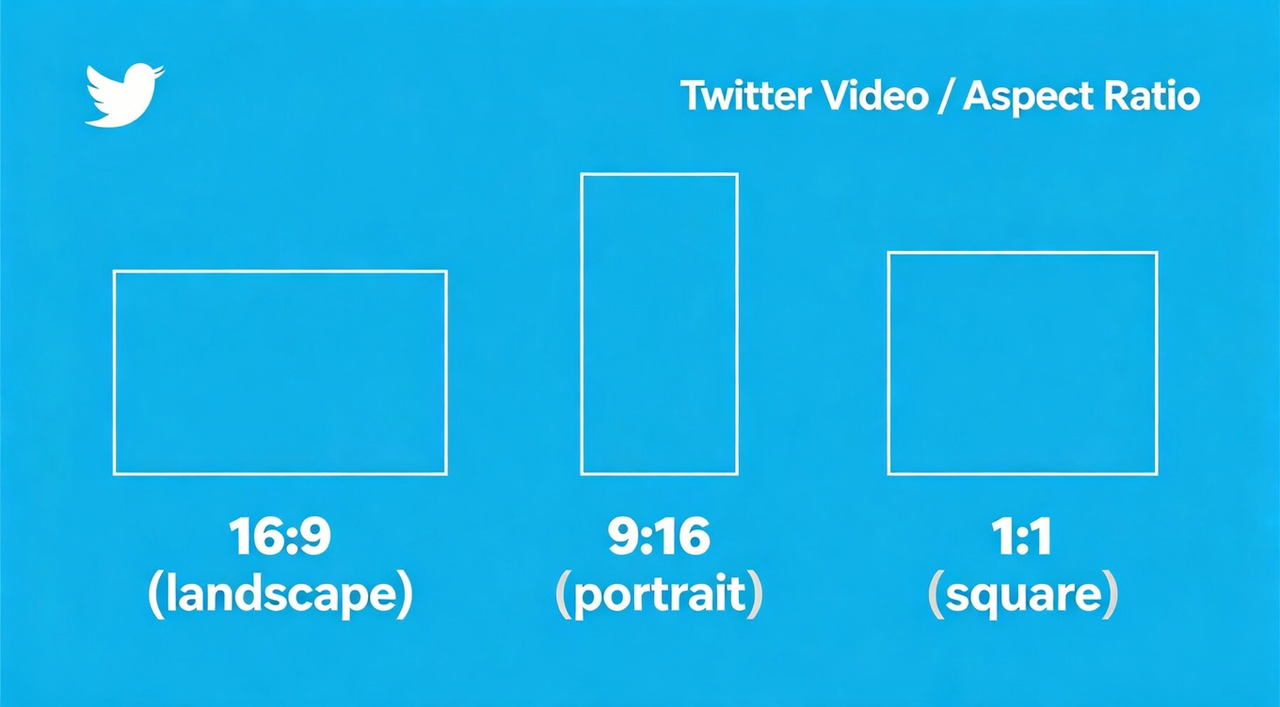
Aspect ratio | 16:9, 9:16, 1:1 | 16:9 or 1:1 (9:16 for vertical ads) | 16:9, 9:16, 1:1 |
Format | MP4, MOV (H.264 + AAC) | MP4, MOV (H.264 + AAC) | MP4, MOV (H.264 + AAC) |
Max frame rate | 60 fps | 60 fps | 30 fps |
Bitrate | Up to 25,000 kbps | Up to 25,000 kbps | Up to 25,000 kbps |
Thumbnail | Auto-generated or custom | Custom recommended | Auto-generated |
Captions | SRT upload or burned-in | SRT upload supported | Burned-in only |
Key takeaway: If you're on X Premium (formerly Twitter Blue), you get significantly more headroom — up to 8 GB and multi-hour uploads. Free-tier users are capped at 512 MB and 2 minutes 20 seconds. For ads, the 1 GB limit is generous, but the 140-second cap still applies to most promoted video formats.
How X's Algorithm Treats Video in 2026
Here's something I wish someone had told me earlier: X's algorithm currently favors native video over links. Posting a YouTube link gets fraction of the reach compared to uploading the video directly. Based on widely reported creator experiences and X's own creator documentation, native video receives significantly more impression weight in the For You feed.
A few algorithm signals worth noting:
Watch time matters more than views. A 30-second video watched to completion outperforms a 2-minute video where most viewers drop off at 15 seconds.
Vertical video (9:16) gets more real estate in the mobile feed, which is where the majority of X users browse.
Captions boost completion rates. Many users scroll with sound off. Adding captions — whether via X's built-in SRT upload, a tool like SmartCaption, or burning them in with FFmpeg — directly improves the metric X cares about most.
First 3 seconds decide everything. The hook has to land immediately. If you're struggling with openers, studying what's trending in Inspiration Center or analyzing viral hooks on X can help you find patterns that work for your niche.
How to Choose the Right Specs for Your Content
Not every video needs 1080p 60fps. Here's my decision framework:
Talking-head or tutorial content: 1080p, 30 fps, 16:9 or 1:1. Keep bitrate around 8,000 kbps. These are dialogue-heavy, so audio quality matters more than resolution. Use AAC audio at 192 kbps minimum. If you're editing talking-head videos frequently, a dedicated talking-head editor can speed up the cut-down process significantly.
Product demo or B-roll showcase: 1080p, 60 fps, 9:16 (vertical). Higher bitrate — 12,000–15,000 kbps — to keep fast motion clean. These benefit from crisp visuals, so don't over-compress.
Short-form viral clips (under 30 sec): 1080p, 30 fps, 9:16. Aim for the smallest file size that still looks clean. These are disposable content — volume matters more than perfection. Tools like Viral+ Studio can help you batch these quickly if you're producing at scale.
Ads: Always 1080p, match the aspect ratio to your placement (16:9 for timeline, 9:16 for vertical ad units). Custom thumbnail is non-negotiable for ads — the auto-generated one is almost always unflattering.
How to Edit Videos for Twitter: A Practical Workflow

Here's the step-by-step workflow I actually use. No fluff.
Step 1: Select and Trim Your Footage
Start by pulling only the clips you need. If you're working with long raw footage, a rough-cut tool like SmartPick or the highlight detection feature in Premiere Pro can save you from scrubbing through hours of material. Trim aggressively — on X, shorter almost always performs better. Aim for 15–60 seconds for organic posts.
Step 2: Match Your Export Settings to X's Requirements
Before you start editing, set your project to the target specs. In Premiere Pro, create a sequence preset at 1920×1080 (or 1080×1920 for vertical), 30 fps, and H.264. In DaVinci Resolve, the Delivery page lets you set these under the "Custom Export" tab. Getting this right upfront avoids re-exporting later.
Step 3: Add Captions
This is not optional if you want engagement. Around 80% of X video views happen with sound off, according to commonly cited industry benchmarks. You have three paths:
Upload an SRT file alongside your video on X — cleanest option, but limited formatting.
Burn captions into the video using tools like HandBrake (free, open-source), FFmpeg (command-line but powerful), or SmartCaption for AI-generated, styled captions.
Use X's auto-caption feature — it exists, but accuracy varies. I'd only rely on it for simple, clear speech in English.
Step 4: Optimize Audio
Bad audio kills a video faster than bad visuals. Run your audio through a loudness check — target -14 LUFS for social media, which is louder than broadcast standards but matches what users expect on their phones. OBS users can apply a compressor filter during recording. For post-production, tools like Audacity (free) or SmartAudio can normalize and clean up background noise.
Step 5: Export and Verify
Export as MP4, H.264, AAC audio. Before uploading, verify:
File size is under 512 MB (or 8 GB for X Premium)
Duration is under 2:20 (free) or your Premium limit
Codec is H.264, not H.265/HEVC
Audio codec is AAC, not Opus or FLAC
A quick check with FFmpeg:
ffprobe -v error -show_entries stream=codec_name yourfile.mp4
— this tells you exactly what codecs your file uses.
Common Twitter Video Upload Errors (and How to Fix Them)
I've hit every single one of these. Here's the troubleshooting table:
Error / Symptom | Likely Cause | Fix |
"Your media file could not be processed" | Wrong codec (HEVC, VP9, AV1) | Re-export as H.264 + AAC in MP4 container |
Upload stalls at 95-99% | File exceeds 512 MB (free tier) | Compress with HandBrake: lower bitrate to 6,000–8,000 kbps |
Video uploads but looks blurry | Source resolution too low or over-compressed | Export at 1080p with bitrate ≥ 8,000 kbps |
"Video too long" | Exceeds 140-second limit on free tier | Trim to 2:20 or subscribe to X Premium |
Audio missing after upload | Audio codec is not AAC | Re-encode audio:ffmpeg -i input.mp4 -c:v copy -c:a aac output.mp4 |
Black frames at start/end | Variable frame rate from screen recording | Convert to constant frame rate with HandBrake or FFmpeg |
Upload works on desktop but fails on mobile | Mobile app has stricter processing limits | Try uploading via X's web interface or Media Studio instead |
Aspect ratio looks wrong in feed | Non-standard ratio (e.g., 2.35:1) | Pad to 16:9 or 9:16 with black bars or re-crop |
Quick-Reference Cheat Sheet
Bookmark this if you need the essentials at a glance:
Format: MP4 (H.264 + AAC)
Resolution: 1920×1080 (landscape) or 1080×1920 (vertical)
Frame rate: 30 fps (safe default) or 60 fps
Bitrate: 8,000–12,000 kbps for most content
Max file size: 512 MB free / 8 GB Premium
Max duration: 140 sec free / up to 4 hours Premium
Aspect ratios: 16:9, 9:16, 1:1
Captions: SRT file upload or burned-in
If you need to batch multiple videos for different platforms — say, taking one Twitter clip and adapting it for TikTok and Instagram Reels — Platform Intelligence can handle the aspect ratio and format conversions in one pass, which saves a surprising amount of re-export time.
Frequently Asked Questions
What video format does Twitter/X accept? X accepts MP4 and MOV files using the H.264 video codec and AAC audio codec. Other codecs like HEVC, VP9, or AV1 will either fail to upload or get rejected during processing. When in doubt, MP4 with H.264 is the universal safe choice.
What is the maximum video length on Twitter? Free accounts can upload videos up to 140 seconds (2 minutes 20 seconds). X Premium subscribers can upload videos up to 4 hours, depending on their subscription tier. For ads, most promoted video formats cap at 140 seconds.
What's the best video resolution for Twitter in 2026? 1920×1080 for landscape and 1080×1920 for vertical. While X accepts resolutions up to 1920×1200, uploading 4K is not recommended — X will re-compress it, and you'll lose control over quality. Exporting at 1080p gives you the best balance of clarity and file size.
Why does my Twitter video look blurry after uploading? X applies its own compression to every upload. To minimize quality loss, export at a bitrate of at least 8,000 kbps for 1080p content. Also ensure you're uploading the original export — re-uploading a file that's already been downloaded from another platform compounds the compression artifacts.
Should I use vertical or horizontal video on Twitter? Vertical (9:16) takes up more screen real estate on mobile, which is where most X users are. For pure engagement, vertical tends to outperform landscape. However, if your content is a tutorial, comparison, or anything with side-by-side visuals, 16:9 landscape is still the better fit. Square (1:1) is a good middle ground that works reasonably well in both orientations.
How do I add captions to Twitter videos? You can upload an SRT file alongside your video when posting, burn captions directly into the video using tools like FFmpeg or SmartCaption, or rely on X's auto-generated captions (which are less accurate). Burned-in captions give you the most control over styling and accuracy.
Can I edit videos for Twitter without professional software? Yes. HandBrake handles format conversion and compression for free. FFmpeg covers nearly anything from the command line. For a faster, AI-assisted approach, NemoVideo lets you handle rough cuts, captions, audio cleanup, and multi-platform formatting in one place — free to try with 100 credits, and plans start from $4.17/month.