

How to Convert Twitter Video to MP4 and Use It
Hey, guys. Dora here. I spent an hour last week trying to open a Twitter video in my editor. Wouldn't load. Turned out the file format was the problem, not the editor. Converted it to MP4 in 20 seconds, imported immediately.
If you're downloading Twitter videos to repurpose for Shorts, Reels, or TikTok, MP4 is the only format that matters.
Why MP4 Is the Format Most People Need
Compatibility Across Editors and Platforms
MP4 with H.264 video codec and AAC audio is the universal standard. YouTube, Instagram, TikTok, Facebook, CapCut, Premiere Pro, Final Cut — they all accept MP4 without complaint. According to platform documentation, MP4 is the recommended upload format across all major social media in 2026.
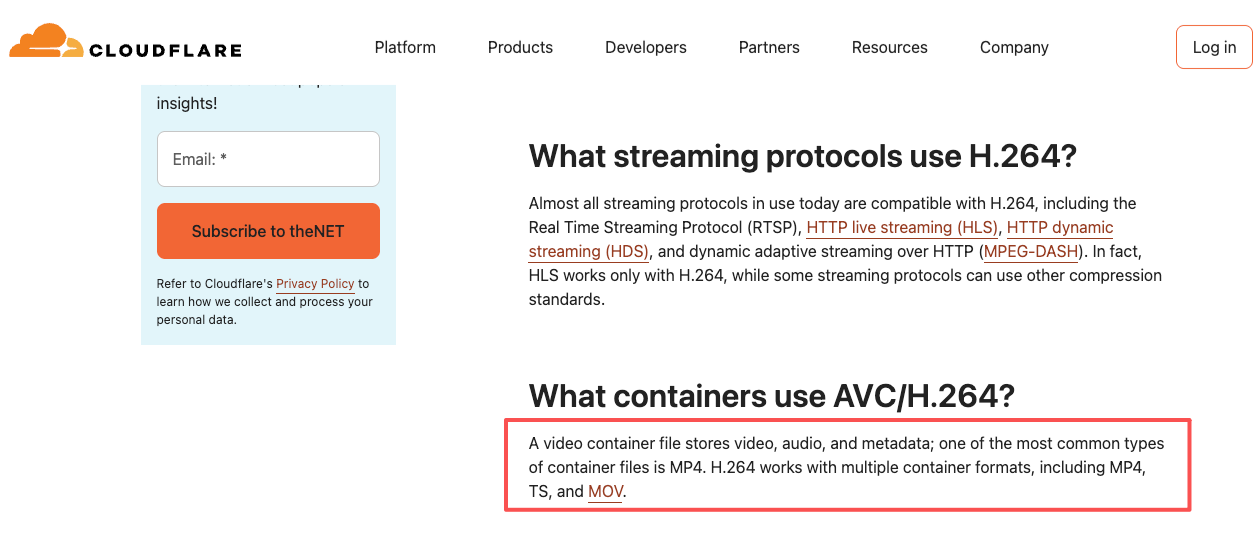
I tested this by downloading the same Twitter video in three formats: MP4, MOV, and WebM. The MP4 imported into CapCut and Premiere instantly. The MOV worked but required transcoding (added 2 minutes). The WebM failed to import in CapCut entirely.
Most Twitter downloaders output MP4 by default because Twitter itself stores videos in MP4 format on its CDN. If you're getting a different format, you're using the wrong tool or selecting non-default options.
When Other Formats Cause Problems
MOV files work on Mac-based editors like Final Cut and iMovie but often fail or require conversion on Windows. WebM isn't supported by most mobile editors. AVI is outdated and produces massive file sizes. If you download Twitter videos in anything other than MP4, you're adding unnecessary friction to your workflow.
The one exception: if you only need audio. Some tools offer MP3 extraction, which is useful for podcast clips or voice memos. But for video repurposing, stick with MP4.
How to Convert Twitter Video to MP4
Online Converter Options
If your downloaded Twitter video isn't MP4, online converters handle the format switch in seconds. SaveTweetVid, X2Twitter, and SaveTWT all include built-in MP4 conversion — paste the Twitter URL, select MP4 as output format, download. Processing takes 10-30 seconds depending on video length.
I use X2Twitter when I need quality control. It lets me select resolution (1080p, 720p, 480p) alongside format, which matters when the source video is high-res and I want to preserve that.
For files already on your device, CloudConvert and Online-Convert work well. Upload the video, select MP4 as target format, download. Both support batch conversion if you're working with multiple files.
Mobile and Desktop Methods
On desktop, VLC Media Player converts free. Media → Convert/Save → Add file → select MP4 → Start. Takes 30 seconds for a 1-minute clip.
On mobile, Video Converter (iOS) and Media Converter (Android) handle conversion. Most editors like CapCut also auto-convert on import — drop a MOV/WebM file and it transcodes to MP4 in background.
Common MP4 Conversion Problems
Blurry output: Converter re-encoded at lower bitrate. Look for "Keep original quality" or "High quality" settings. Avoid converters that don't let you control bitrate.
File won't open: Codec inside MP4 isn't H.264. Ensure your converter outputs H.264 video codec and AAC audio. VLC and X2Twitter both default to this.
What to Do With the MP4 After Converting
Converting to MP4 solves the compatibility problem. Now the real work: editing for vertical short-form platforms.
Edit for Vertical Short-Form
Twitter videos are 16:9. TikTok, Reels, Shorts need 9:16. Cropping loses 60% of the horizontal frame.
Starting from 1920x1080 and cropping to 9:16 gives only 608x1080 — below the 1080x1920 target. You'll zoom in (degrades quality) or accept reduced resolution.
Framing: Center-crop often cuts off faces or text. Solution: manual keyframing to keep subject centered. CapCut's Auto Reframe does this automatically ($89.90/year Pro). VideoProc offers manual cropping without subscription.
Quick turnarounds: center-crop, accept limitations. Serious content: manual frame-by-frame adjustment, 5-10 minutes per clip.
Add Captions Before Reposting
Captions are mandatory. 85% of social video watched with sound off. Position in lower third of 9:16 frame.
I use Nemo after converting to MP4. Handles caption positioning, timing, vertical crop in one workflow. Saves 10-15 minutes versus manual captioning in Premiere.
Trim to 30-60 seconds. Cut intro, lead with hook in first three seconds.
When to Skip Conversion Entirely
If your Twitter downloader already outputs MP4, don't convert. Extra conversion steps introduce quality loss through re-encoding. Every time a video is compressed, it loses fidelity.
Test your downloader: download a Twitter video and check the file format (right-click → Properties on Windows, Get Info on Mac). If it's already MP4 with H.264 codec, you're done. Import directly into your editor.
I only convert when the downloader gives me MOV or WebM and my editor won't accept it. Otherwise, skip the conversion step entirely.
FAQ
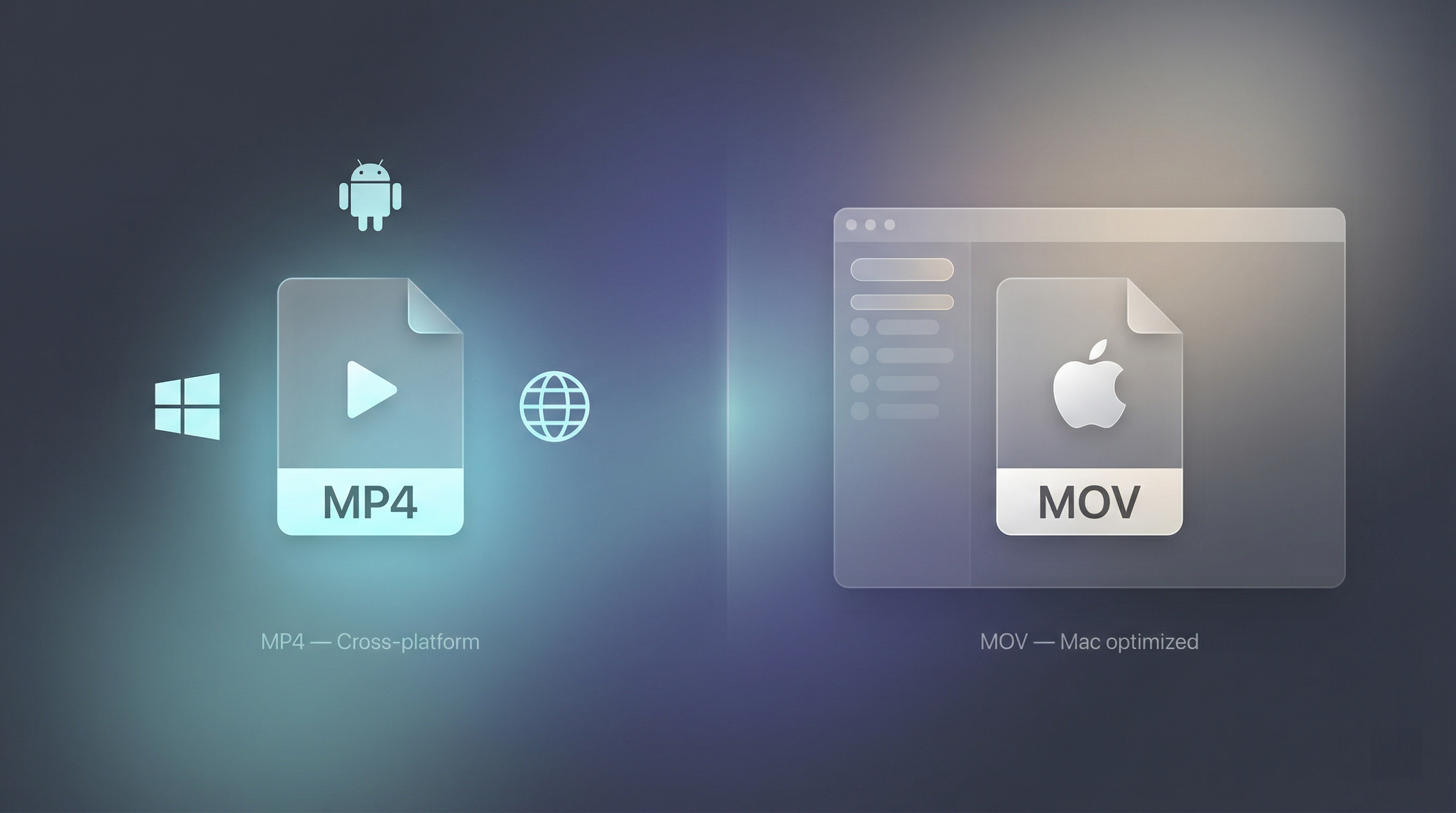
What's the difference between MP4 and MOV? MP4 is cross-platform. MOV works best on Mac but often requires conversion on Windows.
Will converting reduce quality? Only if converter re-encodes at lower bitrate. Use "keep original quality" settings.
Can I convert on iPhone? Yes. Use Video Converter (iOS) or editors like CapCut that auto-convert on import.
Why does my MP4 look blurry? Converter re-encoded at lower bitrate/resolution. Check quality settings.
Previous Posts: