

AI Music Video Generator from Audio File (2026)
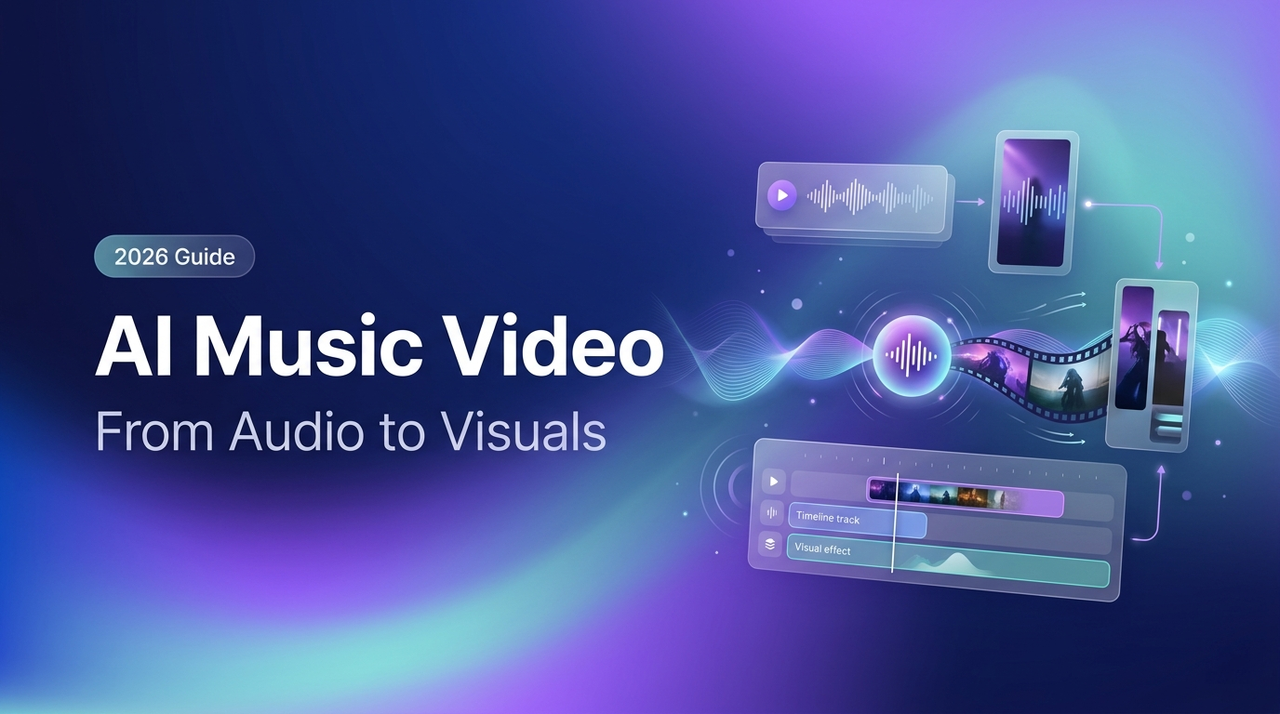
Hi everyone, Dora here. One month I bought three different AI music video tools in a single week. Two were gone before the weekend. The third is still in my stack — but not before I wasted a solid afternoon figuring out what it actually does versus what the landing page said it does.
If you're sitting on a finished track and need it to look like something without hiring a director or learning After Effects, this is where I land in 2026: the tools have caught up enough to be genuinely useful. But the gap between "AI-generated video" and "music video" is still real, and it matters.
Here's what you actually need to know.
How AI Music Video Generation from Audio Works
Audio Analysis and Scene Matching
The core mechanic isn't magic. You upload your audio file — MP3, WAV, FLAC, usually AAC too — and the AI does a few things before a single frame gets generated.
It reads the tempo. It identifies beat markers, drop points, and structural sections (verse, chorus, bridge). Better tools do stem separation, which means they isolate the kick drum from the synth layer from the vocal and respond to each differently. The kick triggers a cut; the synth swell shifts the color field. That's the difference between a video that seems synced and one that actually is.
Scene matching happens next. The AI picks visual styles, generates or pulls clips, and paces cuts to match what it found in audio analysis. Neural Frames, for example, uses 8-stem audio analysis — drums, bass, vocals, melody, and more — mapping distinct visual behaviors to each frequency range. That's more surgical than most competitors, who only sync to tempo or beat markers.
The whole process takes 2–5 minutes for a standard track. Longer songs or more complex AI-generated styles push that to 10+ minutes.
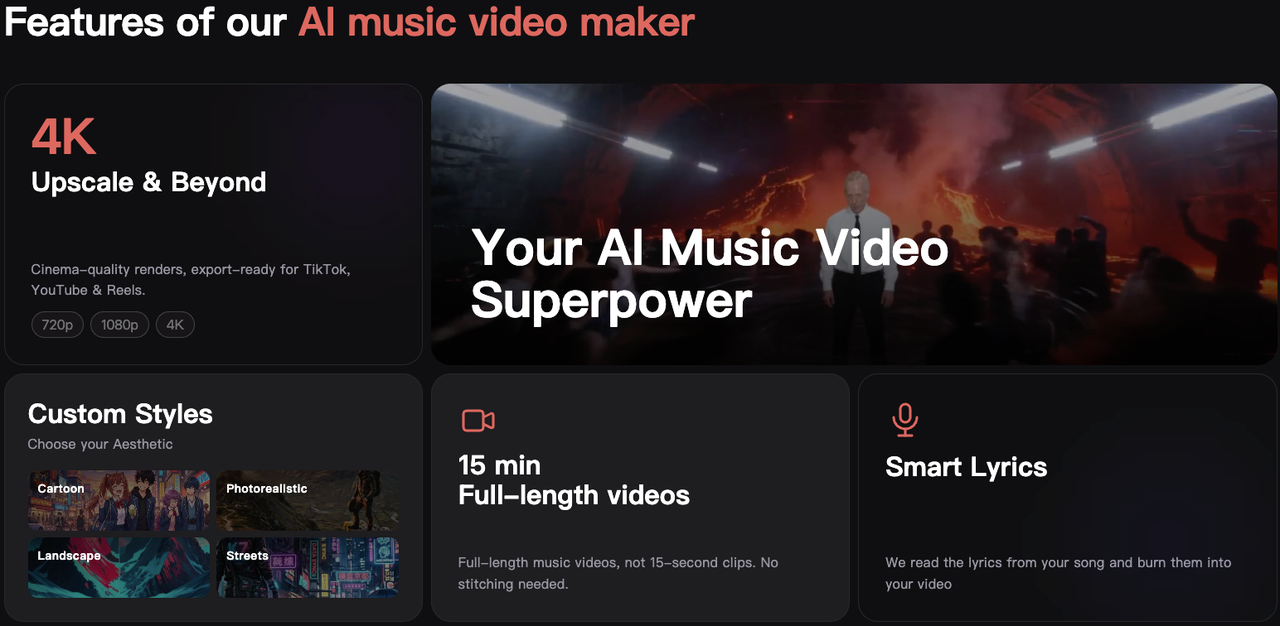
What You Can and Can't Control
Here's the thing nobody tells you upfront: the first draft is a starting point, not a finish line.
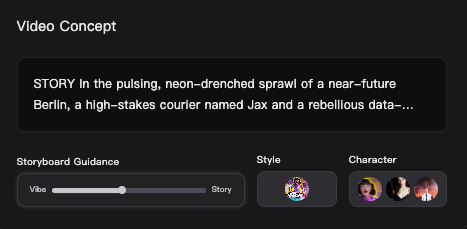
What you can control going in: visual style, color palette, whether you want cinematic narrative or abstract audio-reactive, and on some platforms, specific character designs or recurring visual elements. You feed these as prompts or style selections before generation.
What you can't fully control: which exact frames get generated, precise cut timing down to the millisecond, and anything that requires frame-level creative judgment. The AI makes those calls.
Beat sync is usually reliable. Lip sync is the variable. Clean vocal tracks on dedicated music video tools perform reasonably well. Busy mixes or accented speech increase the re-edit rate noticeably.
Best AI Tools for Audio-to-Music-Video
I'm not ranking these by which has the fanciest demo. I'm ranking by what they're actually built for.
Tool Comparison
Tool | Best For | Key Audio Formats | Notable Feature | Free Tier |
Freebeat | Full music video + Suno users | MP3, WAV, link paste | BPM + structure analysis, lyric sync | Yes (limited) |
Neural Frames | Electronic / abstract, 4K output | MP3, WAV, FLAC | 8-stem analysis, 4K export included | Yes (trial credits) |
Revid | Social-first, fast iterations | MP3, WAV, AAC, M4A | Style switching, stock + AI hybrid | Yes |
Vidnoz | Budget-conscious, short clips | MP3, WAV, M4A, OGG, FLAC | Free commercial use, cinematic effects | Yes (1-min cap) |
LTX Studio | Audio-driven scene building | MP3, WAV, AAC, OGG, M4A | Motion shaped by audio from frame one | Yes (credits) |
Freebeat is the only platform in this comparison that handles full structural song analysis, lip-sync, persistent character identity, and native Suno link integration in a single workflow — which matters if you want to go from AI-generated music to AI-generated video without any manual file handling.
Neural Frames exports in formats optimized for every platform: YouTube horizontal, Instagram Reels and TikTok vertical, Spotify Canvas looping, and custom aspect ratios — with 4K upscaling included in the subscription at no extra charge.
For quick social content with multiple style variations, Revid lets you generate the same track with different visual directions — AI-generated clips, stock footage, moving AI images — useful for testing creative angles on TikTok before committing to one. For anyone on a tight budget, Vidnoz caps free use at one minute per clip but allows commercial use on generated output.
Step-by-Step: Audio File to Music Video
Preparing Your Audio File
Start with the best quality export you can produce. WAV or FLAC gives AI tools more data to analyze, which translates to better beat detection and tighter visual synchronization. MP3 at 320 kbps is also fine. Anything below 128 kbps — the sync suffers noticeably.
Check your mix before uploading. A muddy low-end or buried kick drum produces worse beat sync than a clean, well-balanced track. You don't need a professional master, but at least get the levels in order.
Most tools accept MP3, WAV, AAC, M4A, FLAC, and OGG. If your file is in a less common format, a free converter handles it in under a minute. Trim any silence from the start and end — some generators pad your video with empty frames otherwise, which needs manual cleanup in post.
Generating the Video
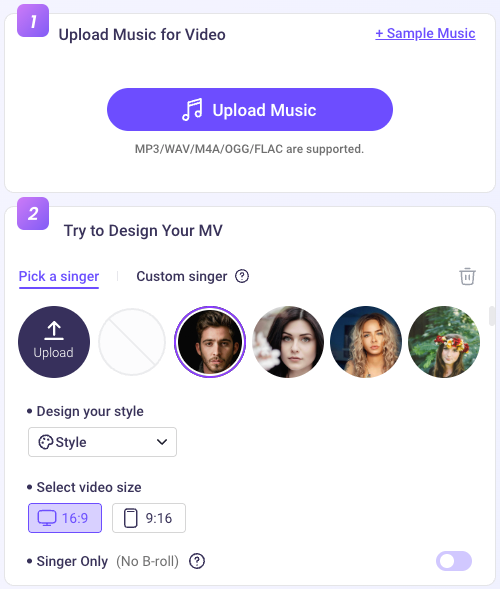
My actual workflow looks like this:
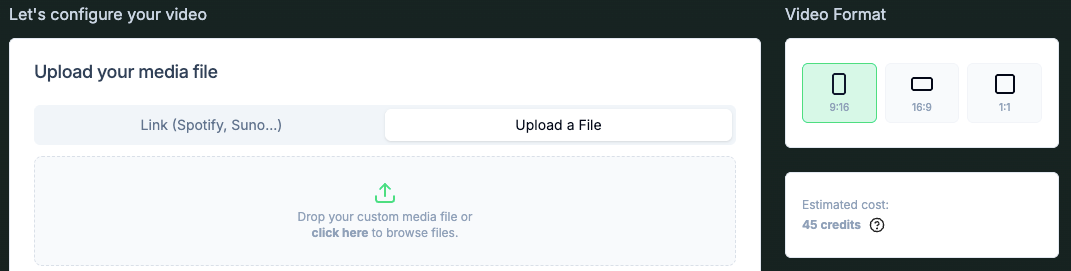
Step 1. Upload the audio. On most platforms this is drag-and-drop; several also accept Spotify or Suno links directly.
Step 2. Set your visual style. Pick one or two style keywords or reference images. Abstract and cinematic are the most forgiving for first-generation output. Performance and lip-sync modes require cleaner vocals and take longer to generate.
Step 3. If the tool supports character or color consistency settings, configure them before hitting generate. Changing these after the fact means regenerating, which costs time and credits.
Step 4. Generate and watch the first draft from start to finish before deciding anything is broken. Play it once, full volume, before touching anything.
Generation time: 2–5 minutes for most tools on a standard track. Complex AI styles or longer songs push that higher.
Editing and Syncing in Post-Production
Here's where most people stop too early. The first draft is rarely ready to publish, but it’s usually close.
Common issues are small: a cut slightly off-beat, a scene that doesn’t match the energy, or captions delayed by half a second. Most tools can handle these quick fixes. For bigger changes — like adding your own footage or fine-tuning cuts — export and finish in DaVinci Resolve, which is free and fully capable.
Expect to spend 20–30 minutes polishing a 3-minute video. If it consistently takes over an hour, the problem is either the tool or your settings. Track your time — it’s the only way to know which.
Post-Generation Editing Checklist
Beat Sync Verification
Play the final video back through headphones or monitors — not a laptop speaker. Cuts that feel right visually can feel wrong rhythmically when the bass hits correctly.
Check the drop specifically. That's where AI sync is most likely to slip. If a visual transition happens one beat late, it reads as off to anyone paying attention. Fix it manually by shifting the cut point in the editor.
If more than 30% of cuts feel off, regenerating with adjusted settings is usually faster than fixing each one by hand.
Adding Text Overlays and Credits
Keep it minimal. Artist name in the first five seconds, social handle at the end — that's usually enough. Anything more competes with the visual.
For lyric videos, let the AI handle the initial timing pass, then adjust individual lines that feel rushed or late. One font, consistent sizing. Readability matters more than creativity here.
Export for YouTube, TikTok, and Reels
Platform specs as of 2026:
YouTube: H.264 or H.265, 1080p minimum, 16:9 aspect ratio
TikTok: MP4, 9:16 vertical, 1080×1920, 60fps recommended
Instagram Reels: MP4, 9:16, maximum 90 seconds
Spotify Canvas: 9:16, looping, 3–8 seconds
Most tools export in platform-optimized presets. Use them. Don't re-encode unless you have a specific reason.
Limitations and Trade-offs
Visual Quality Ceilings
AI-generated visuals in 2026 are good enough for society. They're not good enough to fool a film director.
Human faces are still the weakest point. Hands are inconsistent. Anything requiring continuous character motion across multiple generated scenes will have seams — slight lighting shifts, faces that drift between cuts. For abstract, atmospheric, or lyric-focused content, the quality ceiling is high. For narrative videos with human characters, expect to curate which frames make the cut.
Copyright and Licensing Considerations
Two separate questions worth keeping straight.
The visual side: AI-generated visuals don’t trigger Content ID — it’s an audio system. If your music is clear, your video is fine. YouTube targets mass-produced, low-effort content, not musicians using AI tools with real creative input.
Disclosure only matters if visuals could be mistaken for real people or events (deepfakes, fake news-style clips). That’s what the “altered content” label is for. Stylized music videos usually don’t need it — but if you’re unsure, use it.
The audio side: This is where things get more complex. If you record the music yourself, you own it. If you’re using AI-generated audio, you need to verify the commercial rights before monetizing.
For example, Suno allows commercial use on its paid plans, while tracks created on the free tier are for non-commercial use only. ElevenLabs grants perpetual commercial rights on its paid tiers. Udio, following its 2025 agreement with Universal Music Group, no longer allows paid users to download generated tracks for external use.
Check each platform's current terms — several have updated in the past year.
The Bottom Line
I went skeptical and landed somewhere in the middle.
Tools built specifically for music are worth testing if you release regularly and need visuals on a budget. The ones adapted from general video generators will waste your time.
For most independent musicians in 2026: pick one tool, test it on a track, and watch your re-edit time. If you’re spending more than 45 minutes polishing a 3-minute video, something’s off — either the tool or your settings.
Track the time. It tells you what actually needs fixing.
FAQ
Q: What audio formats work with AI video generators? Most tools accept MP3, WAV, AAC, and M4A. Several also support FLAC and OGG. Neural Frames accepts MP3, WAV, and FLAC including DAW masters and distributor-ready mixdowns. If you're working from a project file, export WAV to 44.1kHz/16-bit minimum before uploading.
Q: Is the output good enough for YouTube? For most independent artists: yes. The more relevant question is what you're comparing it to. Better than a static waveform visualizer, clearly. The same as a professionally shot music video, no. For abstract, lyric, or atmospheric content, the quality floor is high. For narrative content with human characters, plan to spend more time curating the output.
Q: Do you need to edit the AI output? Almost always. Budget 20–30 minutes of cleanup on a standard-length track. Caption timing adjustments, one or two cut tweaks, maybe a single scene swap — that's normal. The AI handles heavy lifting; you handle the final 10%.
Previous Posts: