

Automatic Video Editor: AI Cuts, Captions & More
Hi, it’s Dora. You've probably seen the promises: upload your raw footage, click a button, and walk away with a finished video. In 2026, automatic video editors have gotten genuinely good — but they haven't gotten magic. The tools that actually save creators and team hours every week aren't the ones that claim to do everything. They're the ones that do specific things extremely well: cutting silence, generating captions, reformatting for platforms, and exporting to spec without manual configuration.
This article breaks down exactly what an automatic video editor can and can't do in 2026, which features are mature enough to trust, and where you still need a human hand on the controls. Whether you're a solo creator trying to ship more content or a team looking to scale production without scaling headcount, knowing the real limits of automation is what helps you use it well.
What Is an Automatic Video Editor
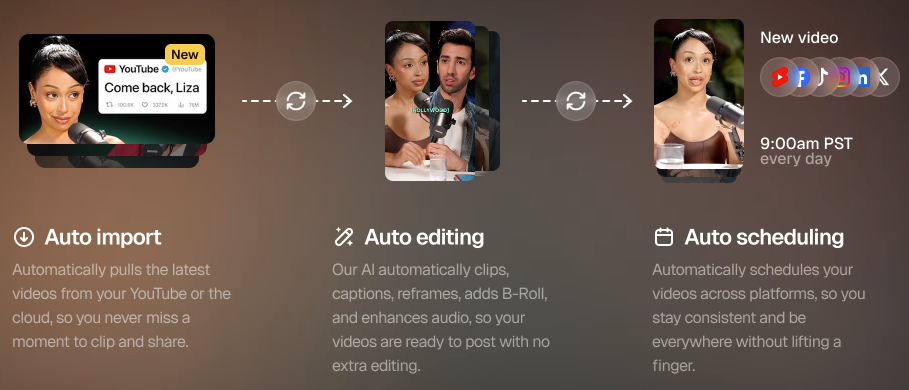
An automatic video editor is software that uses AI or rule-based automation to handle repeatable, technical parts of the editing process — things like removing silence, generating captions, resizing for different platforms, and applying export presets. Instead of spending hours in a timeline making the same small decisions over and over, you let the tool handle the pattern-matching work while you focus on the parts that require human judgment.
That distinction matters because "automatic" is a spectrum. Some tools fully automate a narrow task, like silence removal, and do it extremely well. Others promise end-to-end automation but still require meaningful review before anything is publishable. Understanding what each type of automation actually does — and where it breaks down — is what separates smart workflow integration from disappointed expectations.
What It Automates (Cuts, Captions, Formatting)
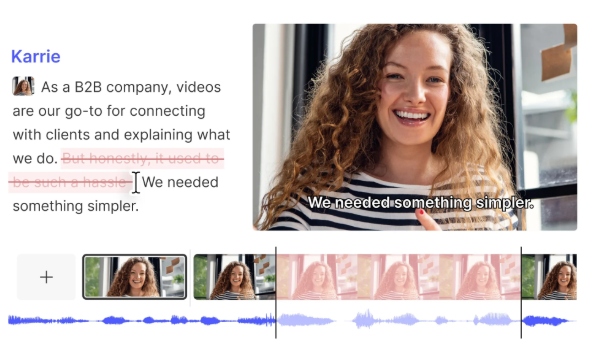
The most mature automatic editing features in 2026 fall into four categories: cutting dead time out of recordings, generating synchronized captions, reformatting video dimensions for different platforms, and producing platform-specific export presets. Tools in this category use a mix of machine learning and rule-based logic — not every "automatic" feature is pure AI. Some rely on acoustic detection, others on speech transcription models, and many combine both.
For creators and teams dealing with high output volume, these features compound. A talking-head video that once took 90 minutes to rough-cut, caption, and reformat for three platforms can realistically be processed in under 20 minutes with the right automatic video editor.
What It Doesn't Automate (Creative Decisions)
Here's where expectations need calibrating. Automatic editors are good at pattern recognition — they can detect silence, transcribe words, and match aspect ratios. They are not good at narrative judgment. Deciding which takes convey the right tone, how to pace a story for emotional effect, when a cut feels rhythmically right versus technically correct — those decisions still require a human editor.
Think of it this way: automation handles the grammar of editing, not rhetoric. Your story arc, your pacing instinct, your sense of what your audience needs to feel at a specific moment — that stays with you. The best workflows in 2026 treat auto-editing as a rough-cut accelerator, not a replacement for editorial craft.
Types of Automatic Editing Features
Auto-Captioning
Auto-captioning is powered by Automatic Speech Recognition (ASR), and it has improved dramatically over the past few years. Most modern tools now advertise 95–97% accuracy on clean audio, and for well-recorded talking-head content in standard English, that's roughly accurate. The practical catch is that accuracy drops significantly with accents, technical vocabulary, multiple overlapping speakers, or low-quality audio.
Independent research published in the ACM Transactions on Accessible Computing found that ASR accuracy varies widely across vendors and conditions — and that streaming ASR (used for live captioning) underperforms batch transcription by a meaningful margin. For pre-recorded video, auto-captions are genuinely useful as a first pass. For accessibility compliance — WCAG 2.1 Level AA requires accurate captions for all prerecorded synchronized media — human review is still required.
For most creators, the workflow is: generate, review, correct the handful of errors that actually matter, publish. That's still far faster than manual transcription.
Auto-Cuts and Silence Removal
This is arguably the most mature automatic editing feature available. Tools like Gling, AutoCut, and Descript transcribe your audio, map the transcript to the timeline, and then remove silences, filler words, and bad takes based on detected pauses or direct text editing. Descript takes this furthest with its transcript-driven editing workflow — delete a word from the transcript and the corresponding footage disappears, no timeline scrubbing required. Some editors report cutting rough-cut time from several hours to under 30 minutes on talking-head content.
The limitation is context. An automatic editor can detect a 1.5-second pause; it can't know that the pause was intentional — a beat before a punchline, or a moment of reflection that gives a sentence weight. Auto-cuts work best on podcast-style recordings and unscripted explainer content where silence is mostly dead air. They require more supervision on narrative documentary or interview material where timing carries meaning.
Auto-Formatting for Platforms
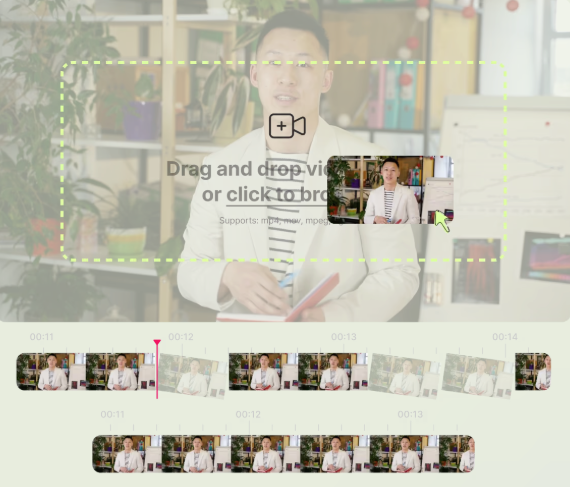
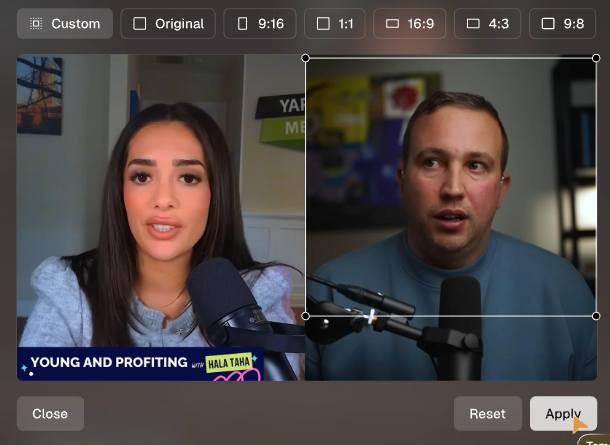
Each major social platform has its own preferred aspect ratio: 9:16 for TikTok, Instagram Reels, and YouTube Shorts; 16:9 for standard YouTube uploads. According to Sprout Social's video specs guide, getting these ratios wrong results in awkward cropping, black bars, or distorted visuals — all of which hurt engagement. Auto-formatting tools handle this by detecting the dominant subject in the frame and intelligently cropping or padding the video to fit the target ratio.
The better tools do this with face-tracking or subject detection, so the speaker stays centered in the frame even when the composition changes. The weaker ones just center-crop, which works on static shots but fails on anything with movement or off-center framing. This is a feature worth testing before you commit to a tool, because quality varies considerably.
Auto-Export Presets
Auto-export presets reduce the friction of delivering the same video in multiple formats. Instead of manually configuring codec settings, bitrate, resolution, and file format for each destination, you select a preset — "TikTok," "YouTube," "LinkedIn" — and the tool handles the technical output. For teams publishing across several platforms simultaneously, this alone saves a non-trivial amount of coordination time.
The risk is assuming presets stay current. Platform specifications change, and a preset that was accurate six months ago may produce suboptimal results today. Checking against platform-official specs periodically is still worthwhile, even when using automation.

Best Automatic Video Editors in 2026
Comparison Table
Tool | Best For | Auto-Cut | Auto-Captions | Platform Formatting | Free Plan |
Descript | Podcasters, long-form creators | ✅ Text-based editing | ✅ High accuracy | ✅ | Limited |
Gling | YouTube creators | ✅ Silence + take removal | ✅ | ❌ | ❌ |
Opus Clip | Short-form repurposing | ✅ Smart clipping | ✅ Animated captions | ✅ Multi-ratio | Freemium |
CapCut | Social-first creators | ✅ | ✅ 100+ languages | ✅ | ✅ |
AutoCut | Premiere Pro / DaVinci users | ✅ Plugin-based | ✅ | ✅ Resize | Paid |
Captions (app) | Mobile-first creators | ✅ One-tap | ✅ 100+ languages | ✅ | Limited |
Vizard | Teams, repurposing workflows | ✅ AI clipping | ✅ 100+ languages | ✅ | ✅ |
Note on pricing: Most tools use freemium or credit-based models. Free tiers are generally suitable for occasional use; regular publishing workflows typically require a paid plan. Always verify current pricing on each tool's website, as plans change frequently.
How to Use Auto Editing Without Losing Quality
When to Trust Automation
Automation earns full trust in high-volume, low-variance tasks. If you're producing regular talking-head content — interviews, tutorials, podcast clips, team updates — the pattern is consistent enough that auto-cut and auto-caption are reliable first passes. You'll review the output, correct a small number of errors, and ship. The time savings are real and compounding.
Auto-formatting is trustworthy when your source footage was shot with the target ratio in mind, or when the subject is centered and static enough for face-tracking to work cleanly. Auto-export presets are reliable for platforms you use regularly and have tested against.
The key principle: automate the predictable, supervise the edge cases.
When to Override
Overview auto-cuts whenever pacing is part of the story. Comedy, documentary, emotional narrative, and brand storytelling all depend on rhythm that pattern-matching algorithms can't infer. A silence that reads as "dead air" to the tool may be a beat that reads as "gravity" to your audience.
Override auto-captions for technical content, proper nouns, non-English words mixed into English speech, and anything where accuracy is compliance-critical rather than just nice-to-have. Captions intended to meet accessibility standards — whether legal or ethical — require human review before publication. The W3C Web Accessibility Initiative is explicit on this point: automatically-generated captions do not meet accessibility requirements unless they can be confirmed to be fully accurate. The gap between "95% accurate" and "fully accessible" is meaningful, particularly for the deaf and hard-of-hearing community who depend on captions as a primary information channel.
Override auto-formatting when your framing was compositionally intentional. If you shot with a specific visual language — rule of thirds, negative space, subjects deliberately off-center — the auto-crop will fight your composition. In those cases, manual reframing is faster than correcting the algorithm.
FAQ
Q: Can Automatic Editors Replace Manual Editing? Not for anything where creative decisions matter. They can replace manual editing for genuinely mechanical tasks: silence removal, initial transcription, file conversion, platform reformatting. They can accelerate rough cuts to the point where the human editor starts from 60–70% completion instead of zero. But narrative editing — pacing, structure, tone, story arc — still requires human judgment. The honest framing isn't "AI replaces editors." It's "AI handles the tedious parts so editors can focus on the work that actually requires craft."
Q: What's the Best Free Automatic Video Editor? CapCut is the most full-featured free option in 2026, with auto-captions, basic auto-cuts, platform formatting, and export presets available without payment. Vizard and Opus Clip both offer free tiers, though with monthly credit limits that constrain high-volume use. For creators who work inside Premiere Pro or DaVinci Resolve, AutoCut's plugin offers a trial period worth testing for silence removal.
Q: How Accurate Are Auto-Generated Captions? For clear audio in standard English, most leading tools achieve 95–97% word-level accuracy. That sounds high until you calculate error density on a 20-minute video: at 97% accuracy on 3,000 words, you're still looking at roughly 90 errors to review. Academic research on ASR accuracy across real-world conditions confirms that performance degrades with streaming audio, non-standard accents, and domain-specific vocabulary — factors common in real creator content. The practical takeaway: auto-captions are an excellent starting point, but they are not a final product. Build caption review into your publishing workflow, not as a quality check for edge cases, but as a standard step.
Previous Posts: