

Hi, I'm Dora. Last week I had 47 product slides in a PowerPoint deck and a client who wanted them as a video — with transitions, music, and captions — by Friday. I exported the deck as an MP4 from PowerPoint. It looked like a funeral procession of bullet points.
That's when I went deep into the current AI slideshow maker landscape. I tested nine tools across two categories: AI presentation builders (the ones that help you make slides) and AI slideshow video generators (the ones that turn existing slides into actual videos). Most "best AI slideshow maker" articles lump these together. They shouldn't.
Here's what I found after a week of testing in April 2026.
Two Categories, Two Very Different Jobs
Category 1: AI Presentation Builders. These create slide decks from a text prompt — think Gamma, Canva, or Beautiful.ai. Great for building decks from scratch. The output is still a static presentation.
Category 2: AI Slideshow Video Makers. These take your existing images, slides, or PPT files and turn them into actual video — with motion, music, voiceover, and captions. This is what you need for social media, ads, or client deliverables.
If you're reading this because you want to turn a presentation into a video, skip ahead to the comparison table.
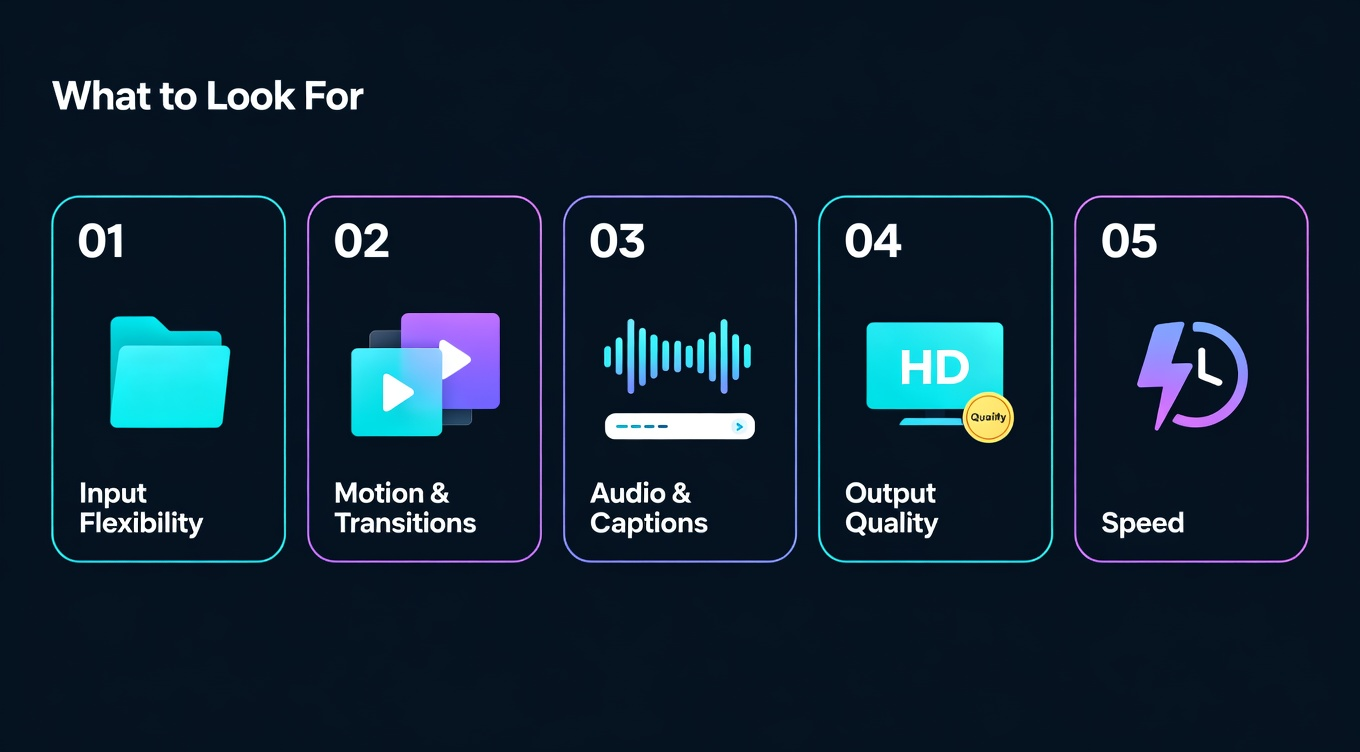
What to Look for in an AI Slideshow Video Maker
-
Input flexibility. Can you upload a PPT file directly? The best AI slideshow video generators accept PowerPoint, Google Slides exports, images, and even raw text.
-
Motion and transitions. A slideshow video that just fades between static images isn't a video — it's a screensaver.
-
Audio and captions. According to Wyzowl's 2026 Video Marketing Report, 91% of businesses now use video as a marketing tool. But most viewers watch without sound.
-
Output quality. Does the final video look like it was made in 2026, or 2019?
-
Speed. If it takes longer to use the AI tool than to do it manually, what's the point?
The Best AI Slideshow and Presentation Video Makers Compared
Tool
Primary Function
PPT/Image Upload
Auto Music + Captions
AI Video Generation
Pricing
Slideshow to Video
PPT, images, text
One-click post-production
Seedance 2.0 engine
Free; from $4.17/mo
Text/Blog to Video
Images, text
Music library
Template-based
From $29/mo
Slideshow to Video
PPT, PDF, images
Auto subtitles
Limited AI generation
Free tier; from $9.99/mo
Prompt to Video
Images only
AI voiceover
AI-generated scenes
Free tier; from $25/mo
Presentation builder
Re-build in editor
Music library
Static slides + record
Free tier; from $12/mo
Presentation builder
Text prompt only
No audio
No video output
Free tier; from $8/mo
Presentation builder
Text prompt only
No audio
No video output
From $12/mo
Presentation + webcam
Import from Prezi
Manual audio
Webcam overlay only
Free tier; from $7/mo
Google Slides add-on
Text prompt only
No audio
No video output
Free tier; from $8.33/mo
Gamma, Beautiful.ai, and SlidesAI are strong presentation builders — but they don't produce video at all. If your goal is to convert an existing PowerPoint into a polished video, those tools won't help.
How to Convert PowerPoint to Video with AI

Step 1: Export your slides as images. Open your deck in Microsoft PowerPoint or Google Slides. Export each slide as a PNG or JPEG.
Step 2: Choose your tool based on output type. Need a quick social clip? FlexClip or InVideo AI. Need full presentation video with AI transitions and auto post-production? NemoVideo.
Step 3: Upload and let AI do the heavy lifting. With NemoVideo, you upload your slides or images directly — no prompt writing required. The Multi-Modal Input feature analyzes each slide and generates dynamic video sequences automatically.
Step 4: Post-production in one click. NemoVideo's One-Click Post-Production handles BGM, auto-generated captions, and rhythm adjustments without you touching a timeline.
The total time from upload to finished video: about 12 minutes for a 2-minute presentation video.
Why Most AI Slideshow Tools Still Require a Prompt
Most AI video tools assume you know exactly what you want. But if you already have a finished presentation, you don't need the AI to think for you. You need it to convert what you've already made.
This is where NemoVideo's Zero-Prompt Intelligence matters. You don't write a prompt. Just upload your PPT or images, and the AI figures out what kind of video to create based on the visual content.
I tested this with a 12-slide investor pitch deck. Zero text input from me. The AI identified the title slide, data charts, product screenshots, and closing CTA — then generated a video with appropriate pacing for each section.
Which Tool Should You Actually Pick?
-
You need to build a slide deck from scratch — Use Gamma or Canva.
-
You need to turn existing slides into a social media video — Use NemoVideo or FlexClip.
-
You want AI to generate an entire video from a topic idea — Use InVideo AI.
-
You want the whole pipeline — slides to video with music, captions, and polish — NemoVideo's Viral+ Studio combines AI video generation with SmartAudio for music, SmartCaption for subtitles, and SmartPick for selecting the best scenes.
⚡ Skip the manual editing — NemoVideo handles the full pipeline in one pass →
5 Common Mistakes When Converting Presentations to Video
I've watched dozens of teams butcher their presentation-to-video conversions. The same five mistakes keep showing up.
-
Mistake 1: Equal time per slide. Giving every slide exactly 5 seconds creates a monotonous rhythm. Your title slide needs 2 seconds. A complex data chart needs 8–10. A key message slide might need 6. Vary the timing based on content density — let visual complexity drive pacing, not a fixed timer.
-
Mistake 2: No audio layer. A silent slideshow video feels like a screensaver. At minimum, add background music. Ideally, add voiceover. If you don't have a narrator, AI voiceover tools like NemoVideo can generate one in minutes. Don't skip this step.
-
Mistake 3: Skipping captions.** **According to multiple platform studies, 80%+ of social video is watched without sound. A presentation video without captions loses most of its audience on LinkedIn, Instagram, and Twitter. There's no excuse to skip this in 2026 — auto-caption tools are fast, accurate, and free to start.
-
Mistake 4: One aspect ratio for all platforms. A 16:9 presentation video looks terrible in a 9:16 Instagram Story. You need platform-specific versions. Plan for at least two exports — widescreen for YouTube and LinkedIn, vertical for Reels and Shorts.
-
Mistake 5: Default transitions. PowerPoint's built-in transitions (dissolve, wipe, push) scream "amateur." Either use no transitions at all — hard cuts between slides — or use an AI tool that generates cinematic transitions based on content context. Fading between static slide images is a wasted opportunity.
Real-World Use Cases: How Teams Use AI Presentation Videos
Different teams convert presentations to video for very different reasons. Here's how four common use cases play out.
-
Sales teams → Video proposals. A regional sales manager at a SaaS company told me her close rate jumped 23% when she started sending 90-second video proposals instead of slide decks. She builds her pitch in Google Slides, exports as images, and runs them through NemoVideo with auto-generated voiceover. Total production time: 15 minutes. The personalization (each prospect gets a custom video) is what drives results. Premiere Pro or DaVinci Resolve could do this too, but the turnaround time would be 2-3 hours per video.
-
Marketing teams → Webinar recaps. After a 45-minute webinar, the marketing team needs a 2-minute highlight reel for social. They extract key slides, add clip segments, and generate a recap video. SmartPick identifies the strongest visual moments from webinar recordings automatically.
-
L&D / HR → Onboarding videos. Training decks with 60+ slides become 10-minute onboarding videos. The key requirement: accessibility. Captions, clear pacing, chapter markers. FlexClip and NemoVideo both handle this well. InVideo AI can generate the entire video from a topic description if you don't have existing slides.
-
Product teams → Release note demos. Feature announcements as slide decks get shared internally. As videos, they get shared on social media, customer newsletters, and support docs. I've seen product teams cut their announcement production time from a full day (filming + editing) to under an hour (slides → AI video).
How to Optimize Your Presentation Video for Different Platforms
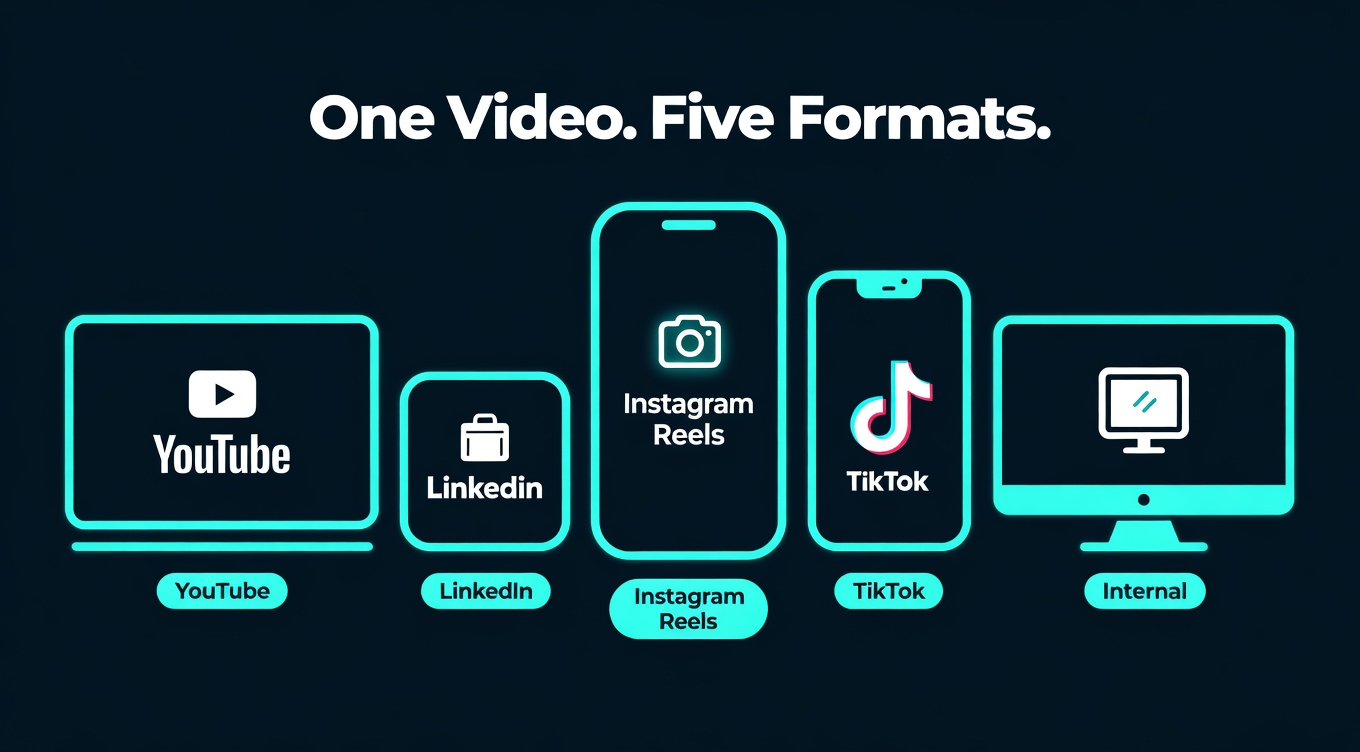
Each platform has specific requirements that affect how your presentation video performs. Here's the concrete specs and tactics that matter.
-
YouTube (16:9, up to 15 min) Best for comprehensive presentations. Keep your resolution at 1080p minimum — YouTube compresses aggressively, and starting at 720p looks terrible after re-encoding. Add chapter timestamps in the description matching your slide sections. YouTube rewards watch time, so front-load your best content.
-
LinkedIn (16:9 or 1:1, under 3 min) LinkedIn video auto-plays muted in the feed. Your first 3 seconds need a strong visual hook — not a title slide. Square (1:1) format takes up more feed real estate than 16:9. Captions are non-negotiable. According to LinkedIn marketing research, native video posts get 5x more engagement than link shares.
-
Instagram Reels (9:16, 30-90 sec) Vertical format only. Your slides need to be redesigned or cropped aggressively. Keep text large — it needs to be readable on a phone screen. Platform Intelligence in NemoVideo auto-reframes 16:9 content for 9:16, keeping the most important visual elements centered.
-
TikTok (9:16, 15-60 sec) Speed matters more than polish. TikTok's audience expects fast pacing — 2-3 seconds per concept maximum. Heavy text overlays work well here. Music from TikTok's library (not your own) tends to boost distribution.
-
Internal platforms (Loom, SharePoint, LMS) Prioritize clarity over style. 1080p, clear captions, and consistent pacing. Chapter markers help employees find specific sections. Longer formats (5-15 min) are acceptable for training content.
Pick a Tool and Start This Week
The tools exist. The workflow is faster than it's ever been. The only thing left is picking a starting point and running one presentation through the process.
HubSpot's 2026 data is unambiguous — video outperforms static content on every engagement metric that matters. Your slides are already built. The content is already there.