

Hi, I'm Dora. Last month I pulled 47 old product demo clips from a client's Google Drive. Shot in 2021. 720p. Grainy. Borderline unusable.
I ran them through seven different AI video enhancer tools over two weeks in March 2026. Some tools impressed me. Others wasted my time. Here's exactly what I found — no fluff, no affiliate bias.
What Does an AI Video Enhancer Actually Do?
An AI video enhancer uses machine learning models to improve existing footage — upscaling resolution (480p to 4K), removing noise and grain, sharpening blurry details, stabilizing shaky clips, and restoring faces.
The best tools in 2026 go further. Some handle AI video restoration of decades-old footage. Others combine enhancement with AI-powered generation — creating new footage that matches your existing style.
Video quality directly impacts watch time. According to Wistia's video marketing research, viewers drop off faster on low-quality video. An AI video upscaler is no longer optional.
How AI Video Enhancement Technology Actually Works in 2026
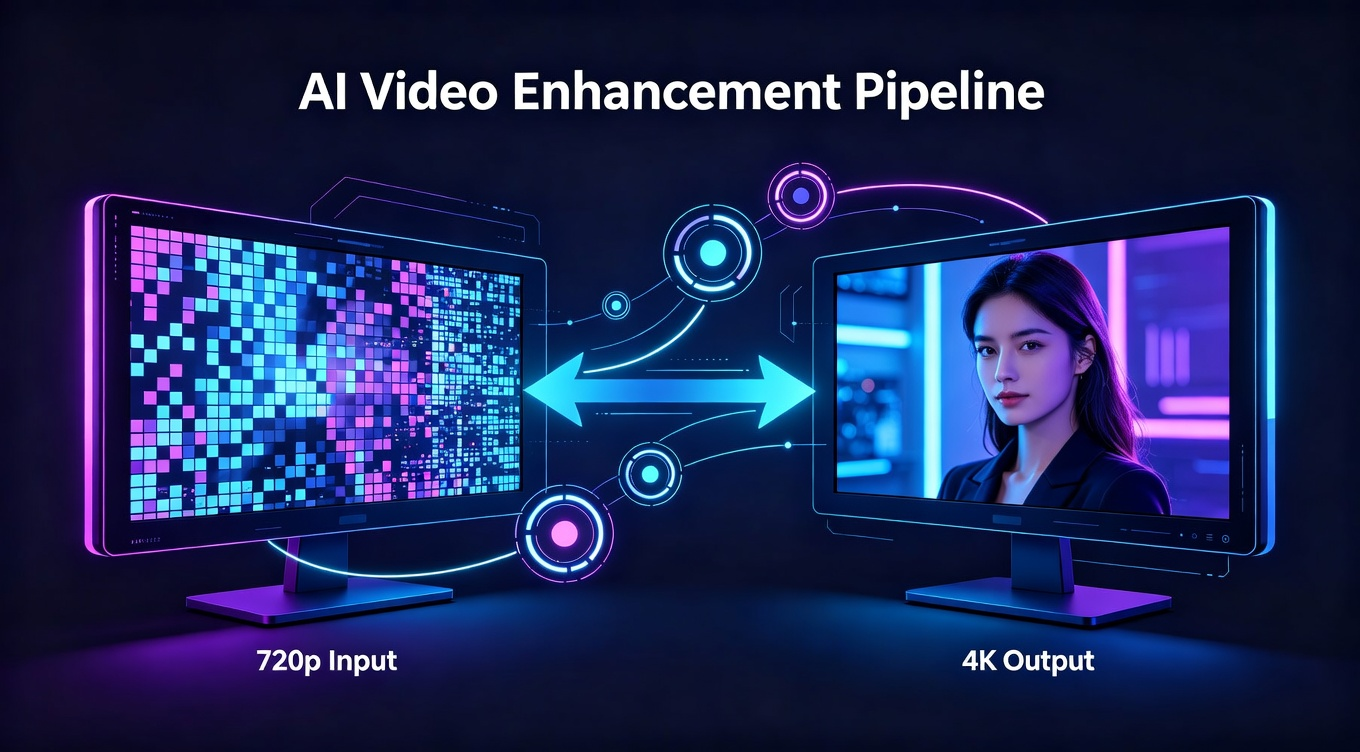
Most "best AI video enhancer" articles tell you what tools do. Few explain how they work — and understanding the technology helps you pick the right tool for your footage.
-
Super-resolution neural networks are the backbone of AI upscaling. These models train on millions of paired image sets — low-resolution inputs matched with high-resolution targets. When you feed a 720p frame into Topaz Video AI, the model predicts what the 4K version should look like based on patterns it learned during training.
-
Diffusion-based enhancement is the newer approach. Instead of predicting missing pixels in one pass, diffusion models iteratively refine the image through multiple denoising steps. This produces more natural-looking results, especially on faces and organic textures.
-
Temporal consistency is what separates video enhancers from image enhancers. Processing each frame independently causes flickering — brightness and sharpness that vary frame-to-frame. Good video enhancers analyze neighboring frames to maintain consistency.
-
Frame interpolation is a related technology — inserting AI-generated frames between existing ones to create smoother motion (24fps to 60fps).
-
Hardware matters. GPU-accelerated processing (NVIDIA CUDA, Apple Neural Engine) is 5-15x faster than CPU-only processing. If you're enhancing more than a few clips per month, a dedicated GPU pays for itself in time savings.
The 7 Best AI Video Enhancer Tools (April 2026)
I tested each tool on the same 47-clip batch. Same source material. Same output targets: 1080p and 4K. Here's what stood out.
1. Topaz Video AI — Best for Raw Upscaling Power
Topaz Video AI is the heavyweight. Desktop-only (Windows and Mac), eight specialized AI models, and upscaling all the way to 8K.
What I liked: The Proteus model handled my grainy 720p clips better than anything else I tested. Noise reduction was aggressive but clean. Batch processing saved me hours — I queued all 47 clips overnight.
What I didn't: It's $299 one-time. Your machine needs a solid GPU (NVIDIA RTX 3060 minimum for decent speeds). Processing a single 30-second clip at 4K took 11 minutes on my RTX 4070.
Best for: Professional editors restoring archival footage or upscaling film content.
2. Adobe Premiere Pro — Best for Editors Already in Adobe
Adobe Premiere Pro isn't a dedicated enhancer, but its AI tools (via Adobe Sensei) keep improving. Auto color matching, scene edit detection, and the Enhanced Speech feature that cleans dialogue are solid.
What I liked: If you're already on Creative Cloud, enhancement is baked in. The Enhance Speech tool saved me from re-recording three voiceovers.
What I didn't: This is a full NLE, not a one-click enhancer. Steep learning curve for newcomers.
Best for: Existing Adobe users. Starts at $22.99/month.
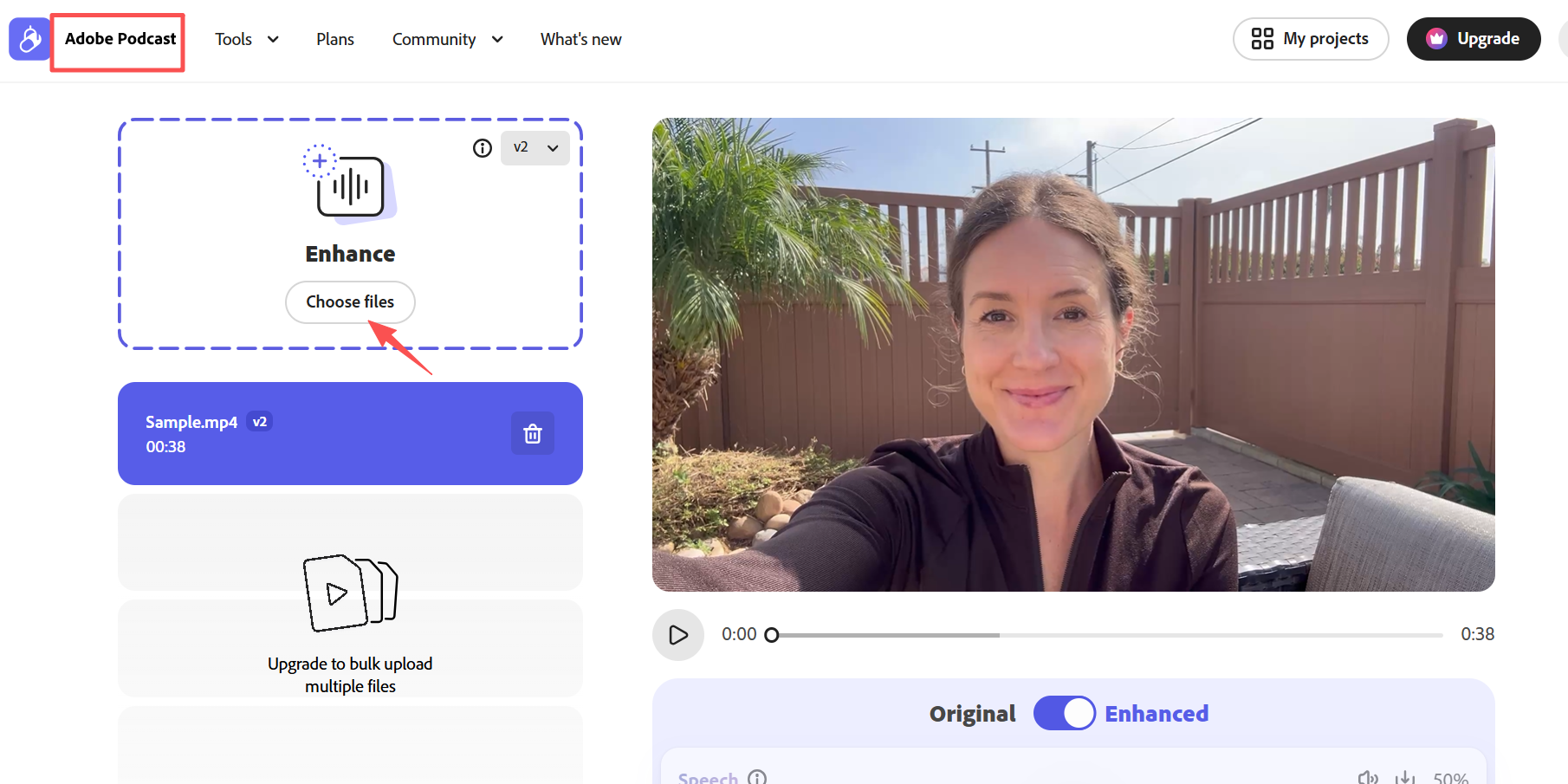
3. HitPaw Video Enhancer — Best for Quick Face Recovery
HitPaw offers both a desktop app and a web version. Its standout feature is AI face recovery — it detects and sharpens faces in low-quality footage, which is perfect for old home videos or surveillance-style clips.
What I liked: The face model is genuinely impressive. I fed it a 2019 interview shot on a cheap webcam, and the face detail improvement was noticeable within seconds. Simple drag-and-drop interface.
What I didn't: Upscaling anything beyond 4K isn't supported. The web version watermarks output on the free tier. Batch processing is limited to paid plans.
Best for: Casual users who need fast face and portrait enhancement. Plans start around $35.99/month.
4. AVCLabs Video Enhancer AI — Best Budget Desktop Option
AVCLabs focuses on noise reduction, facial recovery, and upscaling to 4K. Simpler interface than Topaz, solid for people who want a dedicated enhancer without a full editor.
What I liked: Facial recovery rivals HitPaw. The colorize feature for black-and-white footage actually works — tested on three 1990s clips. Pricing is more approachable at 119.95/year.
What I didn't: Speed drops hard on non-NVIDIA GPUs. No batch processing.
Best for: Hobbyists restoring old family videos on a moderate budget.
5. NemoVideo — Best for AI-Enhanced Video Creation and Post-Production
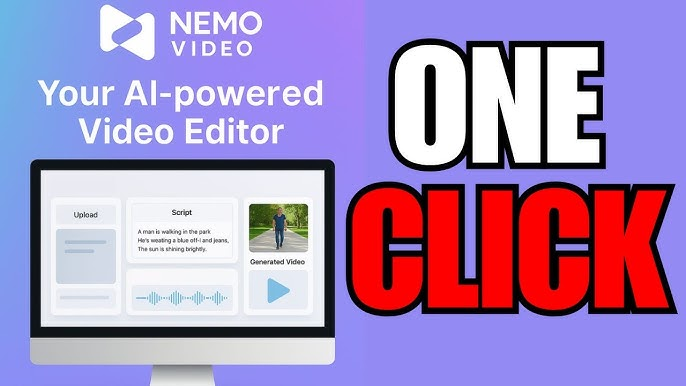
NemoVideo takes a different approach. Instead of just enhancing existing footage, it combines AI video generation with full post-production — powered by the Seedance 2.0 engine.
Here's what makes it different: most AI video tools require 3-5 generation attempts before you get something usable. NemoVideo's One-Shot consistency means the first result is typically production-ready. No more "AI gacha" — generate once, use it.
What I liked:
-
I uploaded a rough product demo with missing B-roll. Smart Footage Completion analyzed my existing clips and generated matching supplementary footage — same lighting, same color grade, same style. That alone saved me a reshoot day.
-
The One-Click Post-Production pipeline auto-synced BGM, generated captions via SmartCaption, and adjusted pacing. What normally takes 2+ hours of editing happened in about 3 minutes.
What I didn't: It's not a traditional frame-by-frame upscaler like Topaz. If you have existing 480p footage and just want it upscaled to 4K, Topaz or HitPaw are more direct solutions. NemoVideo shines when you need to create, enhance, and finish video in one pipeline.
Best for: Content creators, social media marketers, and anyone who needs complete video production — not just upscaling. Free to try with 100 credits, plans start from $4.17/month.
6. Veed — Best Browser-Based Enhancer
Veed runs entirely in your browser. No downloads, no GPU requirements. Their AI tools include noise removal, auto-subtitles, background removal, and basic upscaling.
What I liked: Zero setup. I enhanced a clip on my Chromebook during a flight. Auto-subtitle accuracy hit around 94% on clear English dialogue.
What I didn't: Quality doesn't match desktop tools. Upscaling maxes out at 1080p. Free tier adds a watermark.
Best for: Quick social media edits without a powerful machine. Free tier available; paid from $18/month.
7. CapCut — Best Free AI Video Enhancer for Social Media
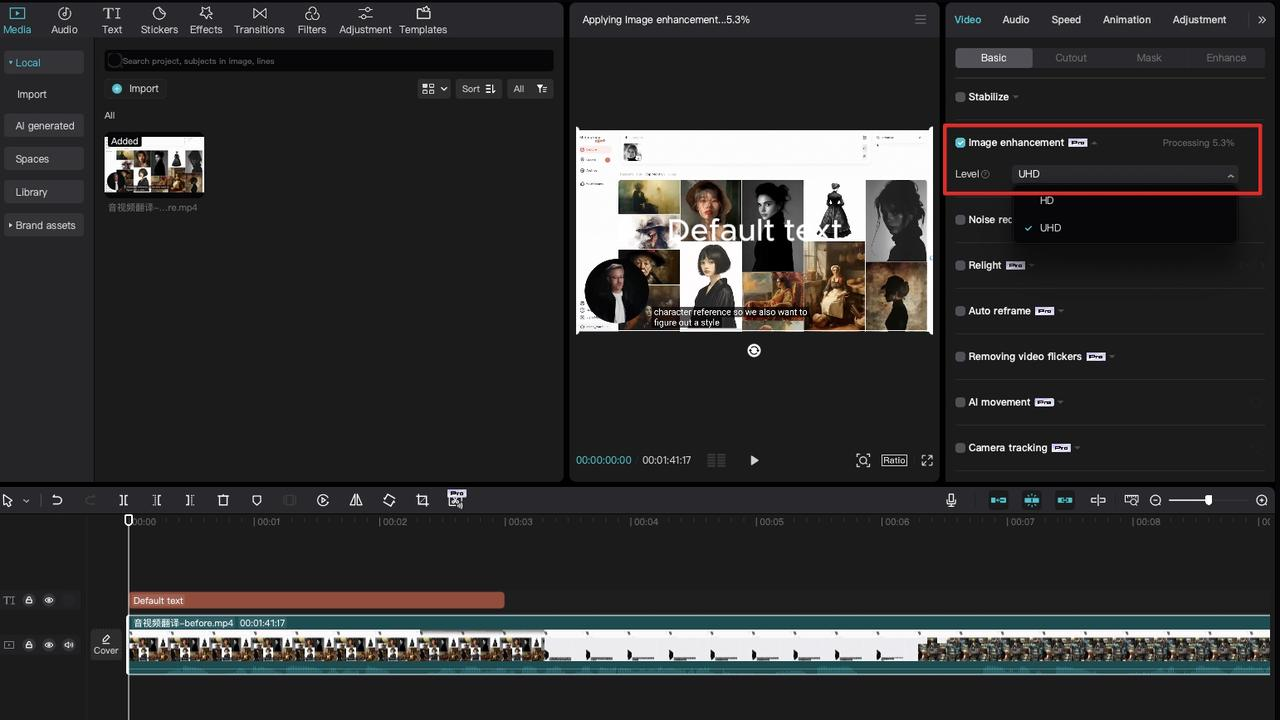
CapCut (by ByteDance) offers a capable free enhancer built into its editor. The "Enhance" button applies AI sharpening, color correction, and noise reduction in one tap.
What I liked: It's free. For TikTok and Instagram Reels, CapCut's enhancement is good enough. One-tap approach, zero learning curve, direct export to social platforms.
What I didn't: Enhancement is subtle — don't expect miracles on degraded footage. No fine-tuning controls. Desktop version lacks some mobile features.
Best for: Social media creators who need quick, free enhancement for short-form content.
AI Video Enhancer Comparison Table
Tool
Best For
Max Resolution
Pricing
Platform
Batch Processing
Topaz Video AI
Professional upscaling
8K
$299 one-time
Desktop (Win/Mac)
Yes
Adobe Premiere Pro
Full editing + enhancement
8K
$22.99/mo
Desktop (Win/Mac)
Yes
HitPaw
Face recovery
4K
$35.99/mo
Desktop + Web
Paid only
AVCLabs
Budget restoration
4K
$39.95/mo
Desktop (Win/Mac)
No
NemoVideo
AI creation + post-production
1080p+
Free / $4.17/mo
Web app
Yes
Veed
Browser-based quick edits
1080p
Free / $18/mo
Browser
No
CapCut
Free social media enhancement
4K
Free
Mobile + Desktop
No
How to Choose the Right AI Video Enhancer
-
You have old footage that needs upscaling to 4K or 8K — Go with Topaz Video AI. Nothing else matches its raw upscaling quality.
-
You need a complete editing suite with AI features — Adobe Premiere Pro if you can handle the learning curve and subscription.
-
You're creating new video content and need enhancement + generation + post-production — NemoVideo is the only tool on this list that handles the full pipeline.
-
You just want something fast and free for social media — CapCut. No contest.
-
You need browser-based enhancement with no installs — Veed gets the job done for basic needs.
AI Video Enhancement for Different Use Cases
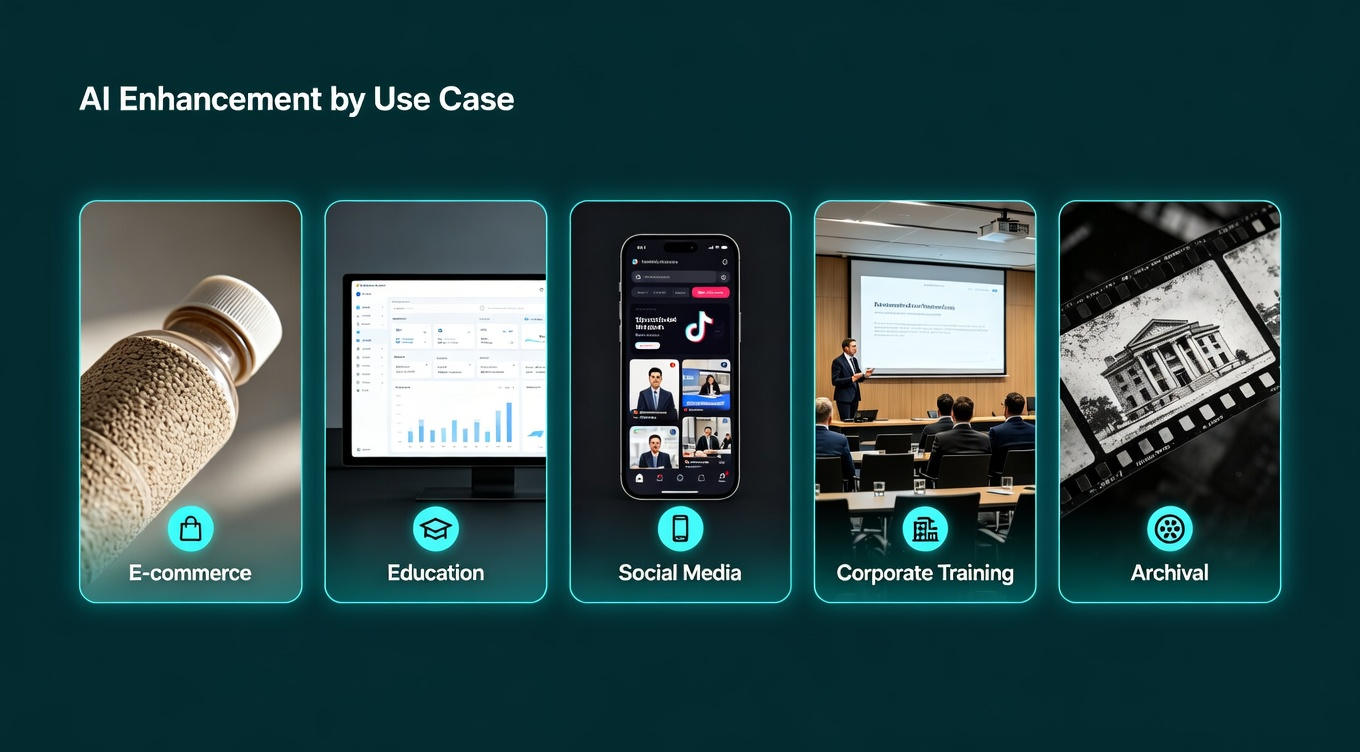
Different content types respond differently to AI enhancement. Here's what works best for each scenario based on my testing.
-
E-commerce product videos. Product demos live or die on texture and color accuracy. The biggest mistake is over-sharpening — it creates halos around product edges that look unnatural. Run Topaz with Proteus at 70% sharpening, not 100%. For missing B-roll, NemoVideo can generate matching supplementary footage without a reshoot.
-
Educational and course content. Screen recordings are the most forgiving format — basic sharpening usually suffices. The bigger win is audio: muddy microphone recordings lose learners faster than slightly soft video. Pair any video enhancer with Adobe Enhance Speech or NemoVideo's SmartAudio before touching the visuals.
-
Social media content. Speed matters more than perfection. CapCut's one-tap enhance is good enough for TikTok and Reels — don't overthink it. For batch production, NemoVideo's One-Click Post-Production handles enhancement, captions, and BGM in a single pass, cutting 15–20 minutes per clip.
-
Corporate training videos. Fluorescent conference room lighting is the worst possible condition — flat, harsh, unforgiving. AVCLabs handled three of my client's worst-lit clips better than I expected. For outdated or missing sections, generate replacement B-roll rather than scheduling a reshoot.
-
Archival footage restoration. This is where AI enhancement shines brightest. The combination that works: Topaz for upscaling → AVCLabs for colorization → HitPaw for face recovery. Run them in that order. Specialized models consistently outperform all-in-one solutions on truly degraded footage.
Tips for Getting Better Results From Any AI Video Enhancer
-
Start with the best source material possible. AI can enhance, but it can't invent detail that was never captured.
-
Use a single, specific AI model when available. Pick one focus per pass.
-
Test on a 10-second sample first. Don't queue a full batch before confirming settings.
-
Match your output to your platform. 1080p is the sweet spot for most social media.
-
For AI-generated footage, specify camera movement in your prompt to avoid shaky AI output.
Frequently Asked Questions
Can I enhance video quality with AI for free? Yes. CapCut offers free AI enhancement on both mobile and desktop. NemoVideo gives you 100 free credits to test all features.
What's the best AI video enhancer for social media content? For quick, free enhancement of TikTok and Instagram Reels, CapCut wins. If you need to create and enhance video from scratch — with auto-captions, BGM, and platform-optimized formatting — NemoVideo handles the entire workflow.
Can AI video enhancers fix extremely low-quality footage? They improve it, but there are limits. AI upscaling works best on footage at least 480p with minimal compression artifacts.
What's the difference between AI video enhancement and AI video generation? Enhancement improves existing footage. Generation creates new video from text prompts or images. Tools like NemoVideo combine both.
Do I need a powerful GPU for AI video enhancement? For desktop tools like Topaz and AVCLabs, yes. Browser-based tools handle processing on their servers, so your hardware doesn't matter.
Which AI video enhancer is best for restoring old family videos? AVCLabs and HitPaw both excel at facial recovery and colorization of vintage footage. Topaz Video AI handles upscaling old footage best.