

Best Video Editing Apps for Creators in 2026
Hi, I'm Dora. I used to spend four hours editing a single TikTok. Not because I'm slow — I just kept second-guessing every cut, every caption, every transition. By the time I finished one video, I'd missed the trend completely.
Then I started treating my editing stack like a system, not a creative project. I tested a lot of apps along the way. Some were brilliant. Some were a complete waste of my afternoon. Here's everything I actually learned, broken down the way I wish someone had explained it to me when I was still stuck at two videos a day.
What Makes a Video Editing App Worth Using
Speed, Captions, Templates, Publishing Flow
Here's a pattern I noticed after testing about eight different tools over the past few months: the apps that actually changed my output were never the ones with the longest feature lists. They were the ones that removed friction at the exact moment I needed to move fast.
Captions, for instance. I used to dread them. Manual timing, syncing syllables — it could add 45 minutes to any video. This is exactly how to add and customize captions in CapCut quickly now. Now auto-caption tools in most major apps handle a rough draft in under two minutes.
Templates matter for the same reason. Not because they make everything look the same, but because having a structural starting point means I spend creative energy on what I'm saying, and if that’s the hard part, here’s how to come up with video ideas and scripts faster.
Publishing flow is the one most people ignore. Does the app export in the right aspect ratio for Reels without me resizing manually? Can I send it directly from the editor to TikTok without logging into a separate browser tab? These tiny friction points add up. According to Zapier's 2026 review of AI video tools, the best editors help creators go from idea to finished MP4 without the process eating their schedule — and that requires the whole pipeline to work, not just the timeline.
Mobile Convenience vs. Editing Depth
This is actually the wrong question. I used to think it was either/or. Now I think about it differently: mobile is for capture and quick cuts, desktop is for anything that needs precision.
The apps that figured this out — where you can start on your phone on the subway and pick it up on your laptop without losing your project — are genuinely a different category of useful.
What to Compare Before Installing Anything
Learning Curve and Export Quality
I wasted a week on an app that had gorgeous UI but took me three days just to figure out how to export in 9:16. Don't do that.
Before you commit to any tool, answer two questions: Can I produce something publishable in under 30 minutes on day one? And does the export actually look good at full resolution on my phone screen, not just on my monitor?
Export quality matters more than most reviews admit. Some apps compress aggressively, and you won't notice until your video looks muddy in the TikTok feed.
Reusability and Creator Workflow Fit
The best app for a freelance editor doing client work is almost never the best app for someone posting ten short videos a week on their own channel. These are different jobs.
Ask yourself: do I need to reuse the same intro sequence, brand colors, and caption style across fifty videos this month? Then you need a tool with a properly branded kit. Do I need to batch-produce content from a script with minimal footage? Different tool entirely.
Best Video Editing Apps Right Now
Best for Social Clips: CapCut
I'll be honest — I resisted CapCut longer than I should have. It felt like a "beginner app," and I didn't want to be caught using it. That was dumb.
CapCut's AI auto-captions are genuinely accurate (I've clocked them at around 94% on my test clips), the vertical templates are built for real platform dimensions, and the speed from raw footage to something shareable is hard to match. I can get a polished 60-second Reel done in under 20 minutes, which used to take me an hour.
The privacy concern is real — it's owned by ByteDance, the same parent company as TikTok — and worth knowing before you upload client footage. But for personal content, it's the fastest tool I've tested for social-first workflows. The comparison data backs this up: CapCut's mobile-first design lets you start on your phone and continue on desktop without losing progress, which is exactly the workflow most creators actually live in.
Best for: TikTok, Reels, YouTube Shorts. High-volume posting. Anyone who needs same-day turnaround.
Skip it if: You're editing client content with privacy requirements, or you need serious multi-track control.
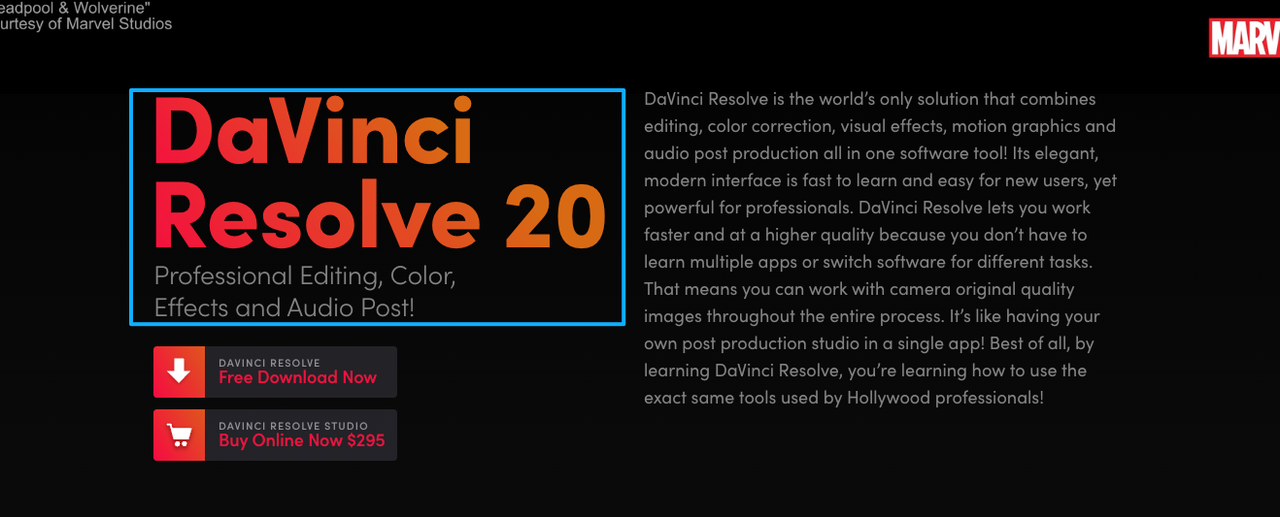
Best for All-in-One Editing: DaVinci Resolve (Free Version)
This one surprised me. I expected it to feel like professional software built for people who aren't me. And the learning curve is real — I spent my first two sessions just figuring out the page structure. But once it clicked, I couldn't believe it was free.
The color grading alone is worth it. If you've ever felt like your footage looks slightly off compared to the creators you're trying to emulate, it's often a color issue, and DaVinci's tools can fix that without a film degree.
For creators making longer-form content — YouTube videos— DaVinci gives you the kind of timeline control that actually scales. According to DesignRush's 2026 tool guide, professional editors and marketing teams increasingly choose DaVinci because it handles complex post-production without forcing you to jump between programs.
Best for: YouTube creators, anyone doing 5-minute+ videos, editors who care about color accuracy.
Skip it if: You need to publish in two hours and you've never touched it before.
Best for AI-Assisted Workflows: Adobe Premiere Pro
Premiere is the tool I reach for when the stakes are higher — when a video needs to look polished enough that a brand would stake their name on it. The Adobe Creative Cloud integration means I can send a clip to Audition for audio cleanup or grab a graphic from Photoshop without breaking my flow.
The new AI features (auto-reframe, text-based editing, filler word removal) have genuinely cut my edit time for talking-head content by about a third. That's not nothing when you're doing it five times a week.
Best for: Freelancers, agencies, YouTube creators doing longer-form content with complex audio needs.
Skip it if: You're budget-conscious or just starting out. Start somewhere free and graduate here.
App vs Desktop Tool
When Mobile Is Enough
Most social content doesn't need a desktop editor. If you're posting clips under two minutes, working with footage you shot on your phone, and publishing directly to TikTok or Instagram — a mobile-first app like CapCut or InShot handles 90% of that.
InShot in particular is underrated for this. The interface is simpler than CapCut, the aspect ratio presets are solid, and the one-time purchase removes the watermark permanently. For creators who want clean output without a subscription, that matters.
When You Need More Control
The moment you start working with multiple audio tracks, color grading raw footage from a mirrorless camera, or editing videos longer than ten minutes — a mobile app will start fighting you. You'll feel it as lag, as missing features, as workarounds that add time instead of saving it.
That's when you move to desktop. And the good news is that DaVinci Resolve's free version gives you Hollywood-standard tools at literally zero cost, which is still kind of wild to say out loud.
Best Picks by Creator Type
You post 5–10 short videos a day: CapCut. Fast, mobile-friendly, AI captions built in. Accept tradeoffs and use it for what it's good at.
You run a YouTube channel with videos for over 5 minutes: DaVinci Resolve. Invest in the learning curve time. You'll thank yourself in three months.
You edit for clients or brands: Adobe Premiere Pro. The industry standard exists for a reason, and clients often ask for project files in formats that only Premiere handles cleanly.
You're on Apple hardware and hate subscriptions: Final Cut Pro. One-time purchase, optimized for Mac, magnetic timeline that genuinely makes complex edits easier. The Apple Mac App Store listing has it at $299.99 with all future updates, included — worth the math if you're editing regularly.
You have zero budget and zero experience: Start with iMovie (Mac) or CapCut (any platform). Both are free, both produce something you can actually publish, and neither will waste your time with features you don't need yet.
FAQ
Q: Is CapCut safe to use for business content? A: I'd say use it carefully. It's owned by ByteDance, and there are genuine data privacy questions that don't have clean answers yet. For personal content, I use it freely. For anything client-related or containing sensitive information, I'd stick to Adobe or DaVinci.
Q: Do I need to pay for a video editor to look professional? A: No. DaVinci Resolve's free version is legitimately professional-grade. iMovie is free and produces clean output. The "you get what you pay for" logic doesn't fully apply here — the gap between free and paid is smaller than most people think.
Q: Can I switch editors mid-project? A: Sort of. You can export a rough cut from one tool and import it into another, but project files generally don't transfer between editors. The practical move is to pick one tool and commit to it for a quarter, then reassess.
Q: What's the fastest way to add captions in 2026? A: Auto-caption tools in CapCut and Adobe Premiere are both solid. CapCut is faster and free. Premiere's output is slightly more accurate on complex audio. Neither is perfect — always proofread before publishing.
Q: Should beginners start on desktop or mobile? A: Mobile, every time. Lower friction, faster feedback, and you'll learn the basics of pacing and cuts without getting lost in a complicated interface. Graduate to desktop when mobile starts feeling limiting.
The Bottom Line
I'm not going to tell you there's one perfect app. There isn't. What I can tell you is that after spending the last several months genuinely testing these tools — not just reading about them — the pattern is clear: the best app is the one that removes friction at the exact stage where you get stuck.
For most social creators, that's CapCut. For anyone building a serious content business, that's DaVinci or Premiere, depending on your budget. And for Apple users who hate subscriptions, Final Cut Pro is quietly one of the best deals in creative software.
Worth trying if you're in the same boat I was — stuck editing one video at a time, watching trends pass by while you're still on the third cut.