

Best Video Editing Software for Creators
Hi, I'm Dora. I have this embarrassing habit. Every few months, I convince myself that switching editing software will fix my productivity problem.
I've spent the last three months running real projects through six different editing tools. Not demo projects. Not test footage I didn't care about. Actual client deliverables, weekly TikToks, product clips that needed to go live by a specific date. This is what I learned.
What Good Video Editing Software Should Actually Help You Do
Before we get into comparisons, I want to name something that most software roundups completely skip: editing software isn't just about features. It's about how fast you get from raw footage to published video on a Tuesday when you have four other things due.
Faster Editing, Cleaner Output, Easier Publishing
The three things that actually moved the needle in my workflow weren't fancy effects or color grading precision. They were:
Auto captions that don't need constant correction. I tested caption accuracy across five tools in January 2026 using the same 4-minute talking-head clip. Accuracy ranged from 71% to 94% on first generation. That 23-point gap sounds small until you're manually fixing captions on ten videos a week.
Export presets that match platform specs. Manually exporting different versions for TikTok, Reels, and YouTube Shorts is one of those tasks that sounds simple and somehow eats 40 minutes. Tools with built-in platform presets saved me more time than almost any other feature.
Timeline speed on longer projects. Some tools get sluggish past 10 minutes of footage. Others handle hour-long timelines without breaking a sweat. For short-form creators this barely matters. For anyone editing tutorials, vlogs, or client work, it matters a lot.
Where Software Choice Changes the Workflow
Here's something I wish someone had told me three years ago: your editing software choice affects what kind of creator you can realistically be.
A tool with a 20-minute learning curve and excellent templates can turn a non-editor into someone posting five times a week. A tool with a 200-hour learning curve and incredible color grading can turn a hobbyist into a professional colorist — but it won't help them post more consistently.
How to Compare Video Editing Software Fairly
Ease of Use, Captions, Templates, Exports
I evaluate editing software on four dimensions that map directly to daily creator workflows:
Ease of use — not "is it approachable on day one" but "how fast am I working after one week of real use." Some tools are deceptively easy at first and then wall you off. Others feel hard initially but get fast quickly.
Caption quality — accuracy, timing sync, and how painful it is to edit mistakes. Increasingly non-negotiable for social content.
Template quality — are they actually usable without modification, or do they all look like they were made in 2019?
Export workflow — how many clicks from "done editing" to "file ready to upload." This sounds trivial. It's not when you're doing it ten times a day.
Mobile-First vs Desktop-First Workflows
This distinction matters more than almost any spec comparison. If 80% of your editing happens on your phone — commuting, between meetings, on location — you need a tool whose mobile app is genuinely powerful, not a stripped-down companion app.
If you're at a desk with a proper setup, desktop-first tools with full timeline control will serve you better.
Best Video Editing Software Options
Best for Beginners: CapCut
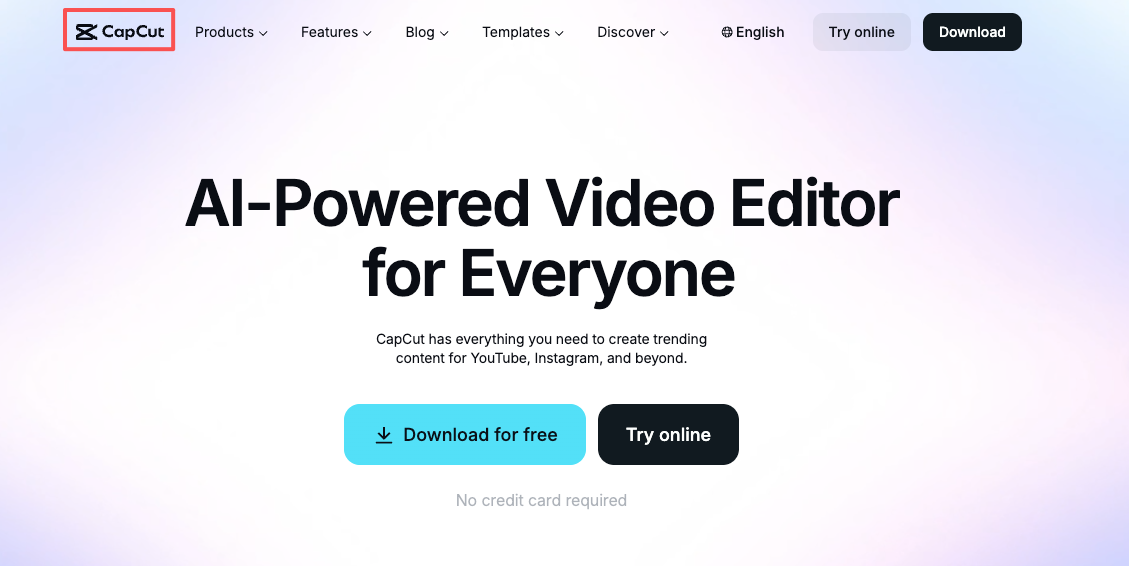
I'm going to be honest about something. When I first looked at CapCut, I was dismissive. It felt like a TikTok tool — which I associated with limiting templates and fixed styles. I was wrong, and I spent about three months being unnecessarily snobbish about it. If you're still comparing options, you might want to look at some CapCut alternatives for PC workflows.
What changed my mind: I handed CapCut to a friend who'd never edited video in her life. She had a 90-second product review clip published to TikTok within 47 minutes of opening the app for the first time. Captions generated, music added, basic color correction applied. Not perfect — but genuinely publishable.
For experienced creators, the AI auto-cut feature is legitimately useful for raw interview footage. I ran 22 minutes of talking-head material through it 2026, and the first-pass rough cut removed about 70% of what I would have cut manually. I spent 18 minutes cleaning it up rather than 55 minutes cutting from scratch.
The honest limitation: for anything beyond social content — longer-form YouTube, client deliverables that need precise color work, multi-camera edits — CapCut's ceiling becomes visible quickly. The timeline gets unwieldy past about 15 minutes of content, and fine control over specific elements requires workarounds.
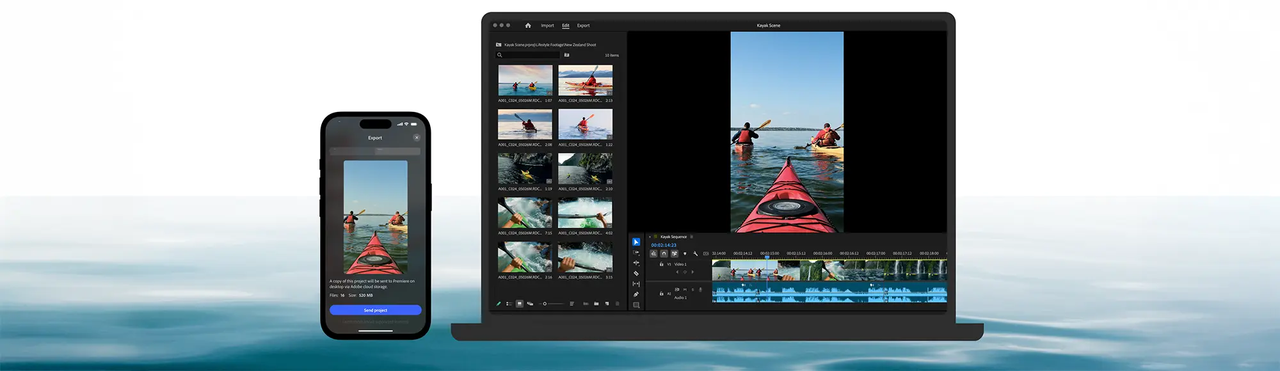
Best for Short-Form Creators: Adobe Premiere (with Firefly)
This one might be controversial.
Adobe Premiere — which dropped the "Pro" suffix in January 2026 — is not usually on the "best for short-form" list. And I understand why: it has a reputation as a heavy, expensive, complex tool built for film and broadcast professionals.
But here's what I found in actual use: the combination of Premiere's text-based editing and the new Firefly-powered AI tools has made it genuinely competitive for social-first workflows. Text-based editing — where you edit by deleting transcript text rather than cutting on a timeline — cut my talking-head edit time roughly in half on complex interviews.
What Adobe costs is real and worth naming: the Creative Cloud subscription required to access Premiere makes the math uncomfortable for solo creators early in their journey. If you're already in the Adobe ecosystem, the incremental cost is reasonable. If you're starting fresh, that's a significant upfront commitment before you've validated your output volume.
Best for Teams and Heavier Editing: DaVinci Resolve
I want to be careful here because "best free professional software" has become a cliché description of DaVinci Resolve that undersells what it actually is.
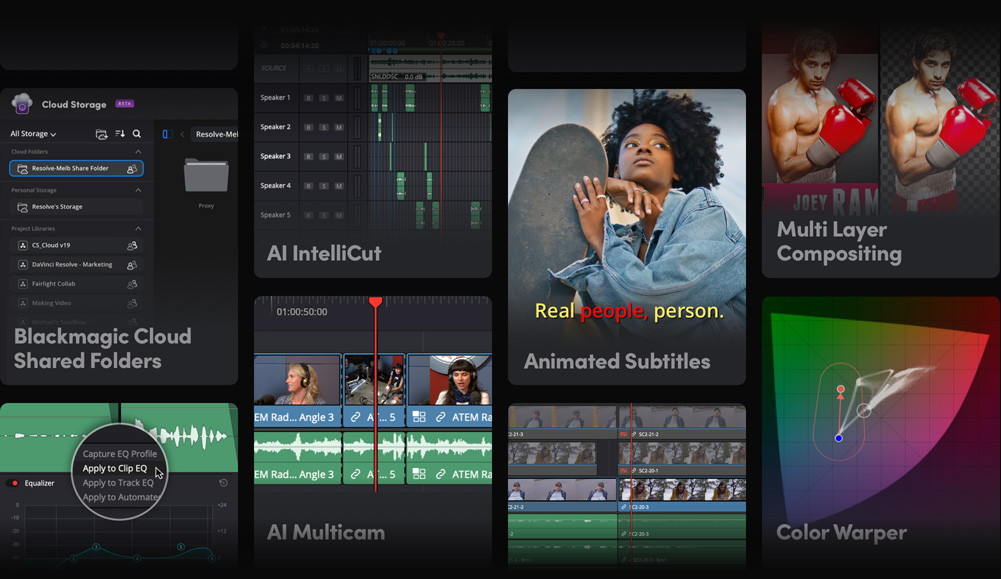
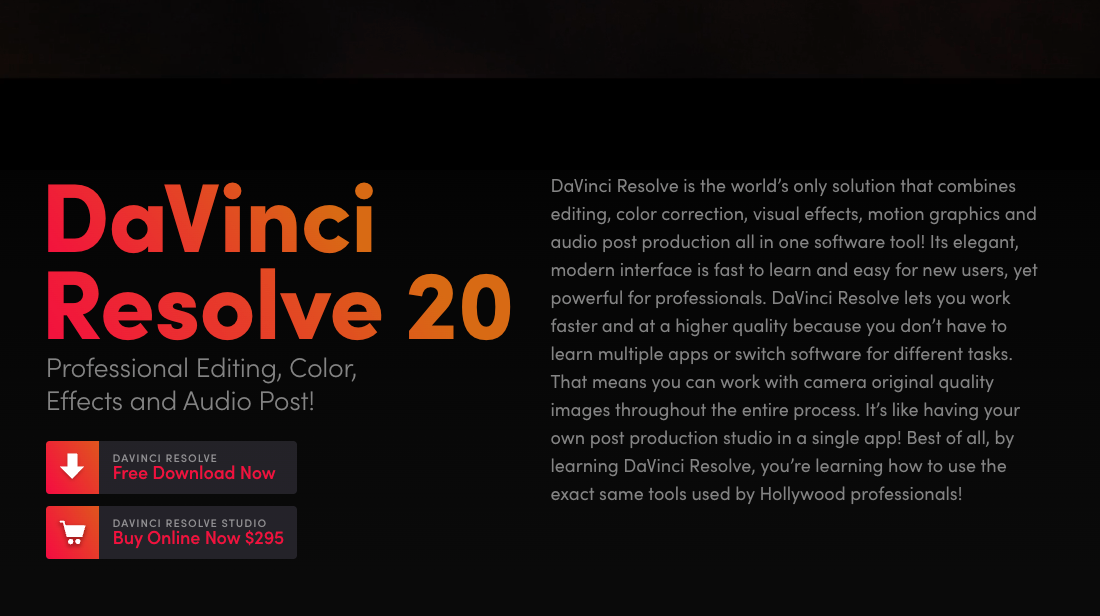
DaVinci Resolve is what Hollywood colorists use. The color page is not "good for free software" — it's genuinely one of the most capable color grading environments available at any price. When I started using the Lumetri color panel in Premiere and then switched to DaVinci's color page for a client project that needed precise matching across 30 clips, the difference in control depth was immediately obvious.
The honest tradeoff: the learning curve is real. DaVinci Resolve's interface is organized around a "pages" model — separate workspaces for editing, color, audio, VFX — which feels confusing until it clicks, and then feels obvious. Expect to invest 20–30 hours of real use before you're working efficiently. Most creators who try it for 2 hours and give up are making a timing mistake, not a tool judgment.
Trade-Offs Between Simple and Powerful Tools
Speed vs Depth
Here's the pattern I've observed across six tools: the faster a tool is to start with, the sooner it runs out of room.
CapCut gets you from zero to published in under an hour. DaVinci Resolve gives you control that takes months to fully learn. These aren't competing products — they're tools for different stages of a creator's development.
The mistake I see constantly: creators hitting the ceiling of a simple tool and immediately reaching for the most powerful option available, then abandoning it because the learning curve kills their posting consistency. The better path is incremental. Learn CapCut. Build output habits. Add Premiere or DaVinci when a specific limitation genuinely costs you something.
AI Help vs Manual Control
Every major editing tool now has AI features. Most of them are useful in narrow scenarios and overpromised in the marketing.
The AI features I actually use regularly, across all tools I tested: auto-captions, background noise removal (genuinely good now, across multiple tools), and auto-reframe for different aspect ratios (reliable enough that I rarely touch it manually).
The AI features I've mostly stopped using: auto-generated B-roll suggestions (recommendations are generic), AI music matching (starts to sound repetitive across videos), and scene detection on already-cut footage (more misses than hits in my testing).
Best Picks by Creator Type
Content Creators
For solo creators publishing 5+ times per week on social platforms, my current recommendation is a two-tool setup: CapCut for speed-priority content — anything trend-reactive or time-sensitive — and one deeper tool for anything that represents your work more permanently.
For Mac users, Apple's Final Cut Pro is worth the one-time purchase fee if you're committing to desktop editing seriously. The magnetic timeline takes adjustment coming from other tools, but the render performance on Apple Silicon is meaningfully faster than anything else I've tested for the same tasks. I exported a 20-minute timeline in Final Cut in 4 minutes on an M3 MacBook Pro. The same project in Premiere took 11 minutes.
Marketers and Small Teams
For marketing teams and small businesses that need consistent visual output without a dedicated editor: Adobe Premiere with shared Creative Cloud access, or DaVinci Resolve on the free version for teams that need the collaboration features without the subscription cost.
One thing worth mentioning specifically for small teams: DaVinci Resolve's multi-user collaboration — where multiple people can work on different parts of the same project simultaneously — is available in the free version. Adobe charges significantly more for equivalent collaboration features. For teams of 2–4 people sharing video production work, that's a real cost consideration.
For anyone with a tight budget who's just starting out, iMovie deserves an honest mention. It's free for Mac and iPhone users, it exports cleanly, and the learning curve is essentially zero.
Final Recommendation
I'm not going to give you a single winner, because there isn't one. Here's the honest breakdown by situation:
You're new to editing and need to build output habits: CapCut. Free, fast, good enough to publish consistently while you develop your content strategy.
You're a solo creator with some experience who wants to grow: Adobe Premiere or Final Cut Pro, depending on whether you're in the Adobe ecosystem or on Mac.
You need professional color work or team collaboration without a big subscription: DaVinci Resolve. The free version will cover you for years.
You're a small business creating social content on a budget: CapCut for social clips, DaVinci Resolve when you need something that looks more polished.
Pick one. Use it for 90 days on real projects. Evaluate from there. If you're still figuring out your stack, this guide to the best video editing software for beginners can help you narrow things down faster.
FAQ
Q: Is there free video editing software that's actually good?
Yes. DaVinci Resolve's free version is genuinely professional-grade. CapCut's free tier is excellent for social content. iMovie is free on Apple devices and fine for basic needs. Free doesn't mean limited in this category anymore.
Q: Which video editing software is best for TikTok and Reels?
CapCut is built for this. The platform-specific export presets, vertical format templates, and auto-caption feature are optimized for short-form social in a way that desktop-first tools aren't. If you're primarily making TikTok or Reels content, start here.
Q: Is Adobe Premiere worth the price in 2026?
If you're already in the Adobe Creative Cloud ecosystem, yes. If you're starting fresh and only need video editing, the cost is harder to justify against free alternatives like DaVinci Resolve. The AI features in recent versions are genuinely useful, but they don't close the price gap for solo creators on tight margins.
Am I going to keep all of these in my toolkit? Probably not. I rotate based on project type, but honestly, CapCut handles 60% of my weekly output now — and DaVinci Resolve handles the other 40% when precision matters. Everything else I reach for in specific scenarios.
Worth testing one new tool this month if you're in a workflow rut. Just give it three real weeks before you decide.