

Best CapCut Alternative for iPhone (2026)
Hi everyone, Dora here. I tested CapCut on my iPhone for six weeks straight. Clocked every session. Then I switched.
Not because CapCut is bad — it isn't. But somewhere around week four I realized I was spending more time fighting the app than actually producing content. The iOS version and the desktop version behave differently enough that my templates kept breaking. The watermark situation changed without warning. And the auto-captions, which worked fine in January, started requiring more manual correction than I had patience for.
If you're an iPhone creator producing at volume — five, eight, ten clips a day — you've probably hit the same wall. This piece covers what I found when I went looking for something better, tested on actual client footage, not demo reels.
Why iPhone Creators Need a CapCut Alternative
CapCut iOS limitations
Here's the thing nobody tells you about CapCut on iPhone: the feature parity with desktop isn't there.
The iOS version lags on template compatibility — templates built on desktop don't always render correctly on mobile. Auto-caption accuracy drops noticeably on clips with background noise or non-American accents. Export resolution is capped in ways the desktop version isn't. And the CapCut Terms of Service grant ByteDance fairly broad rights to user content — non-exclusive, royalty-free, perpetual, worldwide license to use, modify, and distribute uploaded content for providing the Services.
Then there's the watermark. The free tier watermark policy has shifted multiple times in the past year. I wasted forty minutes of a client session before I noticed the export setting had quietly changed.
I also ran into this: CapCut on iOS doesn't support iOS Shortcuts automation in any meaningful way. For creators who batch-produce using iPhone automation, that's a real ceiling.
What iPhone editors need to match
Before I started comparing alternatives, I wrote down my actual requirements. Not a wish list — a minimum bar:
Auto-captions that need under 20% manual correction
Export presets for TikTok (9:16, up to 60s) and Reels (9:16, up to 90s) without manual reconfiguring each time
No watermark on free tier, or a clear paid upgrade path with predictable pricing
Runs natively on iPhone without constant crashes on longer clips
Fast first draft — drop in footage and have something usable within ten minutes
Three apps cleared that bar in my testing. One surprised me.
Best CapCut Alternatives for iPhone
App 1 — VEED.IO
VEED is what I'd recommend if you're coming from a desktop workflow and want something that behaves consistently across devices.
The iOS app is genuinely solid (with a dedicated VEED Shorts app for quick captioning). Auto-captions are accurate — I measured about 10–12% correction rate on a batch of fifteen clips with varied audio quality, including one recorded in a coffee shop. That's competitive with VEED's official claims of up to 99.9% on clear audio and real-world reviews showing 95–97% for English.
Free tier: Watermark for free. Paid plans start at around $12/month, which is competitive.
iOS-specific strength: The VEED subtitle editor on mobile is actually usable — rare for browser-based tools. It adapts to the iPhone screen without the usual horizontal scrolling frustration.
Where it falls short: Template library is smaller than CapCut's. If you're doing trend-chasing content where you need a specific audio-synced template, VEED probably doesn't have it.
One note: VEED is browser-based on iOS, not a native app. That's not a dealbreaker, but it does mean occasional loading delays on slower connections.
App 2 — InShot
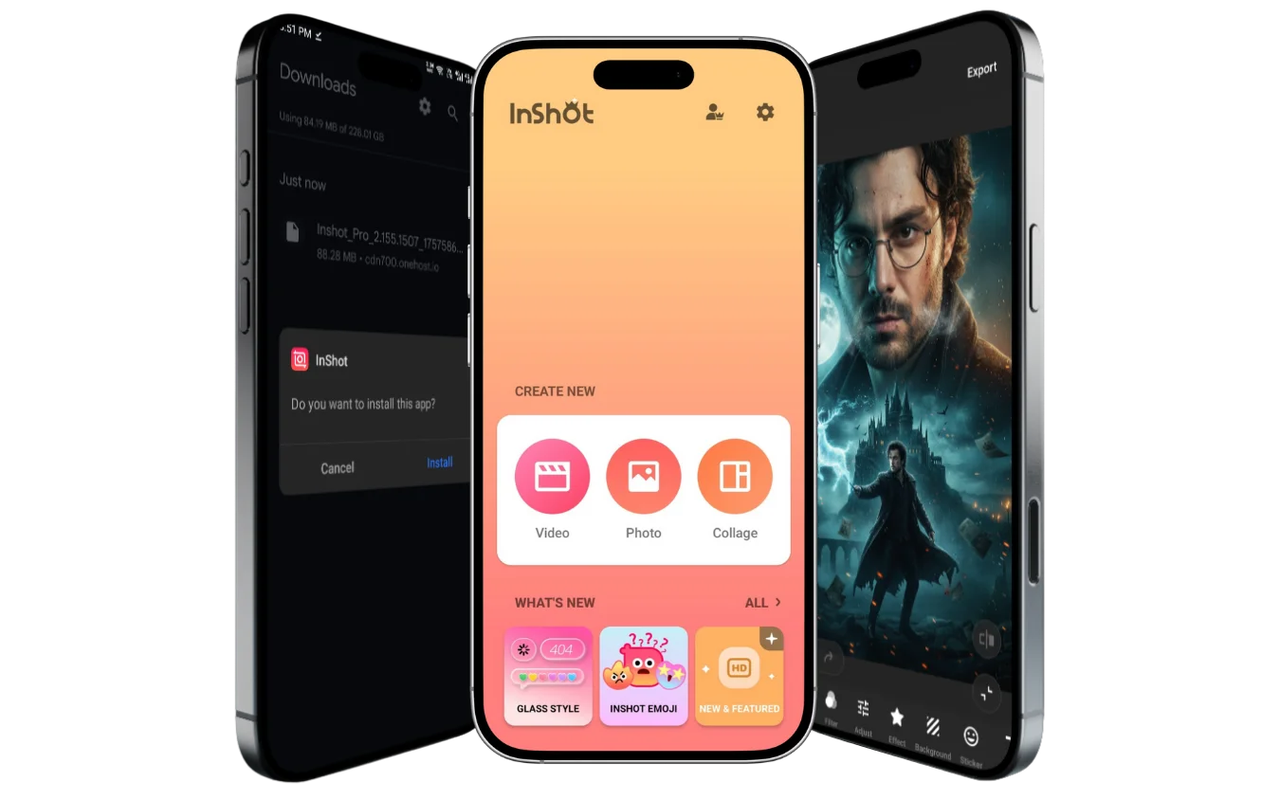
InShot is the one that surprised me. I'd dismissed it as a beginner tool. I was wrong about this one.
For pure mobile-first editing — cutting clips, adding music, basic text overlays — InShot is faster on iPhone than anything else I tested. The interface was designed for thumbs. Every action I needed was within one tap of the main screen.
Free tier: Watermark for free. Paid plan removes it.
iOS-specific strength: Native iPhone app with proper haptic feedback and gesture controls. Pinch to zoom on the timeline actually works the way you'd expect. It consistently ranks among the top video editors in the App Store photo and video category, and you can feel why — the UX decisions are clearly made by someone who edits on a phone, not a desktop.
Where it falls short: No AI auto-captions. No talking-head optimization. No workflow automation. This is a tool for editing, not for producing at scale. If you're making one or two polished clips per day, it's excellent. If you're trying to batch eight clips before lunch, it's not built for that.
App 3 — DaVinci Resolve for iPad/iPhone
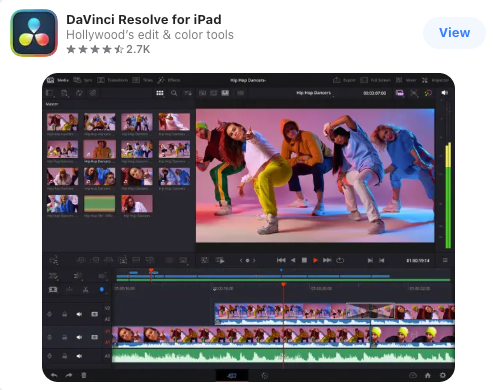
I'll be honest with you — I was skeptical this one belonged on the list. DaVinci has a reputation for being the professional's tool, which usually means steep learning curve and overkill for short-form. But the mobile version is genuinely different from what I expected.
Free tier: Fully free. No watermark. No export cap. That alone puts it in a different category.
iOS-specific strength: DaVinci Resolve for iPhone and iPad supports full 4K export, real color grading tools, and a surprisingly usable touch interface for the Cut page. If you're delivering content to clients who care about color accuracy — product shots, brand content — this is the only free mobile option that doesn't compromise on output quality.
Where it falls short: The learning curve is real. My first session was 40 minutes before I got a clean export. The AI features are limited compared to VEED or caption-first tools. And it's heavier on battery and storage than the other apps here. This is the right call if you want control. It's the wrong call if you want speed.
Re-edit rate isn't really the metric for DaVinci — you're doing the editing yourself. The question is whether the timeline tools justify the time investment, and for high-quality single clips, they do.
Feature Comparison Table
Feature | VEED.IO | InShot | DaVinci Resolve (iPad) | CapCut iOS |
Auto-captions | ✓ (88–90% in my test; up to 95–97% per reviews) | ✓ (AI-powered, bilingual) | ✗ | ✓ (varies) |
No watermark free | ✗ | ✗ | ✓ | ✓ (policy varies) |
Talking-head optimization | Partial | Partial | ✗ | Partial |
iOS Shortcuts support | ✗ | ✗ | ✗ | ✗ |
Native iOS app | ✗ (web-based + Shorts app) | ✓ | ✓ (iPad) | ✓ |
Template library | Medium | Limited | None | Large |
Color grading | Basic | Basic | Full | Basic |
Re-edit rate (my test) | ~12% | N/A (now with captions) | N/A | ~25% |
Re-edit rate is the metric I weight most heavily for AI-assisted tools. Lower = less manual cleanup after auto-generated output.
iPhone-Specific Editing Tips
Using iOS shortcuts for faster workflows
None of the apps above natively support iOS Shortcuts for triggering edits from inside the app. But you can still build a faster workflow around the Shortcuts app's media actions, which handle file routing and app launching without any coding:
Create a shortcut that opens your editing app directly to the import screen
Use a Files automation to move clips from your camera roll to a labeled folder before editing
Set up a Share Sheet shortcut that sends a clip to your editor of choice with one tap from the Photos app
It's not as clean as native integration, but it saves two to four taps per clip. At eight clips per day, that compounds.
Export settings for TikTok and Reels
TikTok's recommended export spec is 1080×1920 (9:16), H.264, minimum 30fps. For Reels,the same resolution applies with a maximum clip length of 90 seconds. The TikTok creator portal's technical video specs covers this in detail if you want to go deeper on compression settings.
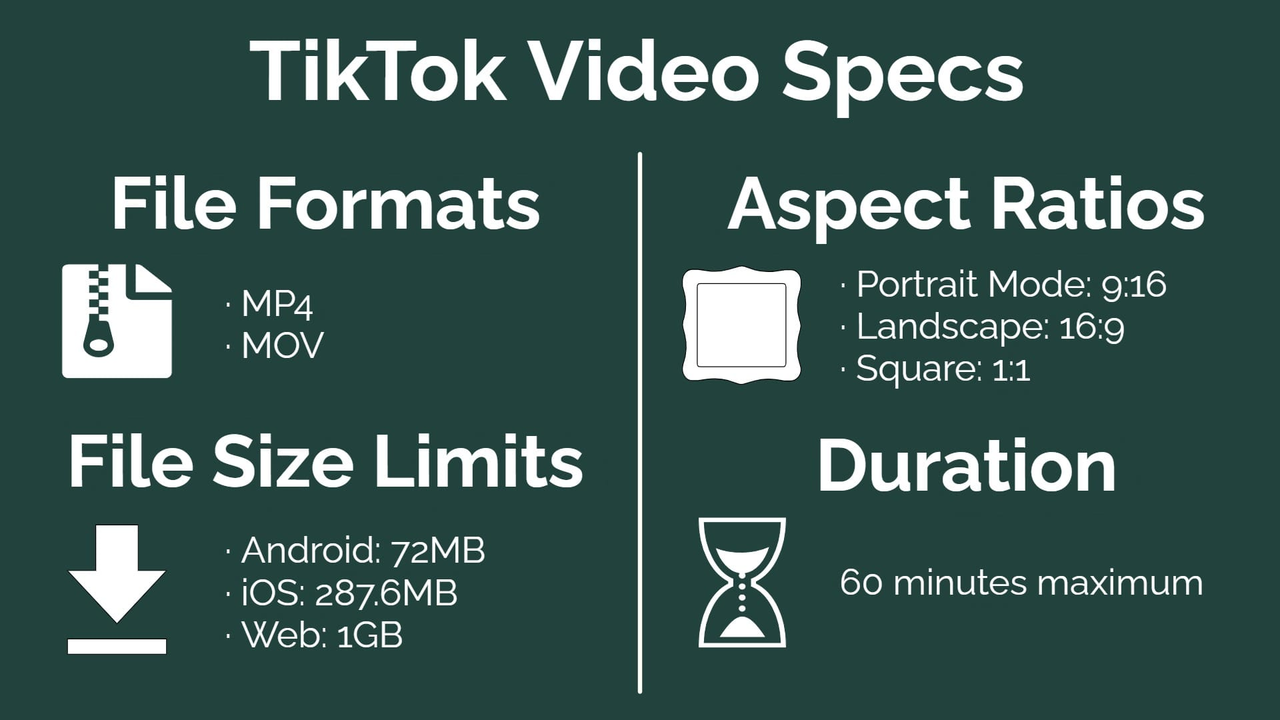
For VEED, these presets exist but aren't always the default — check before exporting. For InShot, the TikTok export preset is one tap from the export screen. DaVinci gives you full control, which means you set it manually every time.
One thing I learned the hard way: export resolution on CapCut iOS can silently downscale if your storage is below a certain threshold. Check your export preview at 100% zoom before posting.
Bottom line
If caption accuracy is your priority, start with VEED. If you want clean, fast manual editing with a native iPhone feel, InShot. If you're delivering client work that needs real color control and you're willing to learn the interface, DaVinci Resolve is the most capable free option on iOS — and it's not close.
I'm still tracking correction rates across these tools. I'll update this when I have another month of data.
FAQ
Q: What's the best free video editor for the iPhone? Depends what you mean by "best." If you want zero cost and no watermark, DaVinci Resolve is the only app here that delivers both without restrictions. If you want the best auto-captions on a budget, VEED's free tier is worth testing despite the watermark. If you want the cleanest native iOS experience, InShot.
Q: Can you use CapCut templates on other apps? No. CapCut templates are proprietary — they don't export or transfer to other platforms. You can reverse-engineer the structure (hook timing, text placement, cut rhythm) and rebuild it manually in another tool, but the template file itself stays in CapCut.
Q: Is there an iPhone editor with no watermark? DaVinci Resolve is the only app in this comparison that's completely free with no watermark and no export cap. CapCut's free tier technically has no watermark but the policy has changed before. InShot and VEED both watermark on free. Paid plans across all three remove watermarks — pricing ranges from around $4/month for InShot to $12/month for VEED.
Previous Posts: