

GPT Image 2 Prompt Guide for Short-Form Creators
I tested this the wrong way at first.
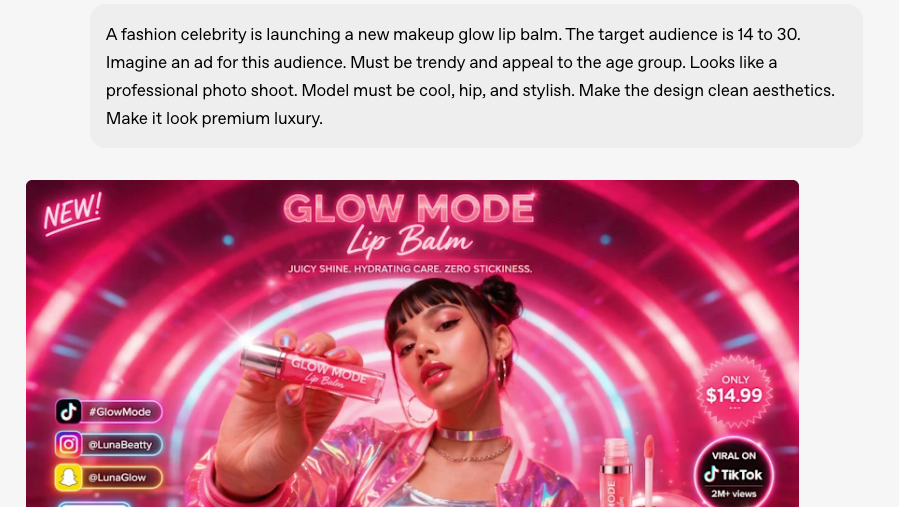
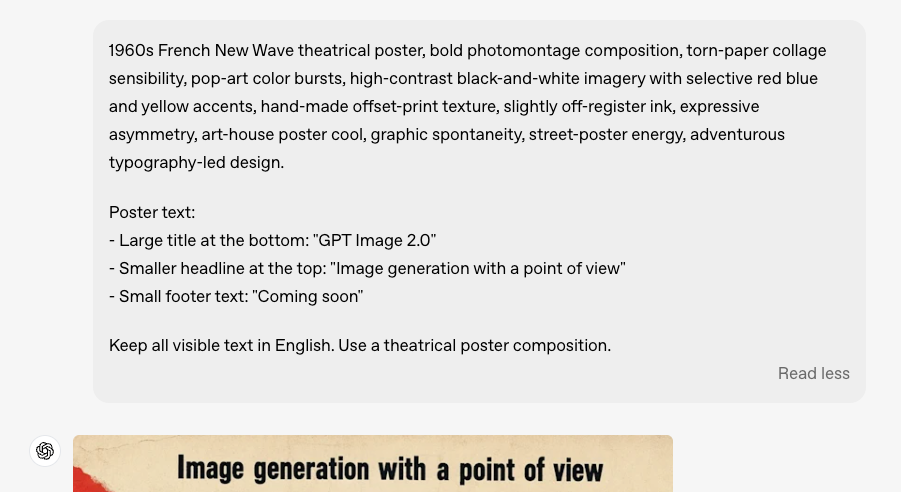
My first ten GPT Image 2 prompts were basically poster prompts — detailed scenes, mood descriptions, aesthetic references. They looked great.
Hey everyone, it's Dora. Then I dropped them into my image-to-video pipeline and half of them broke on the first frame.
Faces drifted. The product floated to the wrong corner. A layout that looked perfect as a still suddenly turned into a flickering mess the moment motion started.
That's the gap nobody explains clearly: generating an image for short-form video is a completely different task from generating an image that looks good.
The visual decisions you make at the prompt stage either set your downstream video workflow up for success or quietly kill it — and you won't know until you're staring at an unusable export two hours later.
This is the prompt-layer SOP I wish I had. Not a prompt encyclopedia. A decision framework for creators who are producing at volume and need their images to actually do real work.
What a Short-Form-Ready GPT Image 2 Prompt Needs
Composition, Text, and Motion-Readiness
The thing that separates a short-form source frame from a nice-looking image is that a source frame has to survive motion. That means three things need to be decided at the prompt level — not in post.
Subject isolation. If your subject bleeds into the background with soft edges or ambient occlusion that matches across the frame, image-to-video models will animate the wrong things. Prompt for visual separation. "Subject on plain surface with clearly defined shadow" beats "dramatic atmospheric composition."
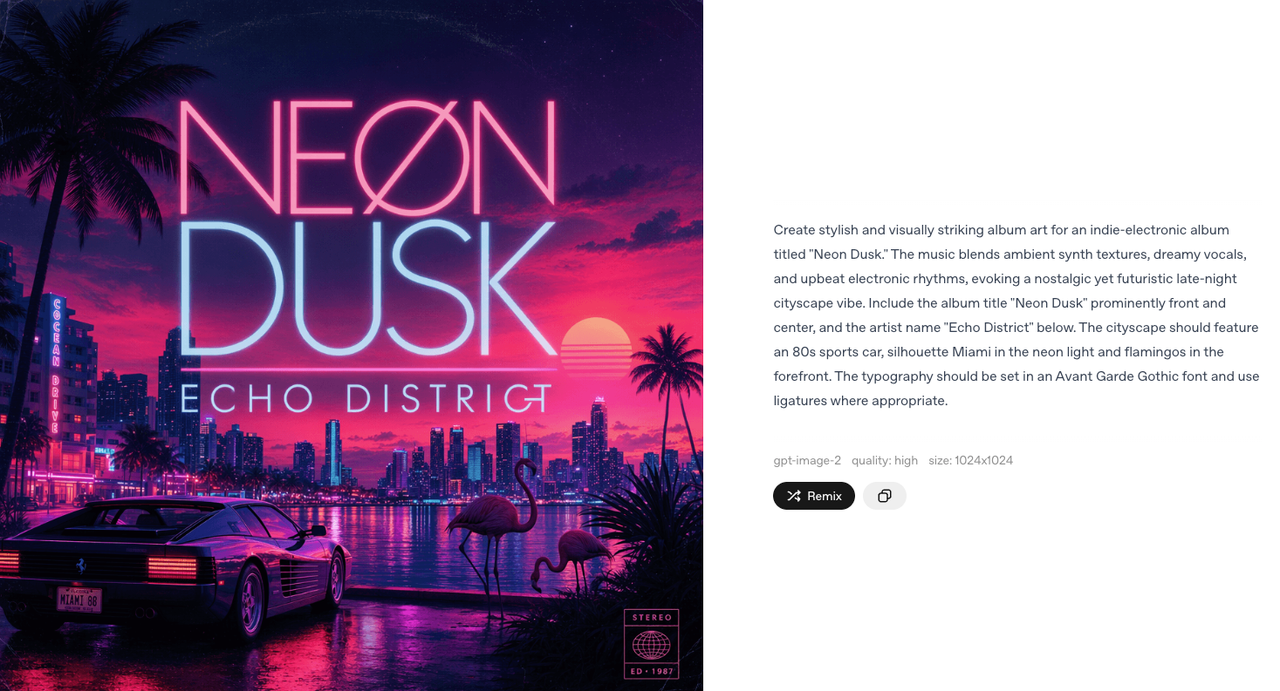
Text placement. GPT Image 2 handles in-image text reliably when you're explicit. The OpenAI image generation guide recommends putting exact copy in quotation marks and specifying placement precisely: "Bold sans-serif headline reading 'LAST DAY' in top-left quadrant, no overlap with center subject." If your text sits too close to the center or bleeds toward the edges, it'll either compete with overlay captions or get obscured by platform UI chrome.
Static zones. Animation models interpret your source frame spatially. Elements near the edges often get pulled or distorted first. Keep anything that must stay readable — brand text, product labels, faces — inside the center 80% of the frame.
What to Decide Before You Prompt
Most prompt failures happen because these decisions were left to the model:
Aspect ratio and output format. 9:16 for TikTok and Reels, 1:1 for feed posts. State it explicitly. GPT Image 2 supports flexible sizing — the model's official spec notes any resolution within 2K constraints — but it won't guess your platform.
Output goal. Is this a thumbnail (static, high contrast, readable at small size), a source frame (will animate), or a UGC ad hook (needs to pass the scroll test in the first frame)? The prompt logic changes for each.
What must stay locked vs. what can vary. This matters most when you're generating multiple versions. Decide upfront: locked = subject pose, lighting direction, text copy. Variable = background color, texture, secondary elements.
Core Prompt Framework Creators Can Reuse
Subject, Framing, Text, Brand Cues, Output Goal
Here's the structure I run every prompt through before I generate anything:
[Subject description] + [Framing and composition] + [Lighting] + [Text if needed, in quotes] + [Style/mood] + [Output constraint]
A real example for a product thumbnail:
"Skincare serum bottle, center frame, clean white marble surface, dramatic side lighting casting defined shadow to the right, text reading 'SOLD OUT TWICE' in bold sans-serif at top-left, minimal lifestyle aesthetic, 9:16 vertical, no text clutter below the product"
That prompt runs reliably. The structure gives the model enough information that it doesn't have to guess, but it doesn't overload the reasoning layer with competing priorities.
Negative Instructions and Constraint Language
This is the part people skip and then wonder why outputs are inconsistent.
Negative constraints work differently in GPT Image 2 than in diffusion models. You're not writing "negative prompts" — you're writing instruction constraints directly in the main prompt. The model responds to direct language: "no text other than the specified headline," "no props outside the product," "no grain or texture on subject's skin."
The community documentation in the OpenAI Developer Forum prompting thread has a useful pattern: state what must NOT change before describing what should happen. That order matters — the model uses the constraints as anchors when resolving ambiguity.
Prompt Recipes by Use Case
Thumbnail and Cover Image Prompts
Thumbnails have one job: stop the scroll and communicate something at 200px. The prompt decisions that matter here are high contrast, minimal text, and an emotional or outcome signal that reads instantly.
Template:
"[Person/product] with [strong emotional expression or key visual], [high-contrast background color], bold text reading '[EXACT COPY]' at top-third, shot at [close-up/medium shot], clean and uncluttered, 9:16"
Iteration note: change one variable at a time. Background color → text position → subject expression. Running 10 random variants at once makes it impossible to know what's working.
Image-to-Video Source Frame Prompts
This is where I wasted the most time early on. The mistake: generating beautiful images and then discovering they break during animation because the composition doesn't give the motion model a clear spatial hierarchy to work with.
What works for source frames:
One dominant subject, clearly separated from background
Camera angle that implies motion direction (slightly low angle with subject slightly off-center implies push-in toward subject)
No text near edges or at frame boundaries
Defined depth — foreground subject, mid distance, and background, distinct from each other
The principle, which AI video prompting research confirms, is that text describes motion while images define composition. When your source frame has clear compositional hierarchy, the motion prompt has less to figure out and produces more predictable clips.
Template:
"[Subject] positioned [center-left/right], [clear background with visible depth], lighting from [direction] creating defined shadow, no motion artifacts, clean composition for animation input, [aspect ratio]"
UGC Ad Hook Prompts
The hook frame is the first thing a potential buyer sees before they decide to watch or scroll. Two things matter: it has to look real enough to break pattern recognition, and it has to communicate the product benefit before any text reads.
What breaks UGC hook frames at the prompt stage:
Too polished — it reads as an ad immediately
No environmental context — floating product on white looks like a catalog, not UGC
Text that explains rather than provokes
Template for UGC-style hooks:
"Handheld-style photograph of [product in use], natural indoor lighting with slight imperfection, visible environmental context ([kitchen counter / desk / bathroom shelf]), candid composition slightly off-center, 9:16, no studio feel, authentic texture"
The "authentic texture" instruction nudges the model away from the over-smooth output that reads as generated.
Product Visual Prompts
Product shots for short-form have a different constraint than e-commerce stills: they need to work at small size and during motion. A product floating on a seamless white background looks fine in a lookbook. It looks antiseptic in a short-form ad.
The practical fix: give the product a surface and a scene, not just a background.
"Product name/type on [surface material], from [angle], [lighting description], styled with [1–2 contextual props maximum], no logos beyond the product itself, 1:1 or 9:16, color palette: [2 colors]"
Common Prompt Failures
Too Much Text in One Frame
GPT Image 2 handles text better than any previous model I've tested. The official prompting cookbook notes it's specifically strong for dense layouts at high quality settings. But "can handle" is not "will do by default."
Overloading a single frame with headline + subtext + badge + disclaimer creates a layout problem the model resolves by making everything smaller. The result: text that looks readable in the generation preview becomes unreadable when the video is viewed on mobile.
Rule I apply: one text element per generation pass. If you need a headline and a price badge, generate the base image first, then edit in the secondary text.
Layouts That Break During Animation
I wasn't expecting this one to be as common as it is, but it shows up consistently: compositionally complex images — overlapping elements, heavy vignette edges, multiple depth planes at the same level — produce more chaotic motion when animated.
The model animating your source frame is trying to infer spatial depth. When the source frame has ambiguous depth cues, you get motion artifacts: backgrounds that breathe at different speeds than subjects, edges that warp, text that vibrates slightly.
Fix at the prompt level: explicit depth separation. "Clear foreground, middle ground, and background, distinct depth planes, no overlapping elements."
Character and Product Inconsistency
You generate a character or product in three angles and the lighting changes between them, the product label shifts, or the face drifts slightly. This is the biggest blocker for storyboarded content.
The fix is the "identity anchor" technique from GPT Image 2 prompting research: state the invariants once at the top of the prompt, then let each panel only describe what changes. Don't re-describe the character entirely for each angle — state the anchors (hair color, outfit, specific label text) once, then add only the delta.
How to Revise Instead of Restarting from Zero
Iteration Prompts That Preserve Wins
Restart-from-scratch is the most expensive habit in an AI image workflow. The re-edit rate for completely new generations is almost always higher than iterating from a solid base — and at 5–10 images per session, that adds up.
When a generation is 80% right, use the edit endpoint rather than re-generating. The structure that works:
"Preserve: [list the elements that are correct]. Change: [exactly what needs to change]. Constraints: [what must not drift — no logo change, no background shift, same lighting]."
That three-part structure — preserve / change / constraints — keeps the model from treating everything as fair game. Without it, "make the text bolder" can produce a version where the text is bolder but the background has shifted and the product position has changed.
When to Move Fixes into the Editor
The prompt isn't the right tool for every fix. Stop prompting and move into your editor when:
The issue is color grading or saturation that needs precise control
You need text repositioned by exact pixels
The fix is a crop or scale adjustment
You're on your 5th iteration and the element you need to change keeps affecting other elements
Prompting is for composition, tone, and content decisions. Pixel-level corrections are editor work. Getting that division wrong is one of the more common time sinks I've documented — re-prompting something that would take 45 seconds in an editor.
FAQ
How Detailed Should Prompts Be?
Be specific, but not exhaustive. Only include details that actually affect the output. Let everything else be inferred by the model.
Rule of thumb: if removing a sentence doesn't change the result, delete it.
Does GPT Image 2 Handle Brand Text Well?
Yes, meaningfully better than previous models. Put exact copy in quotation marks, specify font style and placement, and add "verbatim — no extra characters" for critical strings like pricing, product names, or CTAs.
Where it still struggles: very long strings (more than 8–10 words), small text below roughly 12pt at standard resolution, and text on curved surfaces. Budget for a manual touch-up pass on anything where exact spelling is legally or commercially critical.
What Prompt Style Works Best for Image-to-Video?
Lead with composition and spatial clarity. Describe depth separation explicitly. Avoid complex overlapping elements. State what should stay static versus what can animate (this cues downstream motion models even if GPT Image 2 itself is only generating the still).
The most common mistake: writing cinematic prompts that produce beautiful stills with ambiguous depth. Beautiful for a poster. Problematic as a source frame.
When Should Creators Stop Prompting and Start Editing?
When you've tried to fix the same issue three times and each attempt causes other elements to shift or break. That's the signal. Separate the responsibilities: prompts handle composition and structure; editors handle pixel-level corrections.
Conclusion
The gap between "good-looking image" and "short-form-ready image" is almost entirely a prompt-layer decision. Composition that survives animation, text that reads at mobile size, subject separation that gives motion models something clear to work with — these aren't post-production adjustments. They're prompt decisions.
My actual workflow looks like this: decide the output goal before I open a prompt, run the preserve/change/constraints structure on every edit, and move fixes into the editor the moment I've iterated twice on the same element.
The fastest path to consistent output isn't better prompts in isolation — it's knowing which decisions belong in the prompt and which ones don't.
Previous Posts: