

GPT Image 2 for YouTube & TikTok Thumbnails 2026
Hi, Dora here. If you have spent any time generating thumbnails with AI image tools, you know the failure pattern: great scene, terrible text. The model garbles your video title and forces you back into Canva to fix it manually. GPT Image 2 changes that calculation — not completely, but enough to make it a legitimate part of a thumbnail workflow starting now. This guide covers platform specs, prompt formulas, the multi-image feature that matters most for series work, and where GPT Image 2 still needs a human designer in the loop.
Why GPT Image 2 Changes Thumbnail Work
Finally — AI That Can Spell
The headline capability is text rendering. According to OpenAI, GPT Image 2 hits 99% accuracy on standard typography benchmarks — a figure that essentially closes a gap that has made AI image generation useless for anything involving branding, titles, or calls-to-action. The model can render legible text in dense compositions: thumbnail overlays, tutorial headline cards, before/after labels, and series badges.
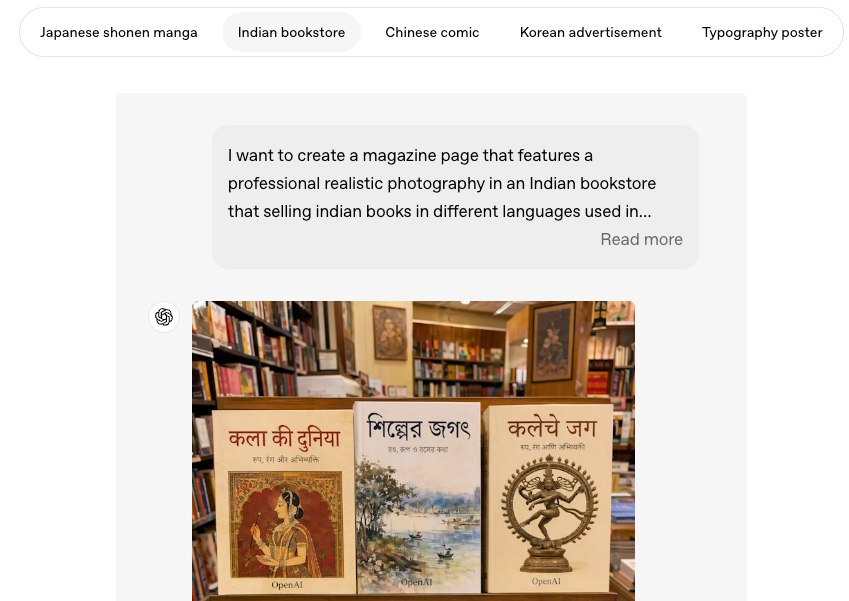
The improvement is architectural. GPT Image 2 integrates OpenAI's O-series reasoning capabilities, meaning the system reasons through the structure of an image before rendering. A model that understands layout rather than just pixel statistics handles a thumbnail brief differently — and the VentureBeat coverage of the Images 2.0 launch confirmed the model produces "readable typography even in dense compositions", including multilingual text in Japanese, Korean, Hindi, and Bengali.
What Was Broken Before GPT Image 2
The problem with earlier models wasn't that they couldn't generate thumbnails — it's that the failure mode was unpredictable. You might get eight clean outputs in a row and then a ninth that garbles the one word that matters most. For professional production, unpredictable is worse than consistently bad because you can never remove the manual review step. GPT Image 2's improved instruction-following makes complex compositional prompts more reliable: not perfect, but reliably improvable through iteration rather than luck.
Platform Specs You Must Set Up Front
Prompt quality means nothing if you deliver assets at the wrong dimensions. Set these before generating anything.
YouTube Long-Form Thumbnail — 1280×720
The YouTube thumbnail spec is 1280×720 pixels at a 16:9 aspect ratio, maximum 2MB, in JPG or PNG. A growing creator practice is to upload at 1920×1080 (same 16:9 ratio) because Retina displays and TV interfaces expose softness in a 720p source after YouTube's compression. Always specify a 16:9 landscape canvas in your GPT Image 2 prompt — the model defaults to roughly square output if you don't.
YouTube Shorts Cover — 9:16
Shorts play at full-screen vertical, but the recommended approach for custom thumbnails is still a standard 1280×720 canvas with important elements centered. A Shorts cover may appear in search results at the 16:9 ratio even while the video plays at 9:16, and uploading a 1080×1920 image can trigger an auto-generated 4:5 crop on certain surfaces.
TikTok Cover — 9:16 In-App
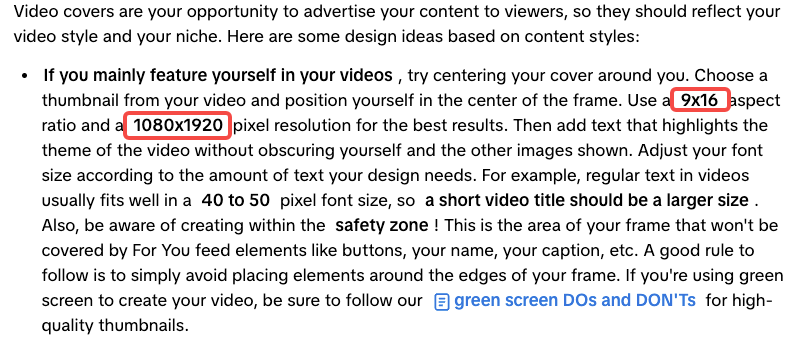
TikTok is different. Custom TikTok cover images should be 1080×1920 pixels in 9:16 vertical format — the TikTok Creator Academy recommends this resolution for the sharpest results. Center your subject and keep text visible across both the full 9:16 display and the profile grid's roughly 3:4 crop. Prompt GPT Image 2 explicitly for portrait orientation.
Safe Zones — Where Not to Place Text
On YouTube, the duration badge occupies the bottom-right corner; the safe working area is approximately 1100×620 pixels centered in the frame. Elements outside that zone risk being obscured in up to 30% of views.
On TikTok, UI overlays are more aggressive: username and caption own the bottom ~250 pixels, interactive buttons run down the right side, and the status bar claims the top ~150 pixels. Design as if the central 80% of the canvas is your canvas. You can encode this directly in your GPT Image 2 prompt: "Place all text and subject within the central 80% of the canvas. Leave the bottom 15% and right 10% empty."
Prompt Formulas That Actually Work
Face + Text Title + Object Layout
The classic YouTube structure: face on one side expressing an emotion, bold text overlay with the video's key phrase, relevant object adding context.
Formula: "[16:9 landscape thumbnail]. [Person] on the left, [emotional expression]. Bold white '[VIDEO TITLE]' centered, [font style]. [Object] on the right. Background: [color]. High contrast, vivid colors."
Name a font style (sans-serif, slab serif, brush script) — it increases consistent letterform rendering in GPT Image 2 specifically.
High-Contrast "Before/After" Thumbnails
Formula: "[16:9 landscape]. Vertical split. Left half: [before state], muted colors. Right half: [after state], vibrant colors. White 'BEFORE' over left, white 'AFTER' over right, both bold sans-serif with drop shadow. Clean dividing line center."
GPT Image 2 handles split-panel layouts reliably because they are structural constraints rather than stylistic ones.
Text-Heavy Tutorial Thumbnails
Formula: "[16:9 landscape]. Dark [color] background. Large centered bold '[MAIN PHRASE]' in white, top 60% of frame. Smaller '[SECONDARY LINE]' below in [accent color]. Abstract icon graphic lower portion. Clean typographic hierarchy."
Always preview text-heavy outputs at 160×90 pixels — mobile search size — before finalizing.
Series Thumbnails with Consistent Style
Formula: "[16:9 landscape]. Consistent template: [color palette]. Top-left badge: 'EP [NUMBER]' in [accent color]. Centered: [episode subject]. Bottom: bold '[EPISODE TITLE]'. Identical composition, palette, and font across all generated images."
This is where the multi-image feature becomes essential.
Leveraging the Multi-Image-from-One-Prompt Feature for Series
One of GPT Image 2's most practically useful capabilities — highlighted in OpenAI's launch — is generating up to eight distinct images from a single prompt while maintaining character and object continuity across the set. For series thumbnail production, this solves a real workflow problem. Previously, consistent visual style across ten episodes meant running the same prompt ten times with inevitable drift, or building a Photoshop template and swapping content manually. GPT Image 2 lets you prompt once and receive a batch that shares the same visual DNA — background treatment, font rendering, and layout — with only the episode-specific content varying.
Include a line like: "Generate 8 variations. Change only [episode number / central subject / text]. Keep background, palette, layout, and font identical across all 8."
The honest caveat: "identical" is still approximate. Expect a visual family, not a mechanical template. Use outputs as strong drafts for a designer to refine on high-stakes channels.
What Still Needs a Real Designer
Brand Typography Consistency Across a Channel
GPT Image 2 cannot load your brand font file. It approximates styles from descriptions but has no access to your licensed typeface. Over 50 thumbnails, that drift compounds. The fix: use GPT Image 2 for photo-real or illustrated elements, then composite into a Figma or Canva template that applies your exact typography. This hybrid workflow captures the model's speed without sacrificing brand consistency.
Adding Your Face Reliably — Reference Images and Limits
GPT Image 2 can generate realistic faces but cannot reliably reproduce your specific face across multiple thumbnails without reference image input. Identity consistency remains a frontier-level problem — early users report drift between generations even with identical prompts. For creator-face channels, the realistic workflow is: use actual photography as the face source, and use GPT Image 2 for background, text, and graphic elements. Treat face consistency as something that requires active management, not automatic output.
A/B Testing Thumbnails at Scale
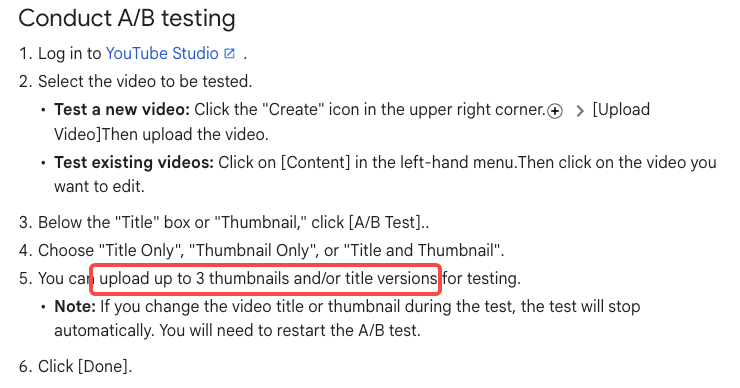
Faster thumbnail production is only useful paired with a system to learn from results. YouTube's native Test & Compare feature in YouTube Studio lets eligible channels upload up to three thumbnail variations simultaneously. The platform selects the winner based on watch-time share — a stronger signal than raw CTR. As of early 2026, the feature also supports title testing alongside thumbnails. Key limits: desktop-only, unavailable for Shorts or Made for Kids content, and smaller channels may not hit the impression volume needed for statistically valid results.
With GPT Image 2, you can generate three meaningful variants in the time it previously took to finalize one. Use that surplus for systematic testing, not higher volume of untested content.
Common Mistakes
Overloading Text in One Image
GPT Image 2 can render text reliably — which creates a temptation to pack more into a thumbnail than viewers can absorb. The effective limit is still 3–5 words for the main message. Everything else belongs in the video title, not the image.
Ignoring Mobile Preview Crop
On mobile, thumbnails render at roughly 160×90 pixels in search and suggested feeds. Downsample every candidate to that size before finalizing. If the main message isn't immediately legible at that scale, the thumbnail will underperform on mobile regardless of how good it looks on desktop.
Watermark/C2PA Considerations for YouTube
GPT Image 2 embeds C2PA provenance metadata in outputs — a non-visible technical watermark signaling AI generation. Under YouTube's current policy, using an AI-generated thumbnail counts as "production assistance" and does not require disclosure or trigger any monetization penalty. The disclosure requirement applies to realistic synthetic video content depicting real people or events — not AI-assisted graphic design. Still, review any thumbnail for misleading content as you would any asset, because that policy applies independently.
FAQ
Is GPT Image 2 better than Midjourney for thumbnails? For text legibility and compositional control, yes. For aesthetic sophistication and photorealism without text, Midjourney may still win. Choose based on what your thumbnail requires.
Can I auto-generate vertical Shorts covers? Yes — specify 9:16 portrait and 1080×1920. For YouTube Shorts, a 16:9 thumbnail often performs better across non-Shorts surfaces. For TikTok, vertical is non-negotiable.
Is commercial use on YouTube monetization okay? Yes under current policy. AI-generated thumbnails fall under production assistance and need no disclosure. Policies evolve — check the YouTube Help Center periodically.
Do I still need Photoshop? For most creators, no. For channels with licensed fonts or strict brand standards, use GPT Image 2 as the generative layer and Photoshop or Figma as the brand application layer.
Final Workflow for Solo Creators and Teams
Step 1 — Define your thumbnail type. Choose from the four formulas before opening any tool. Thirty seconds of decision-making prevents ten minutes of iteration in the wrong direction.
Step 2 — Prompt with specs upfront. Lead every prompt with canvas dimensions and safe-zone constraints before any style description.
Step 3 — Generate 3–4 variants. Change one element per variant — text phrasing, background color, or subject position. Do not generate ten versions and pick the best-looking one.
Step 4 — Preview at 160×90. Mandatory mobile-size check before finalizing anything.
Step 5 — Apply brand layer if needed. Two minutes compositing your AI asset into a branded template in Canva or Figma is worth it for any established channel.
Step 6 — Test and log. Upload two versions via YouTube Studio's Test & Compare. Run for at least 5–7 days on a non-freshly-published video, apply the winner, and record what worked. Within three months of consistent testing, you will have real data on which compositional choices drive watch time for your audience — and GPT Image 2 makes production fast enough that iteration, not generation, becomes the bottleneck.
Previous Posts: