

Hi, I'm Dora. Last month I shot a full day of interview footage for a client — 47 minutes of talking-head content. Got home, opened the files, and my stomach dropped. Every single clip was soft. Not artistic-soft. Just... blurry. The autofocus had locked onto the bookshelf behind my subject instead of her face.
I spent the next 72 hours testing every AI video enhancer I could find to fix blurry video with AI. Some worked. Most didn't. A few made things worse. Here's everything I learned.
Why Are Your Videos Blurry? (Diagnose Before You Fix)
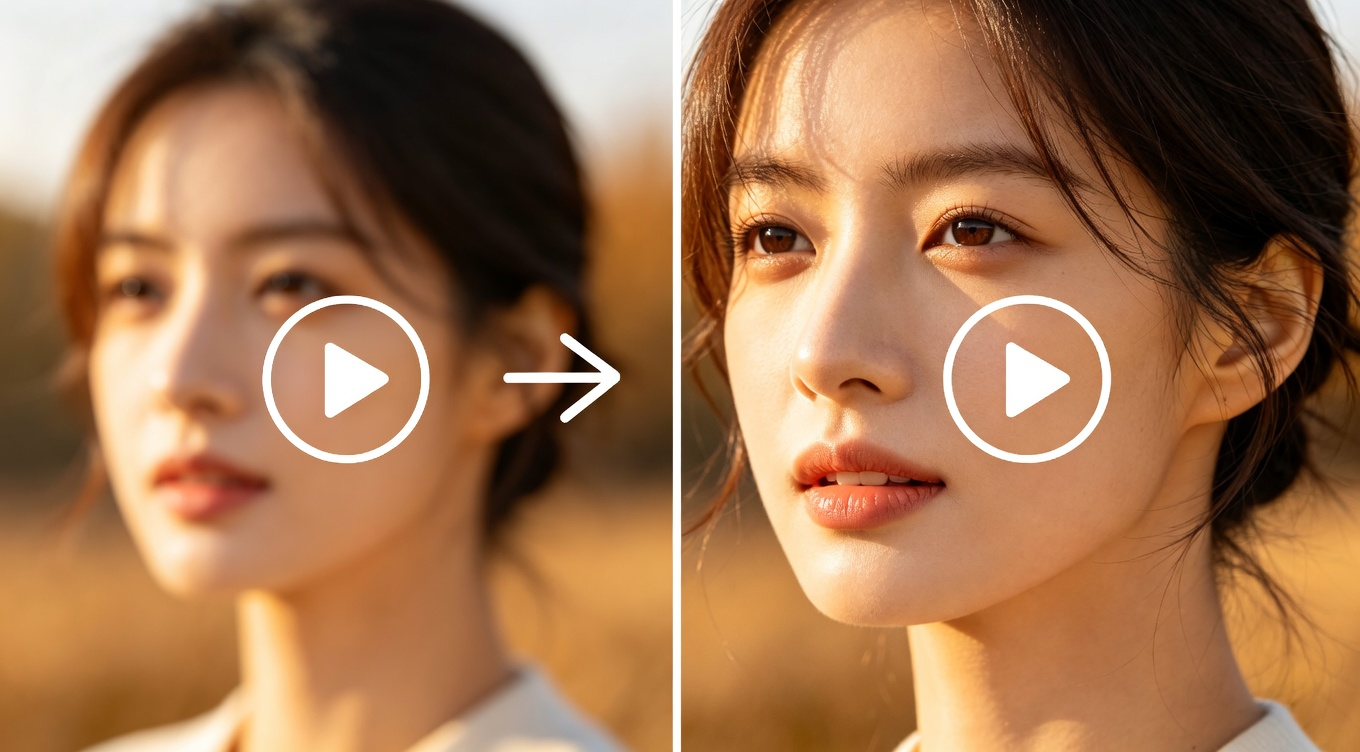
Before throwing AI at the problem, you need to understand why your video is blurry. Different causes need different fixes.
-
Out-of-focus footage is the most common culprit. Your camera's autofocus tracked the wrong subject. This creates uniform softness that AI handles reasonably well.
-
Motion blur happens when your subject moves faster than your shutter speed can freeze. Streaking and ghosting — the hardest type for AI to fix, because the detail was never captured.
-
Compression artifacts appear after uploading to social platforms or exporting with aggressive compression. Blocky edges, color banding, mosquito noise.
-
Low resolution — you shot in 720p and need 4K. This is where AI video upscalers genuinely shine.
-
Camera shake smears everything in the direction of movement. Stabilization in DaVinci Resolve or Premiere Pro fixes the shake, but the resulting blur needs AI enhancement.
If your footage combines motion blur AND soft focus AND low resolution — no tool will make it look like it was shot on an ARRI. AI enhancers in 2026 are impressive, but they reconstruct probable detail, not perform magic.
How to Fix Blurry Video with AI: Step-by-Step
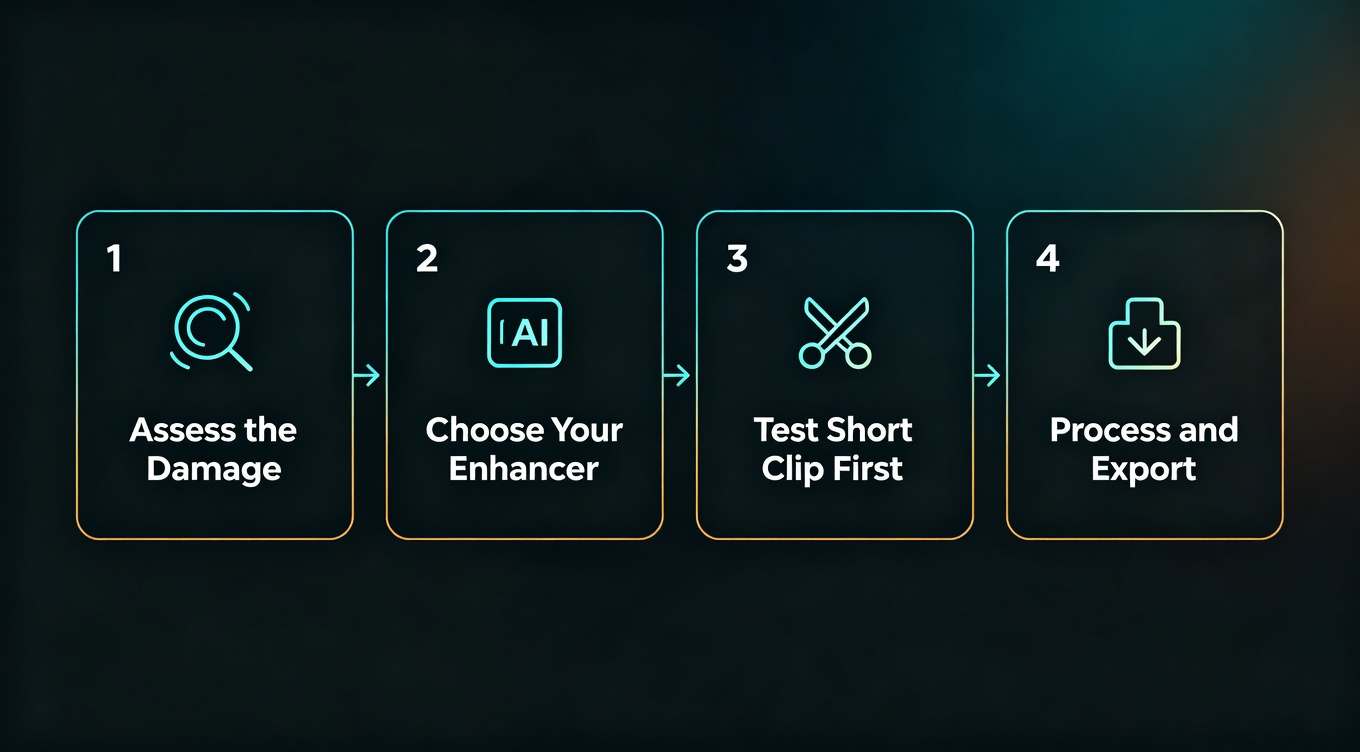
Step 1: Assess the Damage
Open your clip, pause on a frame with detail — a face, text, a product label. Zoom to 100%. Can you still make out text? AI enhancement will likely produce great results.
Step 2: Choose Your AI Enhancer
Different tools use different AI models. Topaz Video AI offers Proteus (compression artifacts), Iris (face restoration), and Gaia (4K upscaling). HitPaw Video Enhancer has one-click presets. AVCLabs sits in between.
Step 3: Test on a Short Clip First
Cut a 10-second sample of your worst footage. Run it through your chosen tool. I learned this the hard way after waiting 4 hours for Topaz to process 47 minutes — wrong model.
Step 4: Process and Export
Once settings are confirmed, process the full file. Export at the highest quality your platform supports.
Best AI Tools to Fix Blurry Video in 2026 (Compared)
Tool
Best For
Processing Speed
Price
Quality (My Rating)
Professional restoration, multiple AI models
Slow (GPU-intensive)
$299 one-time
9/10
Beginners, one-click fixes
Medium
$45/month
7/10
Batch processing, face enhancement
Medium
$40/month
7/10
DaVinci Resolve** + AI plugins**
Colorists who need enhancement in their edit
Fast (with Fusion GPU)
Free / $295 Studio
8/10
HandBrake** + sharpening filters**
Re-encoding with better settings
Fast
Free
5/10
**FFmpeg **+ unsharp mask
Command-line power users
Very fast
Free
5/10
My honest take: Topaz Video AI remains the gold standard for fixing blurry footage in 2026. But at $299, it's an investment. For casual creators, HitPaw or AVCLabs get the job done cheaper.
For free options, DaVinci Resolve's built-in sharpening plus noise reduction is surprisingly capable. FFmpeg's unsharp filter adds noticeable sharpness to soft footage if you're comfortable with command-line tools.
How to Fix Blurry Video from Phone
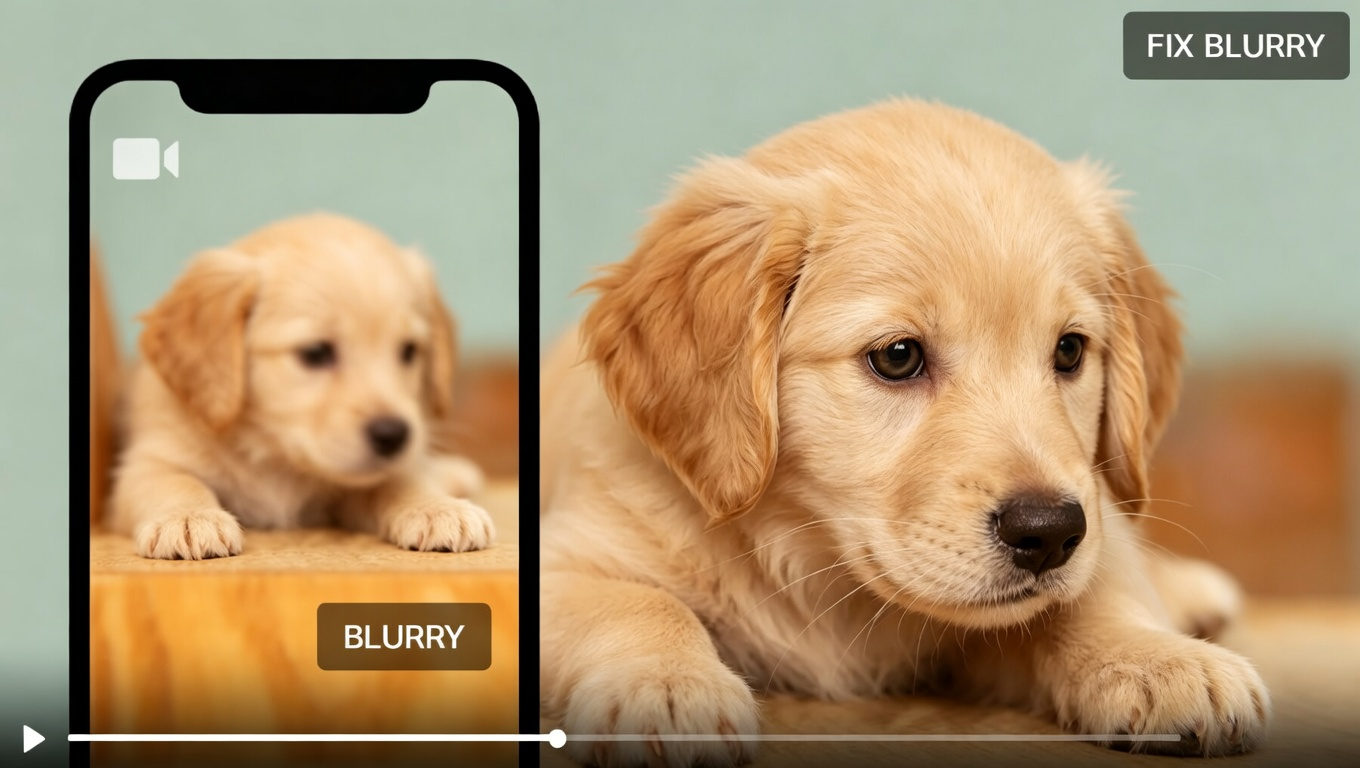
Phone footage has unique problems. Tiny sensors mean more noise in low light. Built-in stabilization introduces subtle softness.
-
iPhone users: HEVC footage compresses aggressively — Topaz Video AI's Proteus model at 2x upscaling can recover surprising detail. ProRes footage (iPhone 15 Pro+) gives you much more to work with.
-
Android users: Flagship phones shoot 4K, but aggressive noise reduction baked into processing makes footage look waxy. AI sharpening helps, but avoid over-sharpening.
-
Quick workflow: Transfer the original file (not a compressed share), import into your AI enhancer, use a face-focused model for talking-head video, export at original resolution or 2x max.
How to Prevent Blurry Videos (So You Never Need AI Fixes)
-
Lock your focus manually. Most cameras and phones let you tap-and-hold to lock focus.
-
Use a faster shutter speed. At least double your frame rate. Shooting 30fps? Use 1/60 or faster.
-
Stabilize your camera. A $20 phone tripod eliminates 90% of shake-related blur.
-
Shoot at the highest quality available. 4K gives you more data to work with.
-
Check your footage immediately. Review your first clip at 100% zoom before continuing the shoot.
When AI Enhancement Makes Things Worse (And How to Avoid It)
AI video enhancers aren't infallible. I've had tools make footage look objectively worse. Here are the four failure modes I've encountered most, and how to avoid each one.
-
Over-sharpening halos. When an AI model sharpens too aggressively, you get bright outlines around high-contrast edges. It's the digital equivalent of ringing. Topaz's Proteus model at default settings occasionally produces this. Fix: reduce sharpening intensity by 20-30% from default.
-
Texture hallucination. AI models trained on faces sometimes "see" face-like patterns in non-face areas — bricks, fabric, foliage. I once ran a building exterior through HitPaw's face model and it tried to sharpen a window into something resembling eyes. Fix: use the correct AI model for your content type.
-
Color shifting. Some enhancers subtly alter color temperature during processing. A warm interview setup came back cooler after AVCLabs processing. It wasn't dramatic, but enough to mismatch with other clips in the timeline. Fix: A/B compare before and after, apply color correction if needed.
-
Temporal inconsistency. Frame-by-frame enhancers process each frame independently, which can cause subtle flickering — brightness or sharpness that varies frame-to-frame. This is why temporal consistency matters in AI video tools. DaVinci Resolve's stabilizer plus a dedicated AI enhancer handles this better than most standalone tools.
My diagnostic checklist before publishing AI-enhanced footage:
-
Watch the enhanced clip at full resolution, not just a thumbnail
-
Check edge areas for halos (zoom to 200% on a high-contrast boundary)
-
Compare skin tones between enhanced and original
-
Play the clip at normal speed looking for flicker or pulsing
-
Export a 10-second test to your delivery platform and check there too
If you're generating new footage instead of enhancing old footage, these problems largely disappear. NemoVideo renders each clip with built-in temporal consistency — no frame-by-frame artifacts because the model generates the entire sequence as a unit.
Case Study: Restoring a Client's Archival Business Footage
In March 2026, a SaaS client came to me with a problem. They had a company overview video shot in 2018 — 720p, H.264 at a mediocre bitrate, recorded on a Canon EOS M50 with the kit lens. The footage featured interviews with their founding team, office B-roll, and product demos. They needed this video on their redesigned website, but 720p looked terrible on modern displays.
Reshooting wasn't an option. Two of the original founders had left the company.
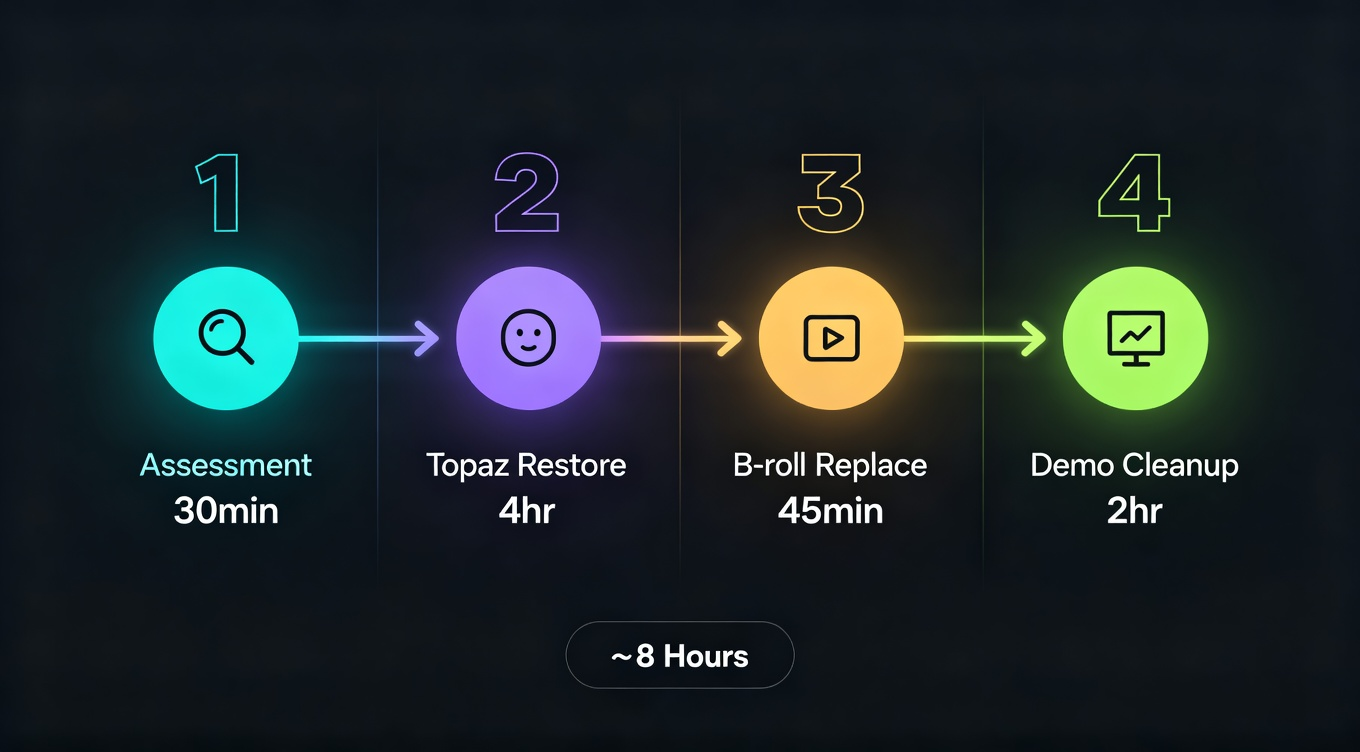
My workflow:
-
Phase 1: Assessment (30 minutes). I reviewed all 23 minutes of source footage. The interview segments were salvageable — soft but not motion-blurred, decent lighting. The office B-roll was shakier and darker. The product demos were mostly screen recordings with voiceover.
-
Phase 2: Interview restoration with Topaz Video AI (4 hours processing). I used the Iris model for face-focused enhancement at 2x upscale (720p → 1440p, then slight crop to 1080p). Batch processed all 9 interview clips overnight on my RTX 4080. Results: faces looked natural and detailed. The background bookshelves showed some AI texture artifacts, but acceptable.
-
Phase 3: B-roll replacement with NemoVideo (45 minutes). Instead of trying to rescue the shaky, dark office B-roll — which would have looked artificial even after enhancement — I uploaded the existing clips to NemoVideo. Smart Footage Completion analyzed the visual style and generated 6 replacement B-roll clips that matched the original footage's warm office aesthetic. Generated in 1080p natively. No enhancement needed.
-
Phase 4: Product demo cleanup with DaVinci Resolve (2 hours). Screen recordings responded well to basic sharpening in Resolve. I added SmartCaption-generated subtitles for accessibility.
Total time: About 8 hours of active work (plus overnight Topaz processing).
Total cost: $299 Topaz license (already owned) + approximately $12 in NemoVideo credits for B-roll generation.
The result: A 1080p company video that looks like it was produced in 2024, not 2018. The client's marketing team was genuinely surprised by the quality difference. The AI-generated B-roll segments blended with the enhanced interview footage because Smart Footage Completion matched the original color grade and lighting style.
Lesson learned: Don't try to enhance everything. Some footage is better replaced than rescued. Use AI enhancement for irreplaceable content (interviews, one-time events) and AI generation for everything else.
Frequently Asked Questions
Can AI completely fix a very blurry video? It depends on severity. Expect 40-60% improvement on badly blurred footage, 80-90% on mildly soft clips.
What's the best free AI tool to fix blurry video? DaVinci Resolve is genuinely free with solid sharpening, noise reduction, and stabilization. FFmpeg's unsharp filter works for technical users.
How long does AI video enhancement take? A 5-minute 1080p clip takes roughly 15-30 minutes on a modern GPU with Topaz Video AI. Cloud tools process faster but cap uploads.
Does AI upscaling actually add detail, or just make pixels bigger? Modern AI upscalers do both. AI models trained on millions of frames predict what the sharp version should look like.
Will enhancing video increase file size? Yes. AI-enhanced video is typically 3-4x larger when upscaled from 1080p to 4K. Use efficient codecs like H.265 for delivery.
Can I fix blurry video on my phone? Yes — HitPaw has a mobile version, and Remini focuses on face enhancement.
Is it better to fix blurry footage or reshoot? Reshoot if you can. Every time. AI enhancement is a rescue tool, not a replacement for proper capture. For supplementary clips and B-roll, consider generating footage with NemoVideo instead of shooting and fixing.