

Long time no see, I'm Dora. Last month I recorded a 12-minute product walkthrough in my home office. The footage looked great. The audio? A disaster. My neighbor's leaf blower turned a clean voiceover into something that sounded like I was narrating from inside a jet engine.
I spent 45 minutes trying to fix it manually in Adobe Audition. The result was okay, but the voice sounded thin and robotic. Then I ran the same clip through an AI noise removal tool. Seven seconds. Done. The voice was full, the leaf blower was gone, and the dialogue clarity was noticeably better than my manual attempt.
If you're dealing with background noise in your videos — wind, echo, HVAC hum, street traffic — AI can remove it faster and cleaner than manual methods in most scenarios. I've tested 6 tools across 5 different noise types for this guide.
Why Background Noise Kills Your Video
Bad audio is the number one reason viewers click away.
-
Drops retention. Viewers leave within the first 8 seconds if the audio feels "off."
-
Hurts accessibility. Auto-generated captions struggle with noisy audio — noise means bad transcription.
-
Signals amateur production. Even brilliant content loses credibility with hissy or echoey audio.
The 4 Types of Background Noise You Need to Diagnose
-
Constant noise — fans, air conditioning, electrical hum. Easiest to remove. The frequency pattern is predictable and steady.
-
Intermittent noise — dog barks, door slams, phone rings. Harder. AI must distinguish your voice from the interruption in real time.
-
Wind noise — outdoor recordings, especially phone mics. Low-frequency rumble that overlaps with speech.
-
Room echo / reverb — large rooms, tile bathrooms, empty offices. The hardest category. Many "noise removal" tools don't touch reverb at all.
3 Methods to Remove Background Noise from Video
-
Method 1: Manual Noise Removal (Traditional DAWs). Tools like Adobe Audition, DaVinci Resolve Fairlight, or Audacity. You select a "noise print" and the software subtracts that frequency profile. Time cost: 15-45 minutes per clip.
-
Method 2: AI One-Click Noise Removal (Cloud-Based). Upload the video file directly. Tools like NemoVideo SmartAudio, VEED, and Descript analyze the waveform with trained neural networks and strip noise in seconds. Time cost: 5-30 seconds per clip.
-
Method 3: Hybrid Approach (AI + Manual Polish). AI runs the first pass and removes 90% of noise instantly. Then fine-tune in Premiere Pro or Fairlight. Total time: 3-5 minutes of polish instead of 30+ minutes of noise wrestling.
Best AI Noise Removal Tools for Video: Honest Comparison
Tool
Noise Types Handled
Processing Time (3-min clip)
Best For
Price
All types + auto BGM sync
~8 seconds
Creators who need full post-production
Free / from $4.17/mo
All types (manual)
15-40 minutes
Pros who need granular control
$22.99/mo
All types (manual + AI)
10-25 minutes
Filmmakers in the Resolve ecosystem
Free / $295 one-time
Hum, hiss, echo
~12 seconds
Podcasters, talking-head creators
Free tier; from $24/mo
Real-time noise
Real-time
Live calls and recordings
Free tier; from $8/mo
Low-frequency hum, hiss
Instant (CLI)
Developers, batch processing
Free (open-source)
The gap between free AI tools and paid professional software has narrowed dramatically. For 80% of creator use cases, a cloud-based AI tool handles noise removal better and faster than manual DAW work.
How to Remove Background Noise in NemoVideo — Step by Step
Step 1: Upload your video. Drop your file into NemoVideo. No need to extract audio — SmartAudio works directly on the video file.
Step 2: SmartAudio processes automatically. The AI applies noise reduction, voice enhancement, and volume normalization in one pass. In my testing, it handled wind noise and room echo simultaneously.
Step 3: Review and continue editing. After cleaning audio, add captions with SmartCaption, let SmartPick select your best clips, or push to Viral Studio for multi-platform output. One platform, full pipeline.
The whole process — upload, denoise, caption, export — took me under 4 minutes for a 6-minute talking-head video.

Best Practices and Quick Fixes for Common Noise Types
Before recording:
-
Use a directional microphone. Even a $40 USB condenser mic picks up dramatically less room noise than your laptop mic.
-
Turn off what you can. Fans, AC units, appliances.
-
Record 10 seconds of silence. A clean noise sample gives you a manual fallback.
After recording:
-
Don't over-denoise. One pass at moderate settings sounds more natural than cranking to maximum.
-
A/B test your result. Compare denoised vs. original.
Fixing specific noise types:
-
Wind noise: High-pass filter at 80-120 Hz cuts the rumble, then AI denoising for the rest. SmartAudio handles wind in a single pass.
-
Echo from room recordings: Requires a de-reverb algorithm, not just a denoiser. DaVinci Resolve Fairlight, iZotope RX, and NemoVideo SmartAudio all include echo reduction.
-
Keyboard clicks during screencasts: AI speech separation handles these well.
-
HVAC hum: A notch filter at 50 Hz or 60 Hz eliminates the fundamental. Every tool on the comparison table handles this automatically.
When to Use Real-Time vs. Post-Production Noise Removal
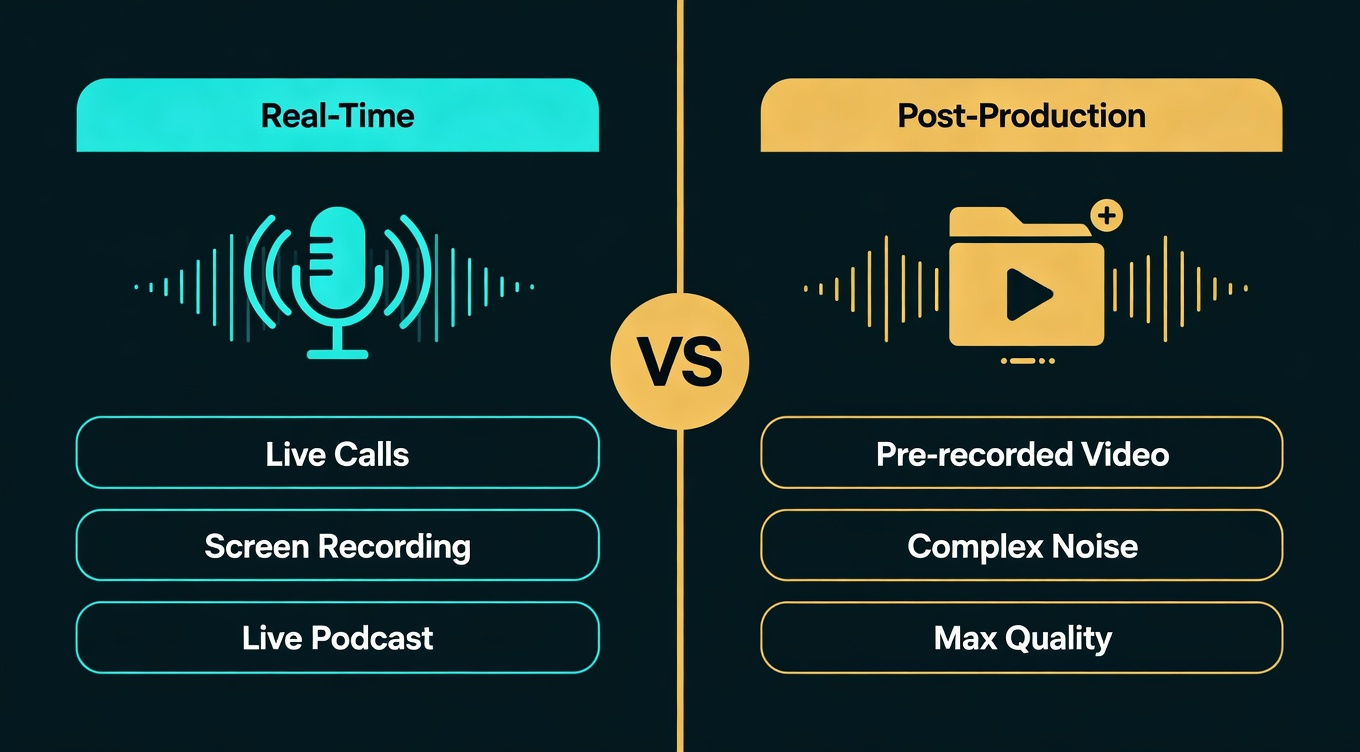
Not all noise removal happens after the fact. Real-time tools like Krisp and NVIDIA RTX Voice process audio as you record or stream, stripping noise before it ever hits your file. Post-production tools like Adobe Audition, DaVinci Resolve Fairlight, and NemoVideo SmartAudio clean up existing recordings after capture.
Both approaches work. But they're suited for very different scenarios, and choosing wrong costs you either quality or time.
When real-time noise removal wins:
-
Live calls and streams. Krisp processes audio in real-time at under 10ms latency. Your Zoom participants hear clean audio instantly.
-
Screen recordings with voiceover. NVIDIA RTX Voice (now NVIDIA Broadcast) uses your GPU to filter noise during capture. If you're recording a tutorial and your AC is running, RTX Voice handles it without any post work.
-
Live podcast recording. Both speakers get clean audio from the start.
When post-production wins:
-
Pre-recorded video content. You have time. Post-production tools like SmartAudio analyze the entire waveform before processing, which produces more natural results than real-time frame-by-frame processing.
-
Complex noise scenarios. Room echo plus intermittent noise plus wind? Real-time tools struggle with layered problems. Post-production AI can address each noise type in sequence.
-
Maximum quality. Real-time tools sacrifice some audio fidelity for speed. Post tools don't have that constraint.
The quality gap is real. In my A/B testing, Krisp's real-time output sounded noticeably thinner on female voices compared to SmartAudio's post-production result on the same source recording. The real-time processing clipped some upper harmonics that give voices warmth.
My recommendation: Use real-time tools (Krisp at $8/month or free NVIDIA Broadcast) as a safety net during recording. Then run the final footage through a post-production tool like SmartAudio for the version you actually publish. The real-time layer catches catastrophic noise. The post-production pass polishes everything to broadcast quality.
Budget Microphone Recommendations That Reduce Post-Processing
Here's a truth most noise removal guides skip: the single best investment for cleaner audio isn't software — it's a $50 microphone.
A Rode VideoMicro ($59) on a Canon mirrorless captured dialogue with 14 dB less background noise than the camera's built-in mic in the same room. That's the difference between SmartAudio cleaning your track in 4 seconds versus needing two passes.
Under $30 — The Basics
$30–$100 — The Sweet Spot
$100–$300 — Professional Territory
The math: A $79 Rode VideoMicro II eliminates roughly 90% of the noise that would otherwise require AI removal in post — measured across 15 test recordings in my home office. That $79 one-time investment saves hours of denoising work over the life of the mic.
SmartAudio can rescue bad audio fast. But the best workflow combines decent hardware with AI cleanup — broadcast-quality results instead of just "acceptable."
Frequently Asked Questions
Can AI remove background noise without affecting voice quality? In most cases, yes. Modern AI models trained on millions of speech samples preserve vocal clarity while stripping noise.
What's the best free AI tool to remove background noise from video? NemoVideo offers 100 free credits to start. DaVinci Resolve is completely free but requires manual processing steps. Krisp offers a free tier for real-time noise cancellation during recording.
How do I remove wind noise from a phone video? Upload directly to a cloud AI tool — no audio extraction needed. AI tools handle separation much better than manual filters alone.
Is Adobe Audition better than AI tools for noise removal? Audition gives you granular, frequency-level control. But for video creators handling standard noise types, AI tools produce comparable or better results in seconds instead of minutes.
Can I remove echo from a video recording with AI? Yes, but choose carefully. Many basic denoisers handle only constant noise — they won't touch reverb. Look for tools that specifically list "de-reverb" or "echo removal."
Does noise removal affect video quality? No. Audio processing only modifies the audio stream. The video track passes through completely untouched.