

Seedance 2.0 Audio & Music: Add Sound That Fits
Generating video without sound is only half the work.
Seedance 2.0's native audio generation changes the AI video workflow — but most creators don't understand what it actually produces, when to use it, and when to replace it entirely.
The promise: Generate synchronized audio-visual content in one pass. No stock music hunting. No manual sound design. Just describe the scene and get video with matching audio.
The reality: Seedance 2.0 audio works brilliantly for ambient environments and basic motion-sync sound effects—but fails at music composition, dialogue, and precision sound design.
If you're generating Seedance 2.0 videos and wondering whether to keep the AI audio, replace it, or layer it with custom sound, this guide gives you the exact framework for audio-visual production decisions.
We'll break down what Seedance 2.0 audio actually generates, how to prompt for coherent sound, common audio issues and fixes, and when post-production replacement delivers better results than iteration.
Let's decode Seedance 2.0 audio so you can ship videos that sound as professional as they look.
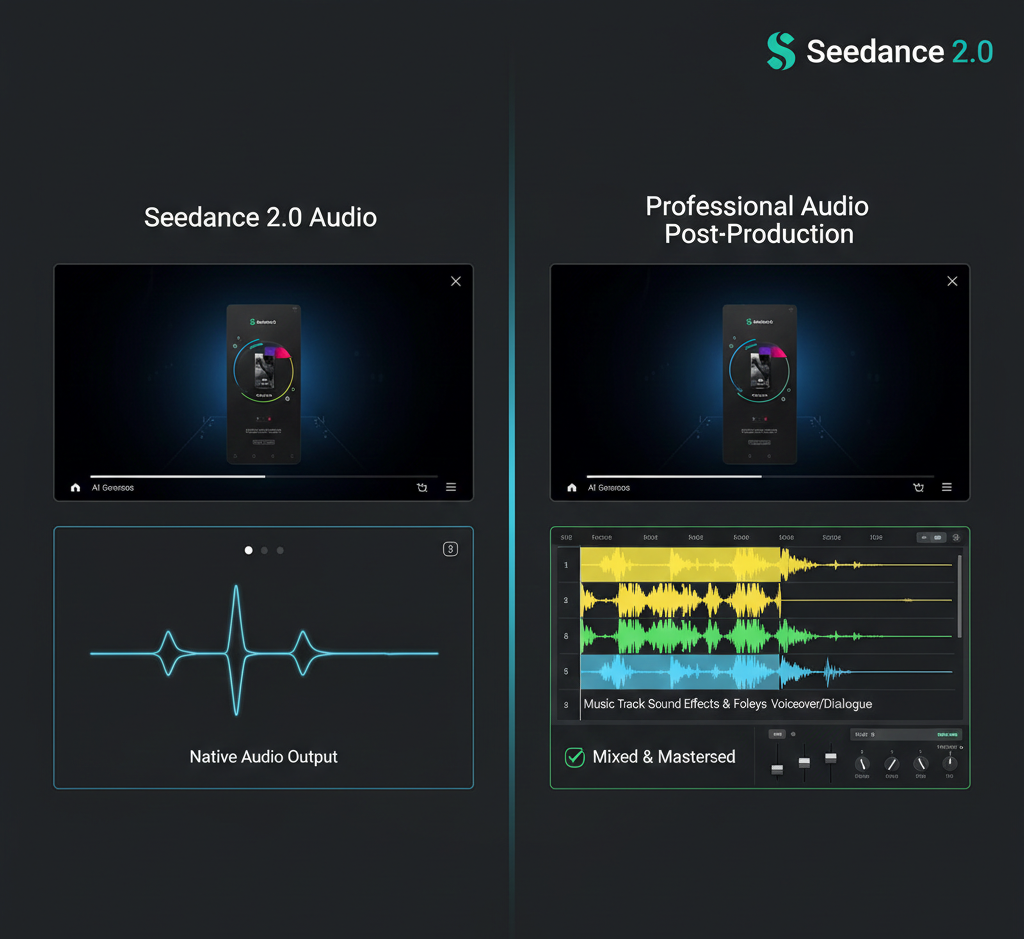
What Seedance 2.0 Audio Actually Generates
Seedance 2.0 audio generation creates synchronized sound alongside video—ambient environments, basic foley effects, and music-like textures that respond to visual motion, generated from text prompts or inferred from scene content.
What's included:
Environmental ambience (wind, rain, room tone)
Basic motion-synced sound effects (footsteps, impacts)
Music-like textures (rhythmic patterns, tonal beds)
Spatial audio characteristics matching scene context
What's excluded:
Intelligible dialogue or speech
Complex musical composition with melody/harmony
Precision sound design (specific branded audio)
High-fidelity professional mixing
The positioning: Native audio solves the "silent video" problem for B-roll, ambient content, and rapid prototyping—but doesn't replace sound designers or composers for premium work.
Ambient Sound vs Music vs Dialogue
Seedance 2.0 handles these three audio categories very differently.
Ambient Sound (Most Successful)
What it generates:
Environmental textures (forest sounds, city noise, indoor room tone)
Weather audio (rain, wind, ocean waves)
Spatial characteristics (reverb in large spaces, intimacy in close shots)
Quality level: 70–80% production-ready for background ambience.
When to use: B-roll footage, establishing shots, contextual scenes where audio supports but doesn't drive the narrative.
Example prompt audio: "with subtle wind ambience and distant bird calls"
Music-Like Textures (Moderately Successful)
What it generates:
Rhythmic patterns that match motion pacing
Tonal beds without complex melody
Atmospheric soundscapes
Tempo synced to visual energy
Quality level: 50–60% production-ready. Often feels "AI-generated" rather than intentionally composed.
When to use: Background scoring for content where music isn't the primary focus, placeholder audio for client approvals, rapid prototyping before custom scoring.
Limitation: Lacks emotional nuance, memorable hooks, and professional mixing depth.
For creators building comprehensive audio-visual workflows, the Seedance 1.5 Pro audio-visual capabilities provide additional context on model evolution.
Dialogue and Speech (Currently Not Supported)
What it doesn't generate:
Intelligible spoken words
Character dialogue
Voiceover narration
Synchronized lip movement audio
Workaround: Add narration in post-production using voice cloning or recording. Platforms like NemoVideo include voice cloning for narration without studio recording.
What's Native vs What Needs Post-Production
Decision framework for keeping or replacing Seedance 2.0 audio:
Audio Element | Native Generation Quality | Post-Production Need |
Environmental ambience | Good (70–80%) | Optional enhancement |
Basic foley (footsteps, impacts) | Moderate (60–70%) | Often needs layering |
Music composition | Weak (40–50%) | Usually requires replacement |
Dialogue/narration | Not supported | Always requires addition |
Sound effects precision | Weak (30–40%) | Usually requires replacement |
Spatial audio/reverb | Moderate (50–60%) | Often needs refinement |
Production strategy:
Keep native audio when:
Content is ambient B-roll without narrative focus
Speed matters more than audio precision
Budget doesn't allow custom sound design
Audio serves supporting role only
Replace audio when:
Music drives emotional impact
Brand audio guidelines exist
Professional polish required
Dialogue or voiceover needed
Hybrid approach when:
Native ambience is solid but needs music layer
Foley effects are 80% there but need enhancement
Time permits selective improvement
Reality check: Most professional workflows use Seedance 2.0 audio as base layer, then add custom music, voiceover, and precision effects in post.
Prompting for Audio-Visual Coherence
Effective audio generation requires explicit prompting. Visual descriptions alone produce generic sound.
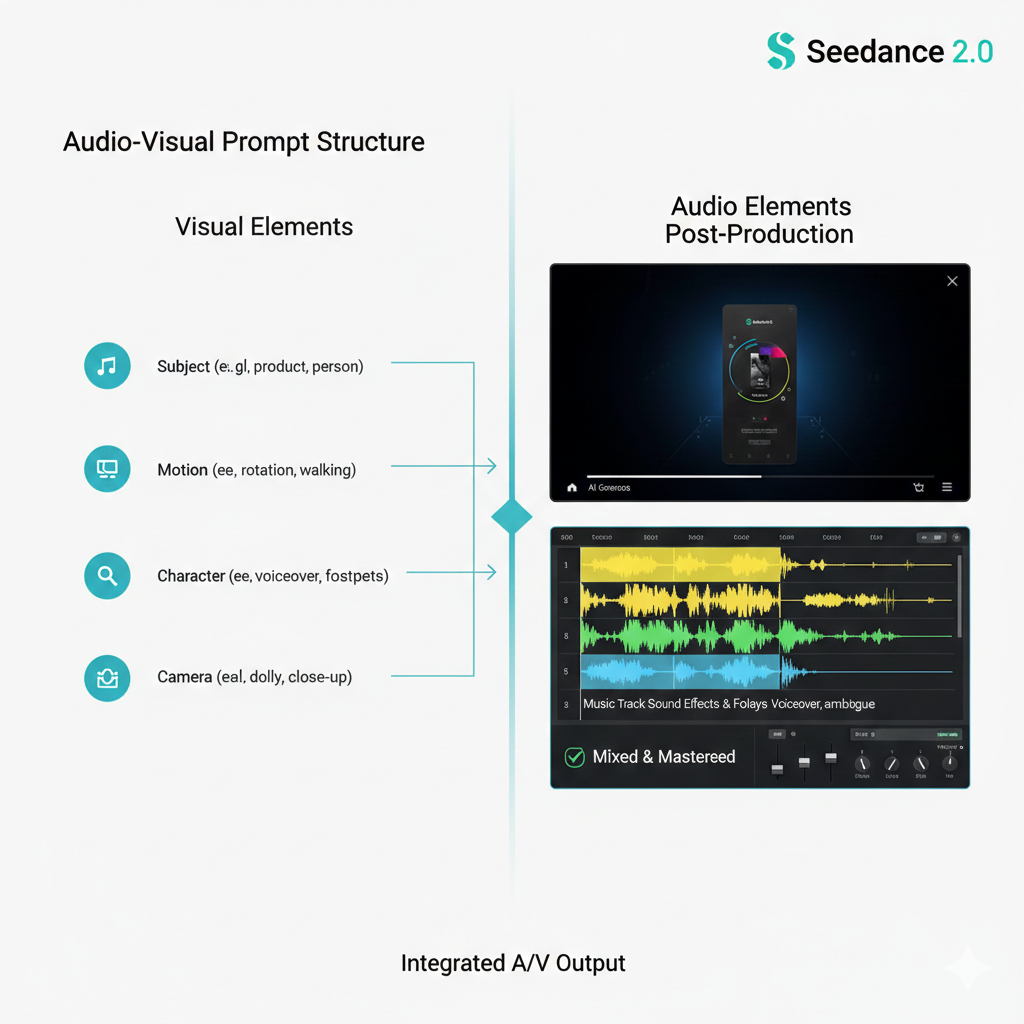
Core Audio Prompt Structure
Audio descriptions should specify:
Sound source: What creates the audio (wind, footsteps, music)
Character: Quality and texture (subtle, dramatic, rhythmic)
Spatial context: Environment acoustic (open field, enclosed room)
Relationship to motion: How sound follows visual action
Example prompt with audio: "Person walking through autumn forest, slow steady pace, with crunching leaves underfoot and gentle wind through trees, natural outdoor acoustics"
Same prompt without audio detail: "Person walking through autumn forest, slow steady pace"
Result difference: First prompt generates footstep-synced foley and environmental ambience. Second generates generic or minimal audio.
Motion-Sound Matching (Footsteps, Impacts)
For motion-synced foley effects, specify action-sound relationships explicitly.
Footstep sync prompting:
Generic (weak sync): "Person walking on wooden floor"
Specific (better sync): "Person walking across wooden floor, each footstep creating hollow knock sound, steady rhythm"
Why it works: Model understands temporal relationship between foot contact and sound event.
Impact sync prompting:
Generic: "Object falling and hitting ground"
Specific: "Glass bottle falling and shattering on concrete with sharp impact and tinkling fragments"
Common sync issues:
Audio peaks don't align with visual motion
Sound continues after motion stops
Foley texture doesn't match surface material
Fix: Regenerate with more specific action-sound timing language, or accept desync and replace in post.
Music Pacing Cues in Prompts
To influence music-like texture generation, describe energy and tempo in relation to visual pace.
Energy-based music prompting:
Low energy: "with subtle ambient music, slow and contemplative"
Medium energy: "with steady rhythmic background music, moderate tempo"
High energy: "with dynamic driving music, fast tempo and energetic"
Tempo-visual sync prompting:
Slow motion visuals: "with drawn-out musical tones matching slow motion pacing"
Fast cuts: "with quick rhythmic percussion matching rapid visual changes"
Limitation: You're describing characteristics, not composing. Don't expect specific genres, instruments, or melodic phrases.
What works: "upbeat electronic music," "melancholic piano," "dramatic orchestral"
What doesn't work: "play Beethoven's 5th," "use trap beat at 140 BPM," "guitar solo in key of D"
Production tip: For branded content requiring specific music, generate with placeholder audio descriptions, then replace entirely with licensed tracks in post.
Common Audio Issues and Fixes
AI-generated audio has predictable failure modes. Knowing them prevents wasted regeneration cycles.
Desync (Audio-Visual Timing Mismatch)
What it is: Sound events (footsteps, impacts, transitions) don't align with corresponding visual actions.
Why it happens:
Model generates audio and video semi-independently
Temporal coherence isn't perfect across modalities
Complex motion confuses sync prediction
How to identify:
Footsteps sound before/after foot contact
Impact sounds occur during anticipation, not contact
Music beats don't match visual rhythm
Fixes:
Level 1 - Regenerate with timing emphasis: Add explicit sync language: "footsteps perfectly synchronized to each step," "impact sound exactly when object hits surface"
Level 2 - Accept and adjust in post: Use video editing software to nudge audio track 2–5 frames for alignment
Level 3 - Replace problematic audio: Keep ambient bed, replace only desync elements with stock foley
Acceptable threshold: ±3 frames desync is barely noticeable. ±10+ frames = unprofessional.
Mushy Audio (Low Clarity and Definition)
What it is: Audio lacks crispness—sounds blurred, muddy, or lacks distinct frequency separation.
Why it happens:
AI audio generation lower fidelity than human-recorded/composed audio
Compression artifacts in generation process
Model prioritizes coherence over clarity
How to identify:
High frequencies sound muffled
Difficult to distinguish individual sound elements
Lacks "sparkle" and definition
Fixes:
Level 1 - Prompt for clarity: Add descriptors: "crisp clear audio," "sharp distinct sounds," "high-fidelity recording"
Level 2 - Post-production EQ: Boost high frequencies (8kHz+), reduce muddiness (200–500Hz)
Level 3 - Layer with stock audio: Use AI audio as bed, layer crisp stock effects on top
Reality: Native Seedance 2.0 audio rarely matches professional recording clarity. Plan for post-enhancement.
Wrong Mood (Audio Doesn't Match Visual Tone)
What it is: Audio energy, character, or emotion conflicts with visual intent.
Examples:
Upbeat music on somber scene
Aggressive sound on peaceful visual
Horror ambience on cheerful content
Why it happens:
Prompt lacked explicit mood descriptors
Model misinterpreted visual tone
Audio and visual generation treated moods independently
Fixes:
Level 1 - Explicit mood prompting: Add emotional descriptors: "with melancholic ambient music," "energetic and optimistic sound," "tense and suspenseful audio"
Level 2 - Separate mood for visual and audio: "Visual: peaceful meadow. Audio: subtle tension-building music."
Level 3 - Replace entirely: If regeneration doesn't solve, custom audio selection is faster than iteration.
Prevention: Always include audio mood descriptors in prompts, even if they seem obvious.
Post-Production: When to Replace AI Audio
Native audio isn't always the answer. Strategic replacement delivers better results faster than endless regeneration.
Scenarios Requiring Audio Replacement
Branded Content with Audio Guidelines
Corporate videos requiring specific music libraries
Sponsored content with licensing requirements
Brand campaigns with signature sound identity
Decision: Replace 100%. Native AI audio can't match brand specifications.
Dialogue or Voiceover-Driven Content
Tutorials, explainers, educational content
Interviews or testimonials
Narrative storytelling with character dialogue
Decision: Add voiceover in post. Seedance 2.0 doesn't generate speech. Use voice cloning tools or record narration.
Music-Driven Content
Music videos (obviously)
Ads where music carries emotional weight
Workout videos, dance content, rhythm-based editing
Decision: Replace with licensed or custom music. AI music textures lack the emotional precision required.
Precision Sound Design
UI/UX demo videos requiring exact click sounds
Product demos needing specific branded audio
Sound-sensitive content (ASMR, audio equipment reviews)
Decision: Replace or heavily layer. Native foley lacks precision.
Audio Replacement Workflow
Step 1: Export video with AI audio
Keep AI audio track as reference
Note timestamp where audio works vs. fails
Step 2: Identify replacement needs
Music: Full replacement
Ambience: Enhancement or layering
Foley: Selective replacement
Dialogue: Complete addition
Step 3: Source replacement audio
Licensed music: Epidemic Sound, Artlist, AudioJungle
Stock sound effects: Freesound, Zapsplat, BBC Sound Effects
Voiceover: Record or use voice cloning
Step 4: Layer and mix
Import video to editing software
Replace or layer audio tracks
Mix levels (voiceover loudest, music bed underneath, effects punctuating)
Add transitions and fades
Time investment: 10–15 minutes for simple replacement, 30–60 minutes for complex multi-layer mix.
Efficiency tip: For creators producing at scale, NemoVideo automates audio optimization—including voice cloning for narration and automatic music bed selection matching video pacing.
Quick Workflow — Generate Video + Audio + Export
For creators who want usable output without deep audio production:
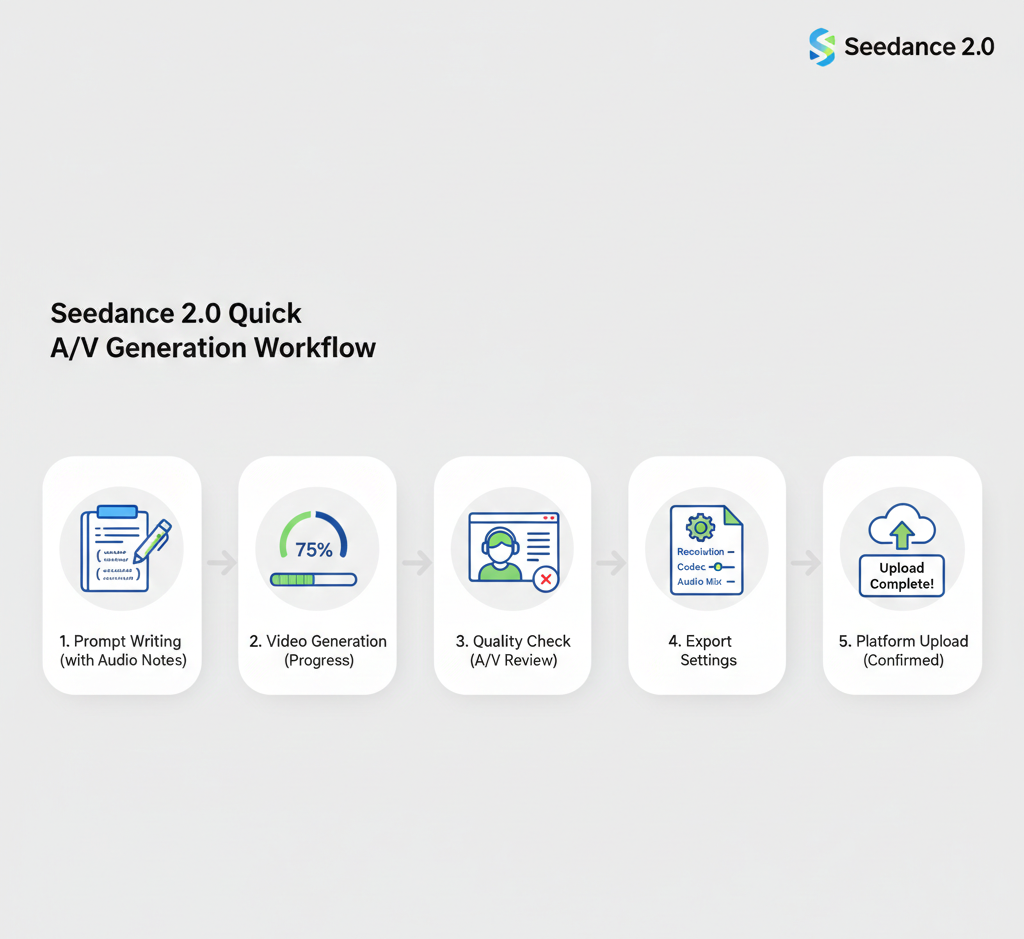
5-Step Rapid Audio-Visual Workflow
Step 1: Craft Audio-Inclusive Prompt (2 minutes)
Include explicit audio descriptors:
Sound sources
Environmental ambience
Motion-sync cues
Mood/energy level
Example: "Close-up of rain hitting window glass, slow camera push-in, with steady rain sound and distant thunder, melancholic and contemplative mood"
Step 2: Generate and Monitor (3–5 minutes)
Submit prompt and wait for generation completion.
Check during generation: Some platforms show audio generation progress separately from video.
Step 3: Quality Check Audio-Visual Sync (1 minute)
Listen for:
Desync issues (audio-visual timing)
Audio clarity (muddy vs. crisp)
Mood match (does audio feel right?)
Decision tree:
80%+ quality → Export
60–79% quality → Minor post-production enhancement
<60% quality → Regenerate or replace audio
Step 4: Export with Proper Audio Settings (1 minute)
Standard export specs:
Format: MP4 with AAC audio codec
Audio bitrate: 192kbps minimum (256kbps for higher quality)
Sample rate: 48kHz (standard video production)
Channels: Stereo (2.0)
Platform-specific notes:
Social media: Compress to <128kbps if file size matters
Broadcast/client delivery: 256kbps+ for quality
Web playback: 192kbps balances quality and loading speed
Step 5: Platform Upload and Test (2 minutes)
Critical: Preview with sound on target platform before publishing.
Check:
Audio plays automatically (or as intended)
Volume levels appropriate (not too quiet/loud)
No unexpected compression artifacts
Captions display properly if added
Total workflow time: 10–15 minutes from prompt to published video.
For creators building short-form content at scale, explore the Seedance 2.0 short video workflow guide for optimized production velocity.
How NemoVideo Handles Audio Complexity Automatically
Seedance 2.0 generates audio. NemoVideo optimizes it for production.
What Manual Audio Workflow Requires
DIY Seedance 2.0 audio production:
Write audio-inclusive prompt
Generate and download
Import to audio editing software
Assess what works vs. needs replacement
Source replacement music/effects
Record or clone voiceover
Mix and balance levels
Re-export with optimized audio
Add captions (since 85% watch without sound)
Time cost: 30–45 minutes per video for audio post-production.
What NemoVideo Automates
Integrated audio production:
Automatically generates Seedance 2.0 video with native audio
Analyzes audio quality and flags replacement needs
Suggests licensed music alternatives matching visual pacing
Adds voice cloning narration from script
Mixes levels professionally (voiceover priority, music bed underneath)