

Seedance 2.0 Complete Guide for Creators (2026)
Looking for a complete Seedance 2.0 guide that actually covers production workflows?
You're past the hype phase. You need real answers: What can Seedance 2.0 actually do? How do you prompt it effectively? What quality issues should you expect? And most importantly—how does it fit into a scalable creator workflow?
Seedance 2.0 is the breakout AI video model of 2026, but most guides skip the production details creators actually need.
This isn't a feature list. This is the complete operational guide for using Seedance 2.0 in real content pipelines—from your first usable clip to multi-shot production workflows, quality control strategies, and when to choose Seedance 2.0 over alternatives.
Whether you're evaluating AI video tools or already generating clips, this guide gives you the technical foundation and practical workflows that separate experimental testing from professional output.
Let's break down exactly what Seedance 2.0 does, how to use it effectively, and how production-ready platforms like NemoVideo eliminate the friction entirely.
What Seedance 2.0 Actually Does (And What It Doesn't)
Seedance 2.0 is an AI video generation model that creates video sequences from text prompts, reference images, or video inputs—autonomously handling scene composition, motion dynamics, camera movement, and visual coherence without manual keyframing or editing.
What it generates:
5–10 second video clips from text descriptions
Motion-applied sequences from static images
Style-transferred variations from reference videos
Synchronized audio-visual content (new native audio capability)
What it doesn't do:
Multi-shot narrative assembly (requires manual editing or automation tools)
Precise frame-level control (motion is AI-interpreted, not specified)
Brand-consistent templates (output style varies unless controlled externally)
Platform-specific optimization (16:9 output requires reformatting for TikTok/Reels)
The positioning: Seedance 2.0 is a generation engine, not a complete production tool. Professional workflows combine it with editing, optimization, and distribution layers.
Text-to-Video, Image-to-Video, Reference Video
Seedance 2.0 supports three primary input modes, each with distinct use cases.
Text-to-Video:
Pure prompt-based generation
Best for conceptual scenes, abstract visuals, B-roll
Example: "Wide aerial shot of misty forest at sunrise, slow forward dolly"
Limitation: Ambiguous prompts = unpredictable output
Image-to-Video:
Animates static images with AI-interpreted motion
Best for product shots, portraits, logos
Example: Upload brand logo → prompt "smooth zoom in with particle effects"
Advantage: Consistent starting visual reduces generation variance
For detailed workflows on transforming static assets into dynamic content, see the Seedance 2.0 image-to-video guide.
Reference Video:
Uses existing video to guide motion, style, or composition
Best for replicating specific camera movements or visual tone
Example: Upload handheld walking footage → apply to new scene
Power move: Extract motion patterns from viral content
Learn advanced techniques in the reference video motion control guide.
Native Audio Generation (New)
Major update: Seedance 2.0 now generates synchronized audio alongside video—ambient sound, music beds, basic sound effects.
How it works:
Describe audio in prompt: "with subtle wind ambience and distant bird calls"
AI generates audio matched to visual timing
Quality: Acceptable for backgrounds, not dialogue or precision sound design
Production reality: Native audio saves time on stock sourcing but still requires mixing for professional output. Most creators layer custom audio in post.
The NemoVideo advantage: Platforms like NemoVideo handle audio optimization automatically, including voice cloning for narration and platform-specific audio mastering.
Getting Started — Your First Usable Clip in 10 Minutes
Goal: Generate a production-quality 5-second clip from concept to export in under 10 minutes.
Here's the fastest path to usable output.
Step 1: Define Output Intent (2 minutes)
Before prompting, answer:
What platform? (YouTube, TikTok, Instagram)
What role? (Hook, B-roll, transition, standalone)
What style? (Cinematic, documentary, abstract, product-focused)
Why this matters: Intent shapes prompt specificity. A TikTok hook needs fast motion and tight framing. YouTube B-roll needs slower pacing and wider shots.
For vertical video optimization specifically, reference the Seedance 2.0 vertical video guide.
Step 2: Write a Structured Prompt (3 minutes)
Effective prompt structure:
Subject: What's in frame (person, object, environment) Motion: How it moves (static, slow pan, fast zoom, tracking) Camera: Angle and movement (aerial, close-up, dolly, handheld) Style: Visual tone (cinematic, documentary, vintage, vibrant)
Example prompt: "Close-up of hands typing on laptop keyboard, shallow depth of field, slow push-in, warm cinematic lighting, golden hour aesthetic"
Common mistake: Overloading prompts with conflicting instructions. Keep to 20–30 words max.
Step 3: Generate and Wait (2–5 minutes)
Typical generation time: 2–3 minutes for 5-second clips during off-peak hours, 5–10 minutes during peak (9 AM–5 PM EST).
If stuck processing: Cancel after 5 minutes and retry. Server congestion is common during US/EU daytime.
Step 4: Quality Check (1 minute)
Inspect for common issues:
Flicker: Lighting inconsistency frame-to-frame
Drift: Subject morphing or background warping
Blur: Motion artifacts or focus loss
Audio sync: If using native audio, check alignment
Decision tree:
Acceptable quality → Export
Minor issues → Regenerate once
Major issues → Revise prompt and retry
Step 5: Export and Integrate (1 minute)
Standard export: MP4, H.264 codec, original resolution (typically 1280x720 or 1920x1080)
Next steps:
Import into editing timeline
Add captions, color grade, audio mix
Resize for platform (9:16 for TikTok/Reels)
Automation alternative: Tools like NemoVideo's Smart Caption handle captioning with trending styles automatically, while Viral+ Studio optimizes pacing and structure for platform-specific performance.
The Creator Workflow That Scales
One-off clips are easy. Scaling to 10+ videos per week requires systematic workflow.
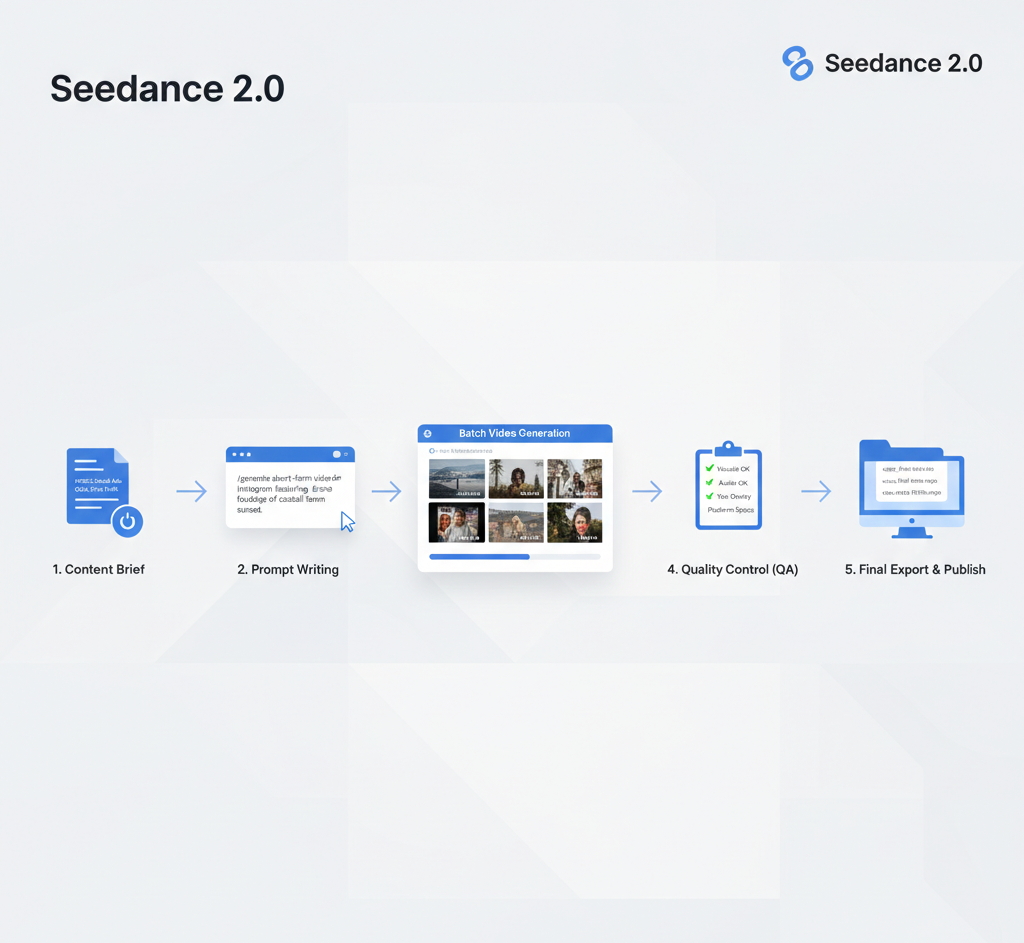
Brief → Prompt → Generate → QA → Export
This 5-stage pipeline is how professional creators maintain velocity:
Stage 1: Brief (Content Planning)
Define video concept, target platform, desired outcome
Outline shot list (establishing, detail, transition, etc.)
Allocate generation budget (credits, time, iterations)
Stage 2: Prompt (Translation)
Convert brief into structured prompts
Batch similar requests (5 product close-ups, 3 transition effects)
Include platform requirements (aspect ratio, duration)
Stage 3: Generate (Execution)
Submit batch during off-peak hours for faster processing
Monitor for errors (generation failed, stuck processing)
Queue regenerations for failed outputs
Stage 4: QA (Quality Control)
Review all outputs for flicker, drift, blur
Flag acceptable, needs regeneration, unusable
Document prompt patterns that consistently succeed
Stage 5: Export (Delivery)
Batch export approved clips
Organize by project/platform
Import into editing or automation pipeline
Time investment: 30–45 minutes for 10 clips once workflow is optimized.
The bottleneck: QA and regeneration cycles. Expect 30–40% of clips to need iteration.
Workflow acceleration: NemoVideo's Workspace centralizes this entire pipeline—upload briefs, manage bulk generation projects, and version outputs in one interface.
Prompting Fundamentals (Subject + Motion + Camera + Style)
Effective prompts follow a 4-component structure that gives Seedance 2.0 clear direction without overconstraining creative interpretation.
Component 1: Subject
What appears in frame.
Specificity levels:
Generic: "a person walking"
Moderate: "young woman in business attire walking"
Detailed: "professional woman in navy blazer walking through modern office lobby"
Best practice: Use moderate specificity. Too generic = inconsistent output. Too detailed = model ignores parts.
Examples:
"Golden retriever running in grassy field"
"Espresso pouring into white ceramic cup"
"Smartphone displaying social media app"
Component 2: Motion
How subject or camera moves.
Effective motion descriptors:
Static: "still shot," "no movement," "frozen"
Slow: "gentle drift," "slow pan," "gradual zoom"
Medium: "steady tracking," "smooth dolly," "moderate rotation"
Fast: "quick whip pan," "rapid zoom," "dynamic movement"
Common mistake: Requesting complex motion ("subject jumps while camera circles"). Stick to one motion type per clip.
Examples:
"Slow push-in on subject's face"
"Gentle left-to-right pan across cityscape"
"Static overhead shot, no camera movement"
Component 3: Camera
Angle, distance, and lens feel.
Essential camera terms:
Distance: Extreme close-up, close-up, medium, wide, extreme wide
Angle: Eye-level, low angle, high angle, bird's eye, worm's eye
Movement: Dolly, pan, tilt, orbit, handheld, gimbal-stabilized
Pro tip: Reference cinematography language. "Shallow depth of field" produces better results than "blurry background."
Examples:
"Bird's eye view, looking straight down"
"Low angle close-up, looking up at subject"
"Wide establishing shot, aerial perspective"
Component 4: Style
Visual tone, lighting, color grading.
Style categories:
Lighting: Golden hour, overcast, studio, dramatic shadows, soft diffused
Mood: Cinematic, documentary, vintage, vibrant, minimalist
Color: Warm tones, cool blues, desaturated, high contrast
Combination examples:
"Cinematic golden hour lighting with warm color grading"
"Documentary style, natural lighting, slightly desaturated"
"High-contrast dramatic lighting with deep shadows"
Advanced: Reference film stocks or directors ("shot on 35mm film," "Wes Anderson symmetry").
Full Prompt Examples
Product demo: "Close-up of wireless earbuds on marble surface, slow 360-degree rotation, studio lighting with soft shadows, clean minimalist aesthetic"
Nature B-roll: "Wide aerial shot of misty mountain valley at sunrise, slow forward dolly, cinematic golden hour lighting, warm color grading"
Urban lifestyle: "Medium shot of person walking down rainy city street at night, tracking alongside subject, neon reflections on wet pavement, cyberpunk aesthetic"
The pattern: Subject + Motion + Camera + Style in 20–35 words.
For creators building short-form workflows at scale, the Seedance 2.0 short video workflow guide provides platform-specific prompting strategies.
Quality Control — Flicker, Drift, Blur
AI-generated video has predictable quality issues. Knowing what to expect and how to mitigate saves regeneration cycles.
Flicker (Temporal Inconsistency)
What it is: Lighting or color values fluctuating frame-to-frame, creating strobing effect.
Why it happens:
Model struggles with consistent illumination
Complex lighting prompts confuse generation
Ambient light descriptions lack specificity
How to reduce:
Use simple lighting terms ("soft," "natural," "studio")
Avoid "flickering" or "dynamic" lighting descriptions
Regenerate if flicker is severe—sometimes resolves randomly
Acceptable threshold: Subtle flicker in backgrounds is normal. Subject flicker = unusable.
Drift (Morphing and Warping)
What it is: Subject shape, background geometry, or object details changing mid-clip.
Why it happens:
Model lacks perfect temporal coherence
Complex scenes with multiple elements
Long clip durations (10+ seconds)
How to reduce:
Shorter clips (5 seconds) = less drift
Simpler compositions (single subject, minimal background)
Use reference images for consistent starting point
Acceptable threshold: Minimal background drift is fine. Subject facial/body morphing = regenerate.
Blur (Motion Artifacts)
What it is: Unintended softness, smearing, or loss of detail during motion.
Why it happens:
Fast motion requests exceed model capability
Motion blur simulation artifacts
Low effective resolution in generation
How to reduce:
Slow or moderate motion only
Avoid "fast," "rapid," "quick" descriptors
Request "sharp focus" or "crisp detail" in prompt
Acceptable threshold: Subtle motion blur during fast pans is realistic. Constant softness = unusable.
Quality Assurance Checklist
Before exporting any clip, verify:
[ ] Subject remains visually consistent throughout
[ ] No major lighting flicker (subtle = acceptable)
[ ] Background geometry stable (minimal drift = acceptable)
[ ] Motion appears natural, not stuttering
[ ] Focus remains sharp on primary subject
[ ] Audio sync (if using native audio generation)
[ ] No watermarks or unexpected artifacts
Decision framework:
90%+ quality → Export
70–89% quality → Regenerate once
<70% quality → Revise prompt and retry
Reality check: Expect 60–70% first-generation success rate. Plan for iterations.
Multi-Shot Planning and Character Consistency
Single clips are solved. Multi-shot narratives remain challenging.
The Character Consistency Problem
Issue: Seedance 2.0 generates each clip independently. Same prompt ≠ same character appearance across shots.
Example:
Shot 1: "Woman with brown hair in blue jacket"
Shot 2: Same prompt → Different face, slightly different jacket
Why this matters: Narrative videos require visual continuity. Character drift breaks immersion.
Current Workarounds
Method 1: Reference Image Anchoring
Generate or source base character image
Use as input for all subsequent shots
Improves consistency but not perfect
Method 2: Batch Generation with Selection
Generate 3–5 variations of each shot
Manually select closest matches
Time-intensive but effective
Method 3: Editing Hybrid Workflow
Use AI for dynamic shots (wide, motion)
Use real footage or static images for character close-ups
Combine in editing timeline
The reality: True character consistency across 10+ shots requires manual selection or hybrid workflows. Pure AI multi-shot narratives aren't production-ready yet.
Multi-Shot Planning Strategy
When planning AI-generated narratives:
Minimize character-dependent shots: Favor wide angles, back-of-head, obscured faces
Use consistent reference images: Anchor all shots to same base visual
Plan cut points strategically: Hide inconsistencies with transitions, B-roll inserts
Leverage editing masking: Manual post-production cleanup on critical shots
Set realistic expectations: AI handles 60–70% of shots well; plan to rework rest
Production alternative: For creators needing guaranteed multi-shot consistency, NemoVideo's Talking-Head Editor handles real footage with AI-synced B-roll—combining human consistency with AI efficiency.
When to Use Seedance 2.0 vs Other Tools
Seedance 2.0 isn't the answer to every video need. Here's the decision framework.
Choose Seedance 2.0 When:
Scenario 1: Concept Visualization
Need visual representation of abstract ideas
No existing footage available
Speed matters more than perfect control
Scenario 2: High-Volume B-Roll