

Best UGC Video Creation Tools with Custom Templates 2026
Here's the thing nobody tells you when you first try to scale your content: raw output speed isn't your real bottleneck. Consistency is.
I learned this the hard way around my third month of trying to post daily. I'd churn out a video Monday that looked clean and on-brand, then post something Friday that felt like it was made by a completely different person — different fonts, different color treatment, different energy. My analytics reflected it. Engagement dropped on inconsistent posts. Comments slowed down. And I couldn't figure out why until I put my own videos side by side and actually looked.
The difference? My "good" days were the days I had a template locked in. The messy days, I was improvising everything from scratch.
That sent me deep into researching which UGC video tools actually handle custom templates well — not just premade library templates, but templates you build and save. Here's what I found.
Why Custom Templates Matter for UGC-Style Videos
Brand Consistency at Scale
If you're posting 5–10 videos a week (which is realistic for TikTok sellers and mid-level creators), visual consistency isn't optional — it's what makes your brand recognizable before someone even reads your caption. According to Influee's TikTok UGC guide, videos using UGC-style content get 28% more interactions than branded content — but that only holds if viewers start to recognize your format and associate it with value. Templates make that recognition possible at volume.
Non-Designer Friendly
The other reason I lean hard on template-based workflows: I'm not a designer. I can spot when something looks off, but building layouts from scratch, every time, drains creative energy I'd rather spend on hooks and scripts. Good template support means you set up your visual system once, then reuse it.
Speed vs. Quality Tradeoff
Here's the honest version: templates slightly constrain creative range. You're not going to make something wildly experimental from inside a saved template. But for daily-output creators, that constraint is actually a feature. Fewer decisions = faster execution = more videos published = more data on what works.
Top 7 UGC Video Creation Tools with Custom Template Support
Here's a comparison of the tools I've either used directly or benchmarked against my workflow requirements:
Tool | Custom Templates | Free Plan | Best For | Starting Price |
CapCut | ✅ Save presets + style kits | ✅ Yes | Short-form creators, TikTok-native | Free / Pro ~$7.99/mo |
InVideo AI | ✅ 5,000+ templates + save custom | ✅ Limited | Prompt-to-video, teams | ~$20/mo |
Creatify | ✅ Pre-built UGC ad templates | ✅ Limited | E-commerce, product ads | $39/mo |
Canva Video | ✅ Brand Kit + video templates | ✅ Yes | Teams, brand-consistent assets | $12.99/mo |
HeyGen | ✅ Template library + avatar kits | ✅ 1 credit | Avatar UGC, multilingual | $24/mo |
Synthesia | ✅ Enterprise brand controls | ❌ Trial only | Enterprise, localized content | $29/mo |
Pictory | ⚠️ Limited custom saving | ✅ Trial | Repurposing long-form content | $19/mo |
CapCut
Developed by ByteDance (the same team behind TikTok), CapCut is arguably the most creator-native tool on this list. The template library is massive, but the real power is in saving your own presets — transition styles, text animations, color grades — and applying them across new projects in seconds. If your primary distribution channel is TikTok or Reels, this is probably your starting point. Free tier is genuinely useful.
Template verdict: Strong. You can replicate the same edit structure across multiple videos without rebuilding anything.
InVideo AI
InVideo's strength is volume. Over 5,000 templates across formats, and a prompt-based workflow that lets you describe a video and get a structured starting point back. For UGC-style content, their social media and testimonial templates specifically are worth exploring. Teams get collaboration tools on higher plans.
Template verdict: Best-in-class library depth. Custom saving exists but requires a paid plan.
Creatify
This one's built specifically for e-commerce. Drop in a product URL, and it generates a video script, selects an AI avatar, and applies a template structure — all from a single input. The pre-built ad templates follow proven formats: product showcase, testimonial, unboxing.
Template verdict: Less flexible for custom creation, but the pre-built formats are tightly optimized for conversion.
Canva Video
If your team is already in Canva for graphics, Canva Video removes the context-switch entirely. Brand Kit integration means your fonts, colors, and logo are automatically applied across video templates. Real-time team collaboration is genuinely useful for brands managing multiple creators or content contributors.
Template verdict: Best for brand consistency across a team. Template customization is intuitive, though video features are less deep than dedicated video tools.
HeyGen
In a 2026 roundup by Design Revision, HeyGen was ranked among the top tools for social media teams needing multilingual UGC content and influencer-style output — and from my own testing, that tracks. HeyGen is where I'd point anyone who wants avatar-based UGC at scale. The custom avatar feature — where you can train an AI avatar from your own video footage — is what separates it from the rest of the avatar tools. Once trained, that avatar can deliver any script with your voice and face. Templates wrap around the avatar to give consistent structure to each video.
Template verdict: Strong for avatar-driven UGC. Template flexibility is decent; the real differentiator is the avatar personalization layer.
Types of Templates for UGC Videos
Not all templates are created equal. The format that works for a product showcase bombs for a tutorial. Here's the breakdown:
Product Showcase Templates — Opening with product in frame, feature callouts with text overlays, close with CTA. Works for TikTok Shop, Instagram Reels ads, and Facebook.
Testimonial Templates — Speaker-to-camera format, problem → solution arc, quote pullout text. Best for conversion-focused content where trust is the primary variable.
Tutorial Templates — Step-numbered structure with on-screen progress indicators. Tutorial-style content continues to dominate TikTok user preferences in 2026, especially in how-to and productivity niches. The template should enforce a consistent step format so each video feels like it belongs to the same series.
Unboxing Templates — Reveal arc: packaging → contents → first reaction. High-entertainment format. Needs fast pacing built into the template (short clips, quick cuts).
How to Create and Save Custom Templates
Here's the actual workflow I use with an AI video editor — this applies to most modern tools with template saving:
Step 1 — Build Your Master Edit Create a full video from scratch using your brand colors, preferred fonts, and editing rhythm. Don't rush this. This video becomes the source template for everything you build after it.
Step 2 — Identify Repeatable Elements Go through the edit and flag what stays constant across all your videos: intro style, lower-third text format, outro, transition type, background music style, caption positioning.
Step 3 — Strip Out Content-Specific Elements Remove the footage and voiceover that's unique to that video. Leave the structure, timing, and visual elements intact. This is your template skeleton.
Step 4 — Save with a Descriptive Name Most tools let you save this as a template or project preset. Name it by format — "TikTok 30s Product Showcase v2" — not just "Template 1." Future-you will thank you at 11pm when you're in a rush.
Step 5 — Test It on New Content Drop new footage and audio into the saved template. Check that the structure still holds, that text overlay positions still make sense, and that timing feels right. Adjust once, resave.
Step 6 — Create Format Variants Build one template per content type (testimonial, tutorial, showcase, unboxing). Then create aspect ratio variants for each: 9:16 for TikTok/Reels, 16:9 for YouTube, 1:1 for feed posts.
Template vs. Custom: When to Use Each
I get asked this constantly. Here's my actual decision framework:
Use a pre-built template when: You're testing a new content format and don't know what will resonate yet. Templates give you a proven structure to test against.
Build a custom template when: You've found a format that performs consistently and you want to replicate it at scale without rebuilding from scratch every time.
Use no template when: You're making a one-off creative that's specifically designed to break from your usual pattern — a special announcement, a trending-format chase, something experimental. Don't cram creative experiments into a template.
The 80/20 I follow: 80% of my output runs through established templates, 20% is free-form. 80% funds the experimentation budget.
FAQ
Can I import my brand colors and fonts? Most paid-tier tools — Canva, InVideo, HeyGen, Synthesia — support Brand Kit functionality where you upload hex codes, fonts, and logos centrally, and they automatically apply across all projects. CapCut handles this through style presets rather than a formal Brand Kit. Free tiers usually limit or exclude brand import features.
Are templates included in free plans? Library templates generally are. Custom template saving is often paywalled. CapCut is the most generous exception — preset saving is available on the free tier. Most other tools require a paid plan to save and reuse custom templates.
How do I modify an existing template? In most tools: open the template, enter edit mode, swap out text and media while keeping the structural elements intact, then save as a new custom template rather than overwriting the original. Keeping the original template untouched gives you a clean base to iterate from.
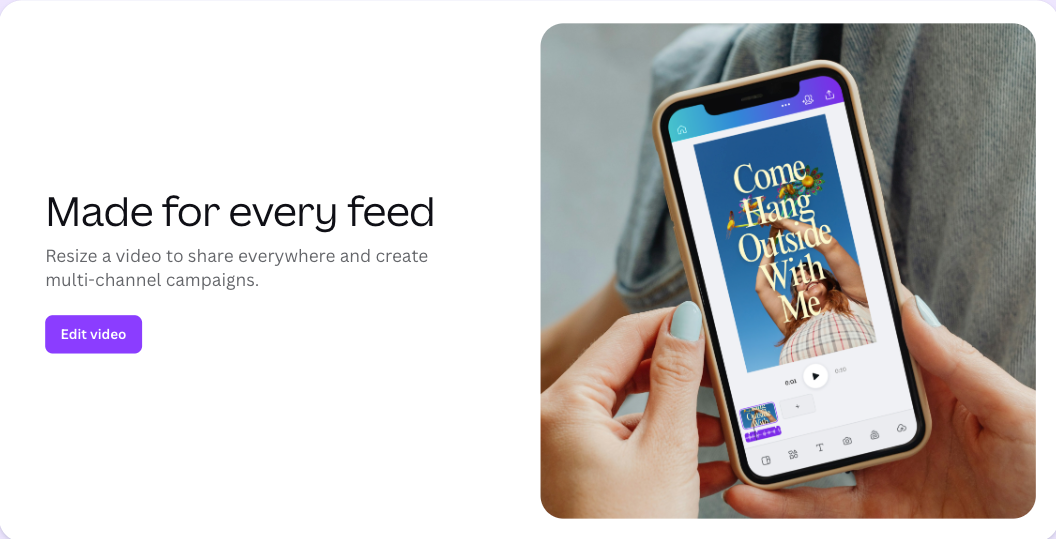
Can templates work across different aspect ratios? This varies significantly by tool. Canva handles multi-ratio export most cleanly — you can resize a template to different formats and it adapts the layout automatically. As InfluenceFlow's 2026 UGC brief guide points out, specifying format-by-platform details in your production brief is critical — TikTok, Reels, and YouTube Shorts each have different sweet spots for length and framing. Building platform-specific variants of each template, rather than one universal version, produces better results.
Conclusion
Here's the honest bottom line after all this testing: the tool matters less than the system.
I've seen creators with basic tools produce strikingly consistent content because they were disciplined about template use. I've seen creators with access to every premium tool produce chaotic, brand-incoherent output because they improvised every single video.
According to Whop's 2026 UGC statistics, CapCut and Canva were the most important video-making tools among UGC creators — not because they're the most feature-rich, but because they're the ones creators actually use consistently. That's the real metric.
If you're just starting to build a template system, I'd suggest this: pick one tool, build three templates (product showcase, testimonial, tutorial), and commit to using them for 30 days before tweaking anything. The discipline of constraint will teach you more than switching tools every two weeks.
And if you find yourself burning 45 minutes on a single video that should take 15? That's not a creativity problem. That's a missing template.
Previous Posts: