

Long time no see. I'm Dora.
I generated over 200 AI video clips last month across six different tools - Runway, Kling, Pika, Hailuo, and more. Out of those 200 clips, maybe 35 were usable on the first try. The rest? Melting faces, flickering backgrounds, and hands with seven fingers.
If your AI videos look fake, you're not doing anything wrong. The technology is impressive and flawed at the same time. But most artifacts are predictable - and fixable. This guide breaks down the seven most common reasons AI-generated videos look weird and unnatural, with a specific fix for each one.
Why Does AI-Generated Video Still Look Unnatural?
Your brain is a consistency-detection machine. You've spent your entire life watching real-world physics - light bouncing off skin, fabric moving with gravity, hands gripping objects with five fingers. When an AI video breaks any of these rules, your subconscious flags it instantly.
The core problem isn't resolution or frame rate. It's temporal consistency - the relationship between frames. A 4K AI video can still look faker than a 720p phone recording because resolution doesn't fix coherence.
The 7 Most Common AI Video Artifacts (And What Causes Them)
Here's something I wish someone had told me earlier: AI video artifacts aren't random. They fall into predictable categories, and each one has a specific cause.
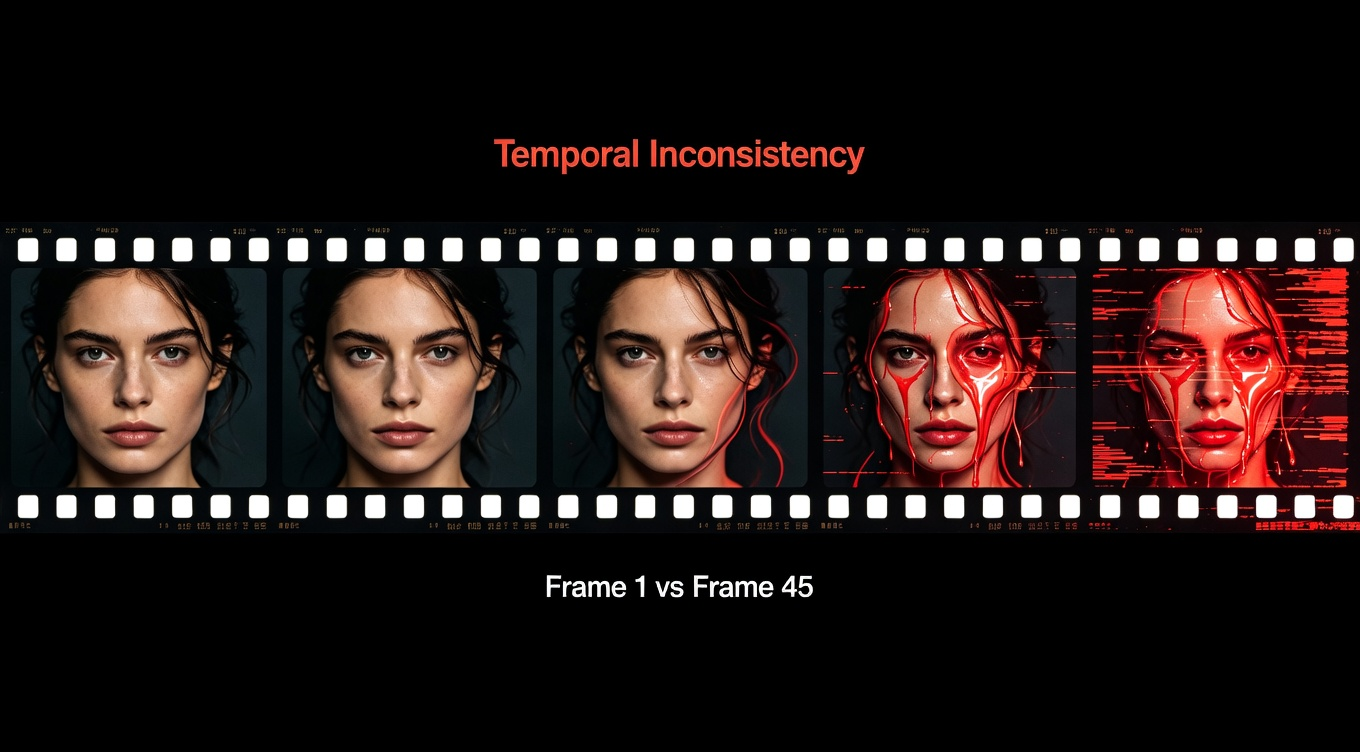
1. The Melting Face
The character looks perfect in frame 1. By frame 45, their jawline shifts, their nose widens, and their eyes are different sizes. In longer clips, faces can dissolve into abstract shapes.
Cause: The model reinterprets the character each frame without a locked identity anchor.
2. Hand Horror
Extra fingers, fused fingers, fingers bending the wrong way. Probably the most recognizable AI artifact of 2026.
Cause: Hands are geometrically complex - overlapping, rotating, and interacting with objects confuses diffusion models.
3. Temporal Flicker
Background brightness pulses. Textures shimmer. Edges vibrate. Subtle but destabilizing.
Cause: Frame-to-frame inconsistency in lighting and texture computation.
4. The Plastic Skin Effect
Skin looks waxy and completely devoid of pores. Characters resemble mannequins.
Cause: Aggressive denoising over-smooths fine skin detail.
5. Object Drift
A coffee mug migrates across a desk. A logo reshapes itself. Background furniture rearranges between cuts. Cause: AI models don't understand object permanence - objects get re-estimated each frame.
6. Physics Violations
Hair floats upward. Cloth ignores wind. Water moves like gel.
Cause: Generative models learn visual patterns, not physical laws.
7. Text and Detail Corruption
On-screen text warps, letters shuffle, logos distort. Cause: Text requires pixel-perfect consistency, which conflicts with how diffusion models generate imagery through probabilistic sampling.
How to Fix Each AI Video Artifact: Practical Solutions
I've tested dozens of approaches. These are the ones that made a measurable difference in my output quality.
Fix 1: Lock Character Identity From the Start
For melting faces, the fix happens before generation. Create 3-5 reference images of your character from multiple angles. Use image-to-video mode with a strong reference rather than pure text-to-video. Add "same character throughout, consistent facial features" to every prompt.
Fix 2: Keep Hands Out of Frame (Or Use Slow Motion)
If hands aren't essential, compose the shot to avoid them. When you need hands, use slow motion - it gives the model more frames to resolve complex geometry. Topaz Video AI can clean up remaining hand artifacts in post.
Fix 3: Write Stability-First Prompts
This is where most creators go wrong. They optimize for creative vision but ignore stability.
-
Lock the lighting: "soft natural window light from the left" - not "beautiful lighting"
-
Lock the camera: One movement only - "slow dolly in" or "static wide shot"
-
Use negative prompts: "no text overlay, no watermark, no flicker, no warping"
-
Specify visual style precisely: "cinematic warm tones, shallow depth of field"
-
Slow motion = cleaner output: Prioritize smooth, slow movements
Fix 4: Add Post-Processing Grain and Texture
For plastic skin, add imperfection back. In DaVinci Resolve or Adobe Premiere Pro, apply a subtle film grain overlay (15-20% intensity, grain size 0.4). This restores the organic randomness that AI denoising strips away.
Fix 5: Use Frame Interpolation to Smooth Object Drift
Tools like Topaz Video AI and RIFE frame interpolation generate intermediate frames that smooth out drift. Run a 2x interpolation pass before final editing. Be careful - it can introduce ghosting on fast motion. Use it for medium-paced scenes.
Fix 6: Shorten, Then Stitch
Physics violations get worse the longer the clip runs. Generate in 3-5 second segments, then stitch the best ones together in Premiere Pro or DaVinci Resolve. This reduces compounding error.
Fix 7: Avoid Text in Generation - Add It in Post
Never ask an AI model to render on-screen text. Instead, generate clean video and add text using NemoVideo's AI Caption Generator or After Effects. The text will be crisp, consistent, and readable.
The Prompt Structure That Eliminates 40% of Artifacts
Let me be blunt: prompt quality accounts for roughly 60% of your output quality. Here's the framework I use for every generation:
-
Subject: Locked identity ("30-year-old woman, shoulder-length black hair, white blouse, same character throughout")
-
Scene: Simple environment ("modern office with floor-to-ceiling windows")
-
Lighting: Single source ("soft overcast daylight from the right")
-
Camera: One instruction ("static medium shot" or "slow push-in")
-
Motion: Minimal ("subtle head turn, natural blinking")
-
Style: Precise language ("photoreal, natural skin texture, cinematic warm tones")
-
Negative: Explicit exclusions ("no flicker, no warping, no text, no extra fingers")
This structure alone eliminated about 40% of the artifacts in my testing across Runway Gen-3, Kling 2.0, and Pika 2.0.
Stop the AI Gacha: Tools That Deliver Consistency
The regeneration lottery - generating 3-5 versions and praying one looks decent - is a workflow killer, not a strategy.
Generation tools with built-in consistency: NemoVideo, powered by the Seedance 2.0 engine, consistently delivered production-ready output on the first try in my testing. The One-Shot approach auto-optimizes your prompt and locks character consistency across extended video. Zero-Prompt Intelligence even works when your prompt is vague, enhancing it into precise instructions.
For footage gaps, NemoVideo's Smart Footage Completion analyzes your clips' visual style and lighting, then generates missing shots that match.
Post-production cleanup: Topaz Video AI for upscaling and artifact reduction. DaVinci Resolve for color grading and grain. And NemoVideo's AI Audio Editing handles BGM syncing without a separate tool.
The 2026 Reality Check
AI video quality has improved dramatically since 2024, but "improved" doesn't mean "solved." The creators getting the best results aren't using the fanciest models. They're the ones who write stability-first prompts, generate in short segments, use dedicated post-production for text and audio, pick tools with built-in consistency engines, and add intentional imperfection back into the final output.
AI video that looks real isn't about waiting for the perfect model. It's about working around the current limits right now.
Frequently Asked Questions
Why do AI-generated videos look weird and unnatural even in 2026? AI models generate frames through probabilistic sampling, not physics simulation. Small inconsistencies in lighting, facial features, and object placement compound across frames. Your brain detects these consistency violations subconsciously, even when individual frames look fine.
Can I fix AI video artifacts without expensive software? Yes. Many fixes happen at the prompt level - free. DaVinci Resolve (also free) handles grain addition and color grading. NemoVideo offers 100 free credits with built-in consistency. Upscaling with Topaz Video AI is optional.
How do I make AI videos look more professional for social media? Add captions with a dedicated tool, apply film grain to combat the plastic look, and keep clips under 5 seconds before stitching. NemoVideo's Viral Video Generator auto-formats for platform requirements.
Why do AI video characters' faces change mid-clip? The model reinterprets facial features frame by frame without persistent identity. Lock the character with reference images, use image-to-video mode, and include "same character throughout" in your prompt. Consistency engines like Seedance 2.0 reduce this significantly.
What's the best AI video model for realistic output in 2026? It depends on use case. For first-try consistency, Seedance 2.0 (via NemoVideo) leads. For raw visual quality, Runway Gen-3 and Kling 2.0 are strong. For fast iteration, Pika 2.0. The real answer: master prompt engineering and any top-tier model works.
How do I stop temporal flicker in AI videos? Lock lighting to a single source, avoid mixed lighting descriptions, use slower camera movements, and shorten clip duration. In post, DaVinci Resolve's deflicker filter and Topaz Video AI's stabilization can clean up the rest.
Conclusion
AI video that looks real isn't about waiting for better models. It's about working around the current limits today — with better prompts, shorter clips, and a tool that doesn't make you regenerate five times to get one usable result.
NemoVideo is built on Seedance 2.0's One-Shot engine — consistent characters, stable backgrounds, no gacha. Smart Footage Completion fills visual gaps without reshoots. Everything else — audio, captions, pacing — runs automatically.